

Tasks and next steps
Updated November 13, 2026
Tasks are what you need to do next. Home shows yours when they’re due.
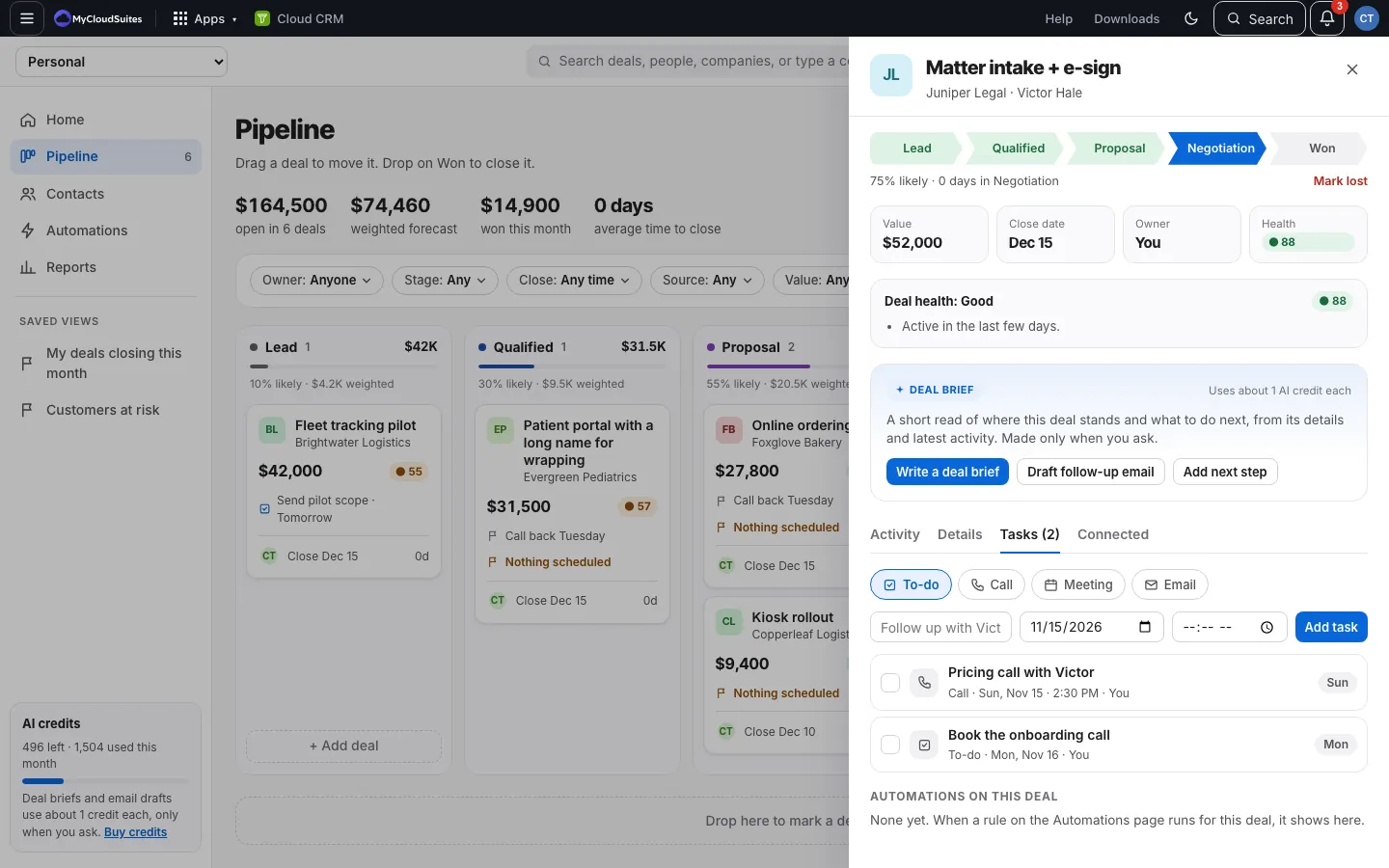
Add a task to a deal
- Open the deal and choose the Tasks tab (or Add next step on the Deal brief card).
- Pick the type: To-do, Call, Meeting or Email.
- Type the task, like “Follow up with Jade”.
- Pick a due date (it starts two days from today) and, if it has one, a time.
- Choose Add task. It says, for example, To-do added to Home or Call added to Home. See Calls, meetings and times on tasks.
Finish a task
Tick it on the deal’s Tasks tab, or on Home. Ticking it again marks it not done.
How it works
- A task belongs to the deal’s owner.
- Home’s Needs you today lists your open tasks, overdue first, marked Overdue, Today, Tomorrow, a weekday or a date.
- Automations can add tasks for you, like reminders and follow-ups. See Reminders and follow-up tasks.
- The Tasks tab also lists what automations did on this deal. See Run an automation again.
Good to know
- The Next step field in Details is a short note that shows on the deal’s card. A task is something with a due date that shows on Home.