

The deal panel
Updated November 15, 2026
Everything about one deal: its stage, numbers, health, activity, details, tasks and the apps it connects to.
How it works
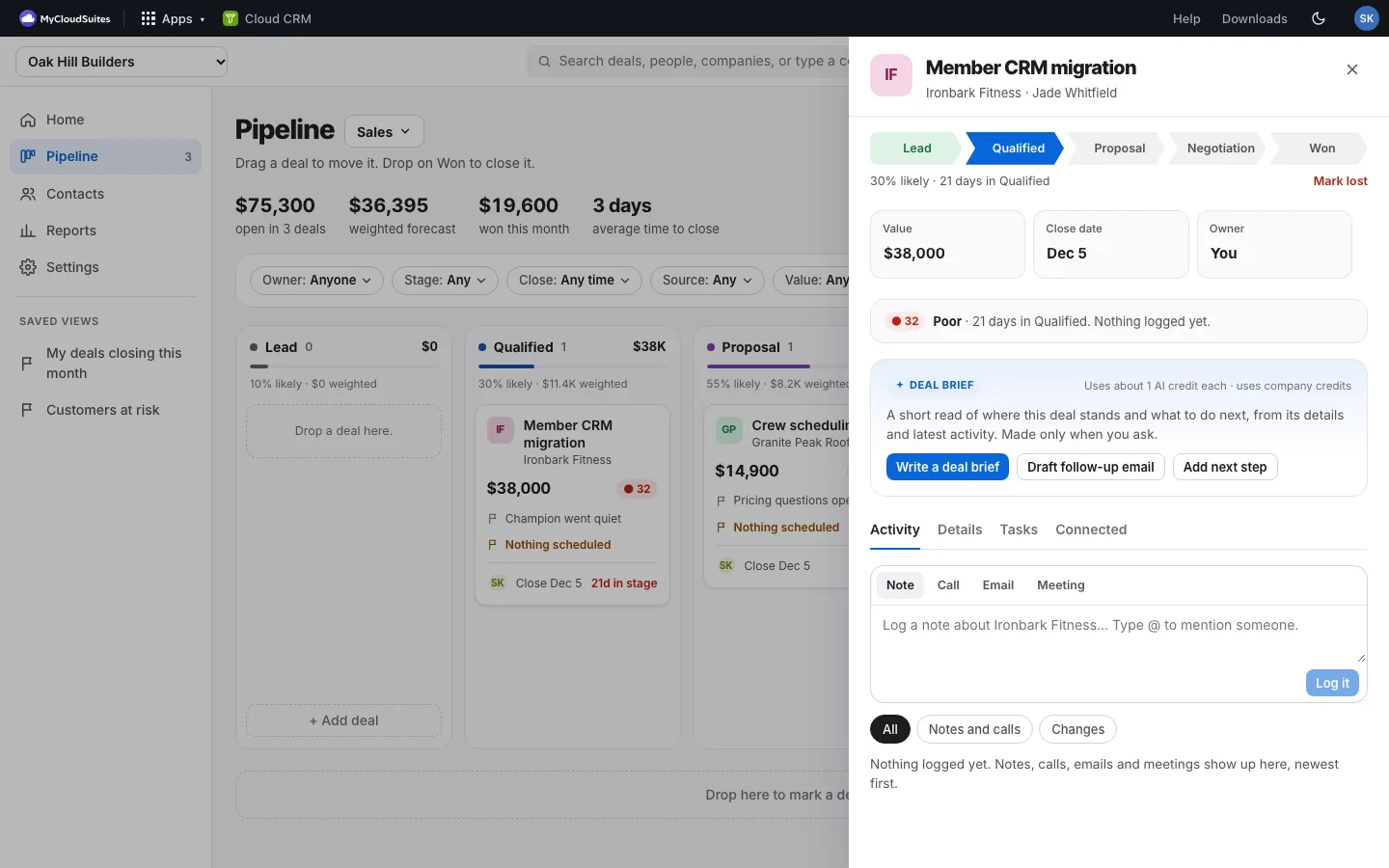
Open a deal from the board, table, Home or search. At the top:
- The stage steps, its chance of closing, and how long it’s been in this stage. Mark lost is on the right.
- Value, Close date and Owner, which you change right there: click one. See Edit a deal’s details.
- One health line: the score and what’s behind it, and “Task overdue since …” when a task is late. See Deal health.
- The Deal brief card. See AI deal brief.
Below are four tabs:
- Activity: log notes, calls, emails and meetings, and see everything that happened. See Log activity.
- Details: every field, editable in place. See Edit a deal’s details.
- Tasks: what’s next on this deal, and what automations did. See Tasks.
- Connected: Cloud Books and Cloud Chat. See Connected apps.
Delete a deal
- On the Details tab, choose Delete deal. In a team CRM you see it on your own deals; owners and admins see it on every deal.
- Choose Delete deal again to confirm. The deal, its activity and its tasks go, and this can’t be undone.
Good to know
- Open [person] and Open [company] on the Activity tab jump to them.
- Press Escape to close the panel.