Cloud Docs by MyCloudSuites

AvailableFree

Write documents, page by page

Open, write and save .docx files with styles, tables, pictures, track changes, comments and spelling, laid out page by page the way Word lays them out.

Cloud Docs is made for a computer. On a phone, send yourself the link and open it there.

Comes with Cloud PDF, in the same window: in Chrome or Edge, or as a desktop app for Windows and Mac.

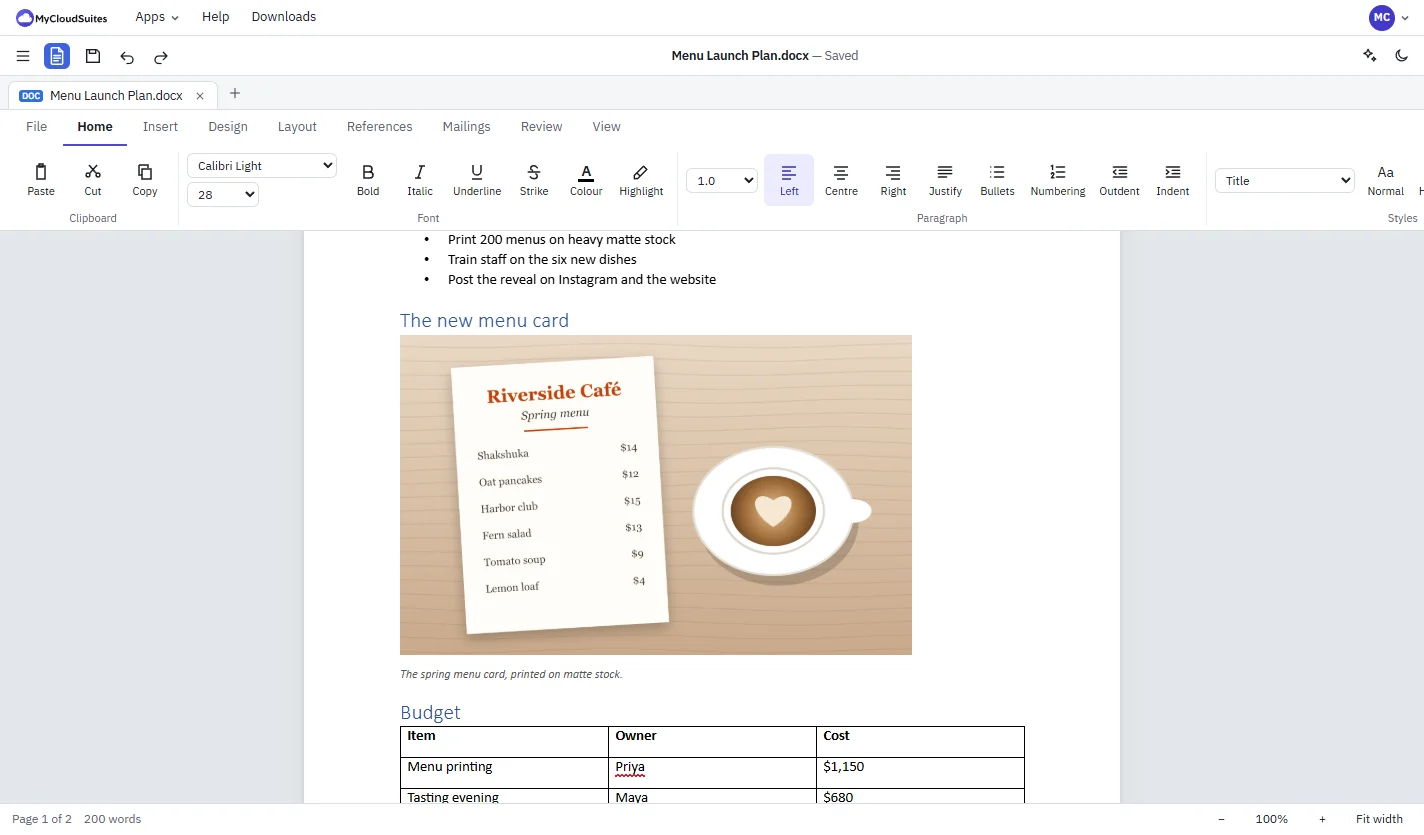
Cloud Docs showing a menu launch plan with a bulleted list, a picture of a spring menu card beside a latte, a caption and the start of a budget table
  • Word opens what you save
  • Opens .docx and older .doc files
  • Your files stay on your computer unless you save them to MyCloudSuites
  • Free, with every feature included

Everything a document needs.

From a one-page letter to a long report with footnotes and a bibliography.

Open and save .docx files.

Open .docx files, and older .doc files from Word 97–2003, then save as .docx. Anything Cloud Docs doesn't edit yet is kept as it was when you save.

Styles and formatting.

Fonts, sizes, colors, highlight, alignment, indents and line spacing, styles, and bullets and numbering with levels.

Tables, pictures and pages.

Tables: add and delete rows and columns, and merge cells. Pictures in the text or floating with text wrapped around them. Margins, orientation, page size, columns, headers and footers.

Track changes and comments.

Turn on Track Changes (Ctrl+Shift+E), then accept or reject each change or all of them. Add comments, reply to them and mark them resolved.

Compare two versions.

Review › Compare puts the differences between two versions in a new tab as tracked changes, ready to accept or reject.

Spelling and grammar.

Unknown words and common grammar slips are underlined as you type. Press F7 to go through them one by one in the Spelling and Grammar pane.

Citations and references.

Citations and a bibliography in APA, MLA or Chicago style, footnotes and endnotes, a table of contents, captions and cross-references.

Laid out the way it prints.

Pages are laid out with your real fonts, line by line, the way Word lays them out, so what you see is what prints.

Save as PDF and print.

Turn a document into a PDF in one step, or print it, with the same pages you see on screen.

See it in action.

These are real screenshots of Cloud Docs. Click any picture to see it full size.

Review

Track changes and comments.

Turn on Track changes and every edit is marked for others to accept or reject. Comments sit beside the page, with replies.

  • Accept or reject one change, or all of them
  • Reply to and resolve comments
  • Compare two versions of a document
  • Restrict editing
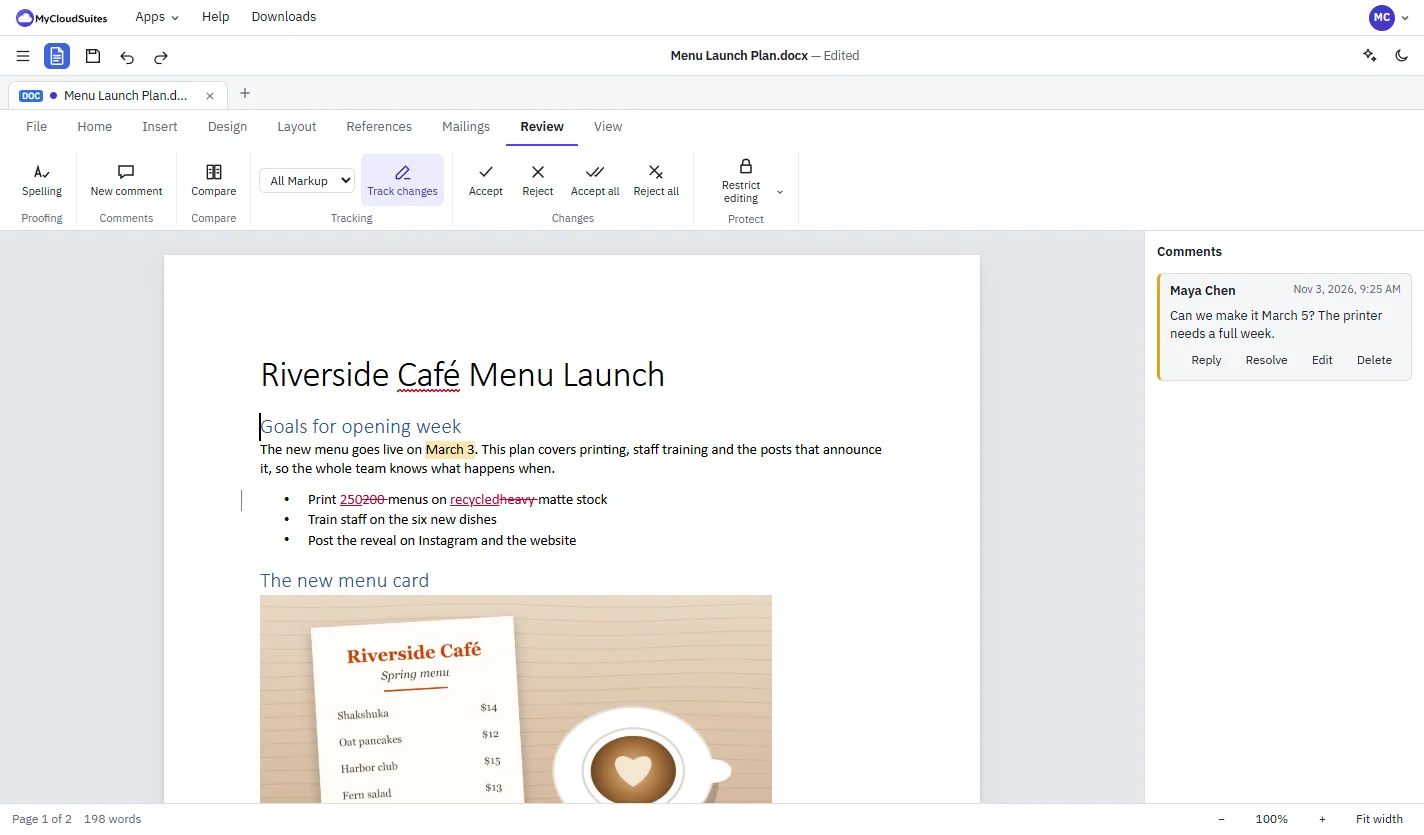
The Review tab with Track changes on: 200 struck through and replaced by 250, heavy replaced by recycled, a change bar in the margin, and a comment asking to move the date
Tables and pictures

Pictures and tables where you want them.

Place a picture with a caption, wrap text around it, and build tables with rows, columns and merged cells.

  • Tables with styles, merged cells and repeating headers
  • Pictures, shapes, charts and text boxes
  • Wrap text and position
  • Captions and cross-references
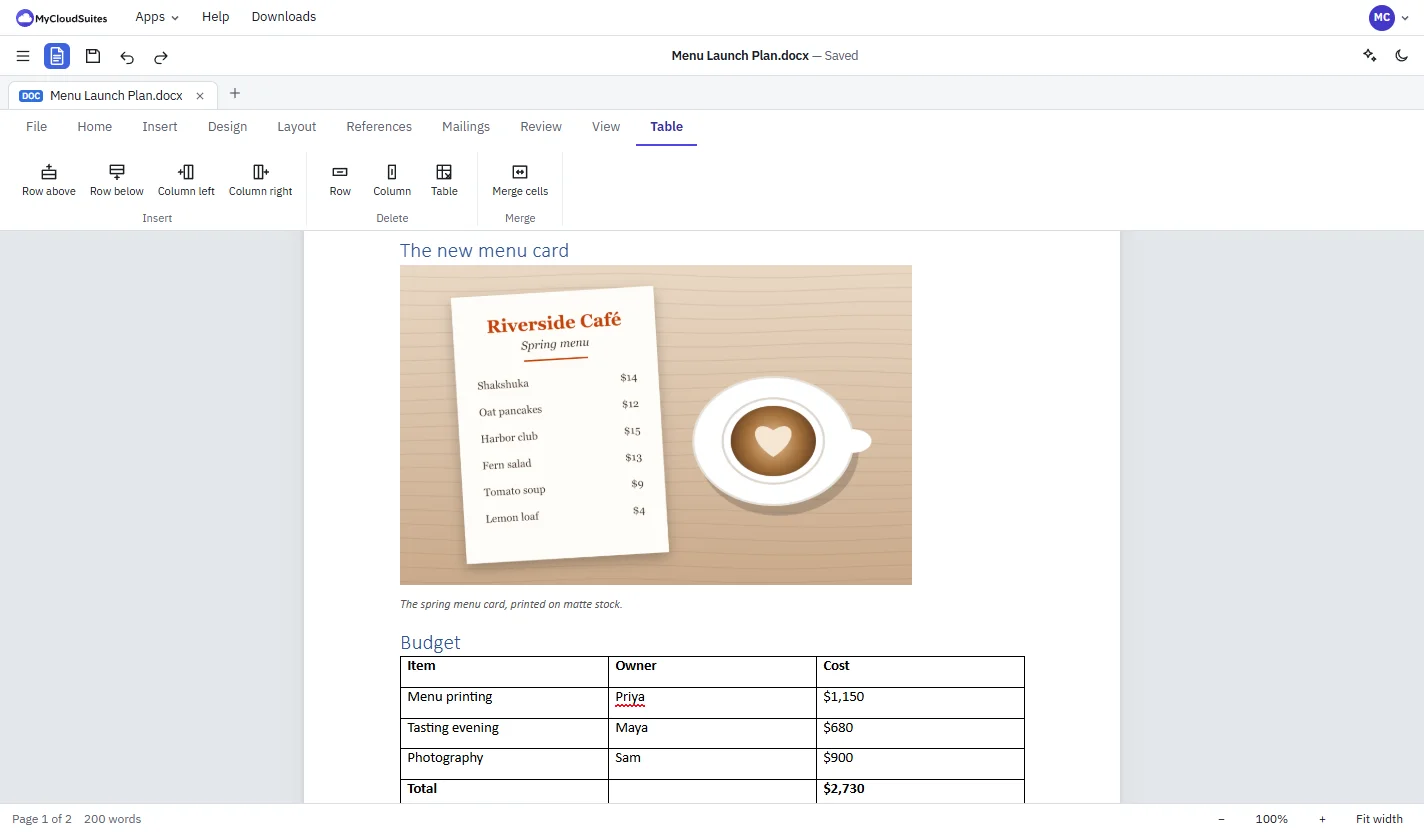
A document page with a picture of a menu card and its caption above a budget table, and the Table tab with row, column and merge buttons
Styles and contents

Headings that build your table of contents.

Style your headings once, and References › Contents makes a table of contents with page numbers that updates when you do.

  • Title, headings and the full style list
  • Table of contents, footnotes and endnotes
  • Citations and a bibliography
  • Watermarks, page colors and borders
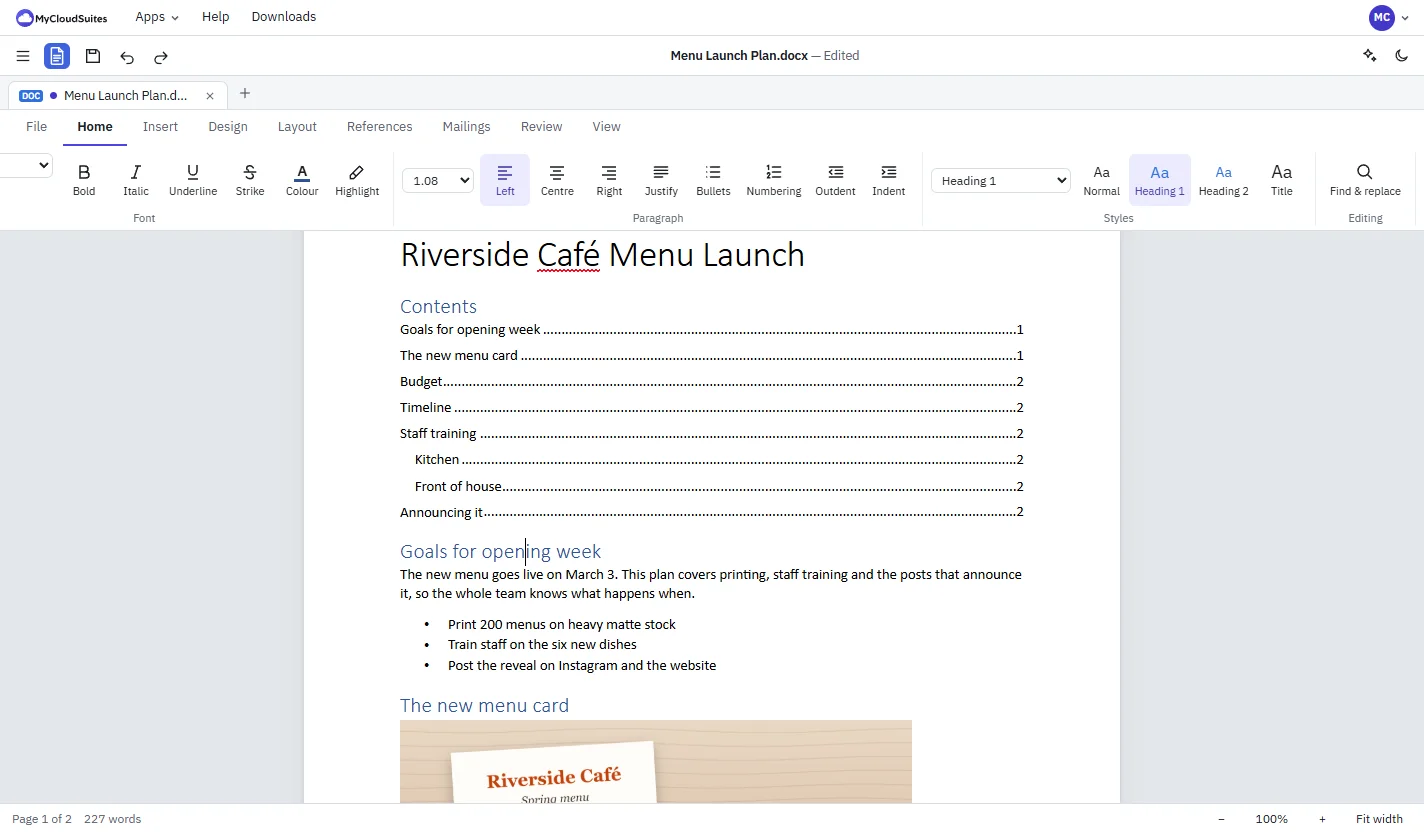
A table of contents made from the document’s headings with page numbers, and the Home tab’s styles with Heading 1 chosen
Spelling

Spelling checked as you type.

Mistakes are underlined as you write. Right-click one for suggestions, or add the word to your dictionary.

  • Suggestions on right-click
  • Ignore all, or add to your dictionary
  • US and UK English everywhere, more languages on the desktop
  • Find and replace across the document
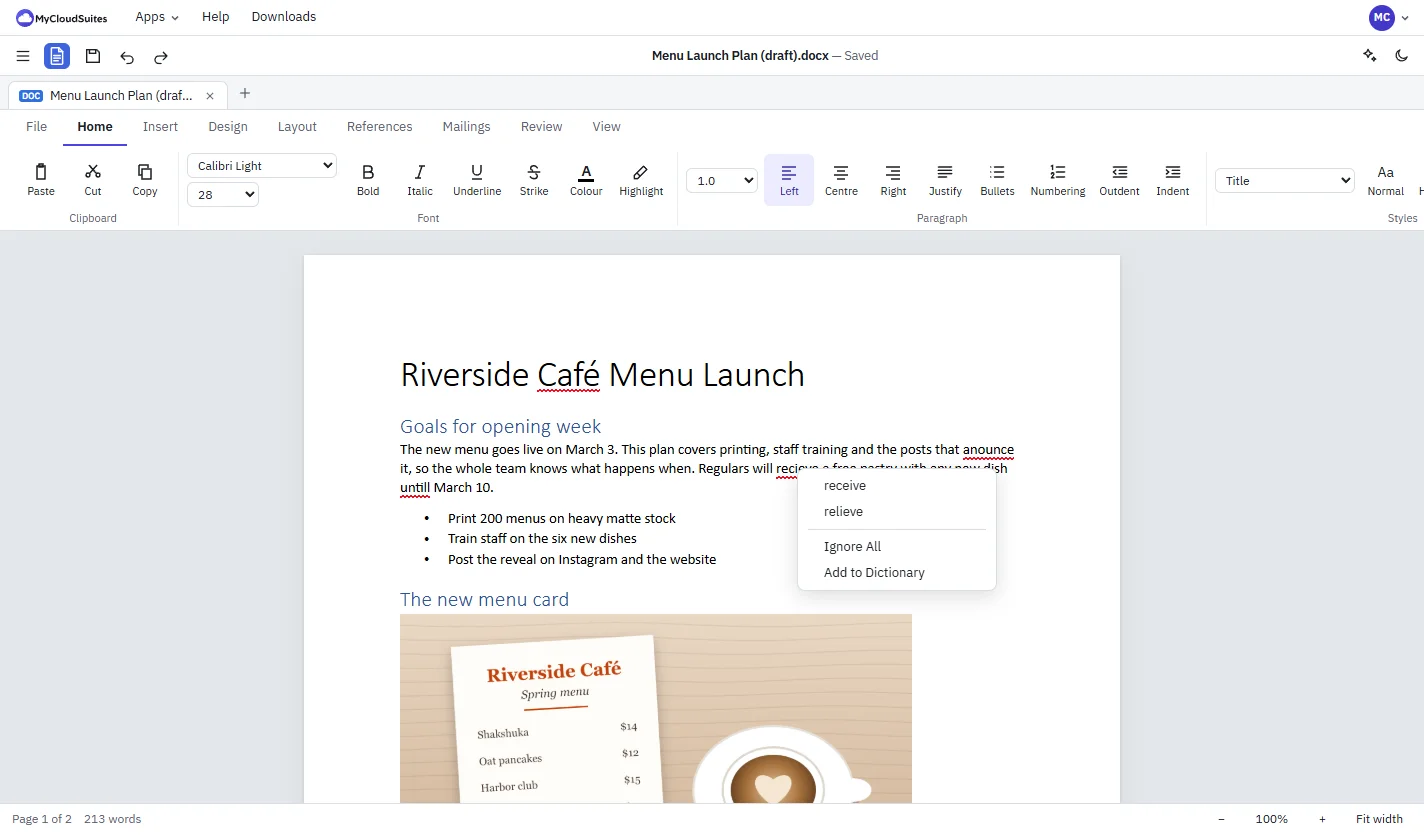
Red squiggles under misspelled words and a right-click menu suggesting receive and relieve, with Ignore All and Add to Dictionary

How to write a document

Four steps, from a blank page to a finished document.

Start a document

In Cloud PDF’s start screen choose New document, or open a .docx with File › Open.

Write and style it

Type, and shape it with Title, Heading 1, Bullets and Numbering on the Home tab.

Add tables and pictures

Use Insert › Table and Picture, and References › Contents for a table of contents.

Review and save

Turn on Review › Track changes for edits, then File › Save as .docx or another format.

Works with the files you have.

Word documents first, and the other common formats too.

.docx and .doc

  • Word documents (.docx): open and save
  • Word 97–2003 documents (.doc): open, then save as .docx

Other formats

  • Rich Text Format (.rtf)
  • OpenDocument Text (.odt)
  • Web pages (.html)
  • Plain text (.txt) and Markdown (.md)

PDF

  • Save as PDF
  • Print
  • Edit the PDF further in Cloud PDF, in the same window

The rest of the suite

One free account for every app, on your computer and in your browser.

Questions

What is Cloud Docs?

Cloud Docs is an editor for Word files. It comes with Cloud PDF and opens Word documents in their own tabs in the same window as your PDFs.

Is it really free?

Yes, Cloud Docs is free, on your computer and in your browser.

Will Word open the documents I save?

Yes. Cloud Docs saves standard .docx files, and Word opens them with their styles, lists, tables, tracked changes and comments.

Can I open old .doc files?

Yes. Cloud Docs opens Word 97–2003 .doc files and saves them as .docx, as Word suggests.

Do I need Microsoft Office installed?

No. Cloud Docs opens, lays out and saves Word files itself. It's built from the published specifications of the Word file formats.

Are my documents uploaded anywhere?

No. In the browser and on the desktop, Cloud Docs opens and saves files on your own computer.

Which computers does it run on?

Cloud Docs comes with Cloud PDF. Use it in current Chrome or Edge at mycloudsuites.com/app, or download the desktop app for Windows or Mac. What works online.

Your documents, free.

Cloud Docs comes with Cloud PDF, free in your browser or in one free download for Windows and Mac.