Cloud Slides by MyCloudSuites

BetaFree

Cloud Slides is in beta: it works, it’s free, and it’s updated often while we finish it. Tell us what you find.

Presentations, ready to present

Open, edit and save .pptx decks with themes, transitions, animations, charts and tables, then present full screen with your notes beside you.

Cloud Slides is made for a computer. On a phone, send yourself the link and open it there.

In Chrome, Edge, Firefox and Safari, or as a desktop app for Windows and Mac. Your presentations stay on your computer unless you save them to MyCloudSuites (MyCloudSuites Plus).

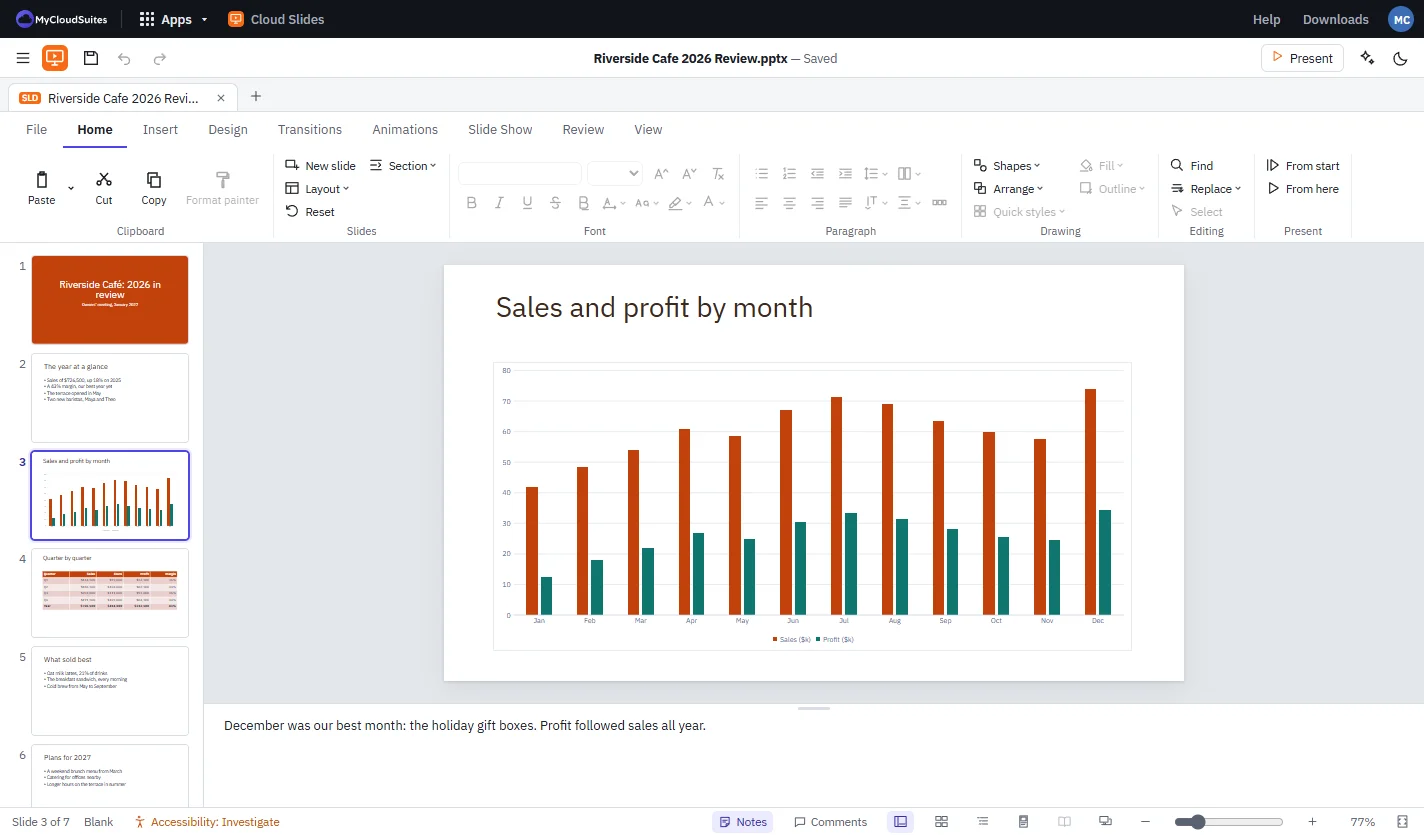
Cloud Slides with a café’s 2026 review deck: thumbnails of seven slides on the left, a column chart of monthly sales and profit on the canvas, and speaker notes below
  • PowerPoint opens what you save
  • Opens .pptx, .potx and .ppsx
  • Your files stay on your computer unless you save them to MyCloudSuites
  • Free, with every feature included

Everything a presentation needs.

From a quick update to a full deck with charts, video and narration.

Open the decks you have.

Opens and saves .pptx, templates (.potx) and shows (.ppsx), so the presentations you already have open as they are.

Themes and design.

Themes with variants, colors and fonts, backgrounds, slide size, masters and design ideas for the slide you’re on.

Transitions and animations.

26 transitions, entrance, emphasis and exit animations, triggers and the Animation Pane to put them in order.

Charts, tables and SmartArt.

Charts, styled tables, SmartArt, shapes, icons, equations, pictures, video, audio and screen recordings.

Present with confidence.

Full screen from the start or from here, presenter view with a timer and your notes, rehearsed timings and recorded narration.

Share it any way.

Export a PDF, a video (.mp4), pictures of each slide or handouts, or print slides and notes.

See it in action.

These are real screenshots of Cloud Slides. Click any picture to see it full size.

Design

Pick a theme, and every slide follows.

Choose a theme from the Design tab, then a variant, colors and fonts. Every layout in the deck updates together.

  • Themes with variants
  • Your own colors, fonts and backgrounds
  • Slide, handout and notes masters
  • Widescreen, standard or a custom slide size
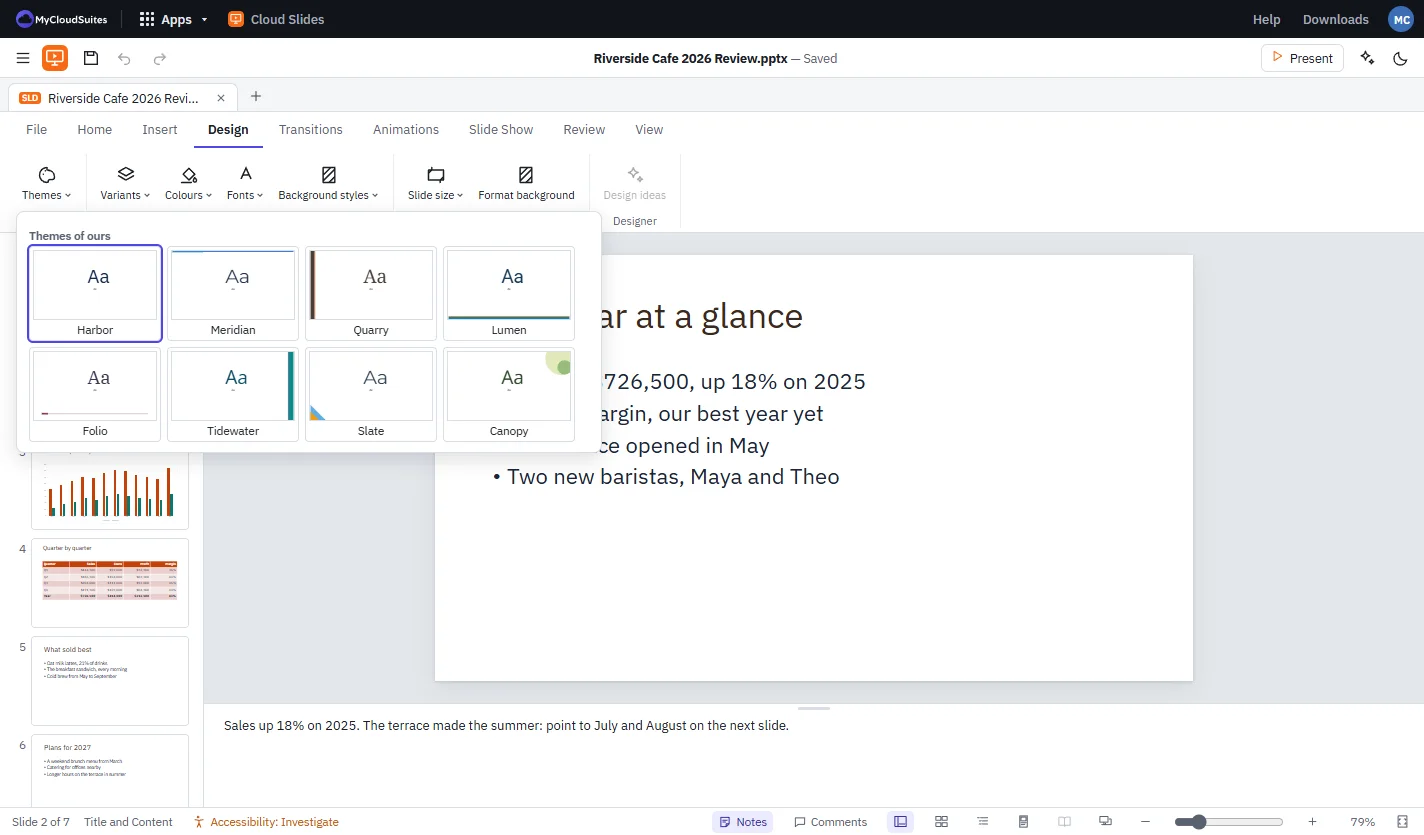
The Design tab’s Themes gallery open, showing eight themes over a slide with a bulleted list
Animations

Bring a slide to life, one point at a time.

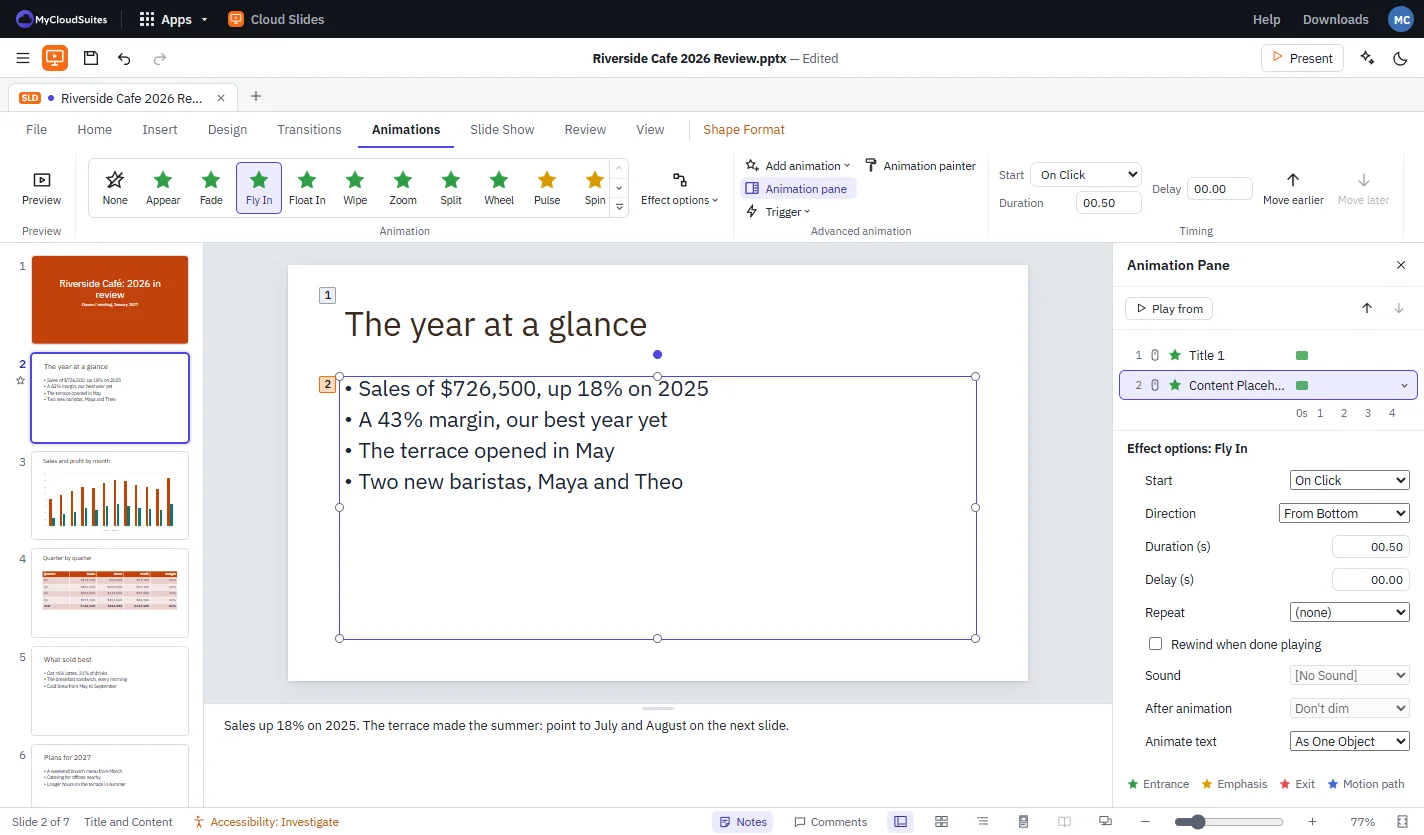
Animate a title or a list, then set when each one starts, its direction and how long it takes in the Animation Pane.

  • Entrance, emphasis and exit effects
  • The Animation Pane to reorder and time them
  • Triggers and the Animation Painter
  • 26 transitions between slides, with sounds
The Animations tab with Fly In selected on a bulleted list, and the Animation Pane listing the title and the list with Start On Click, Direction From Bottom and a duration
Tables and charts

Show the numbers clearly.

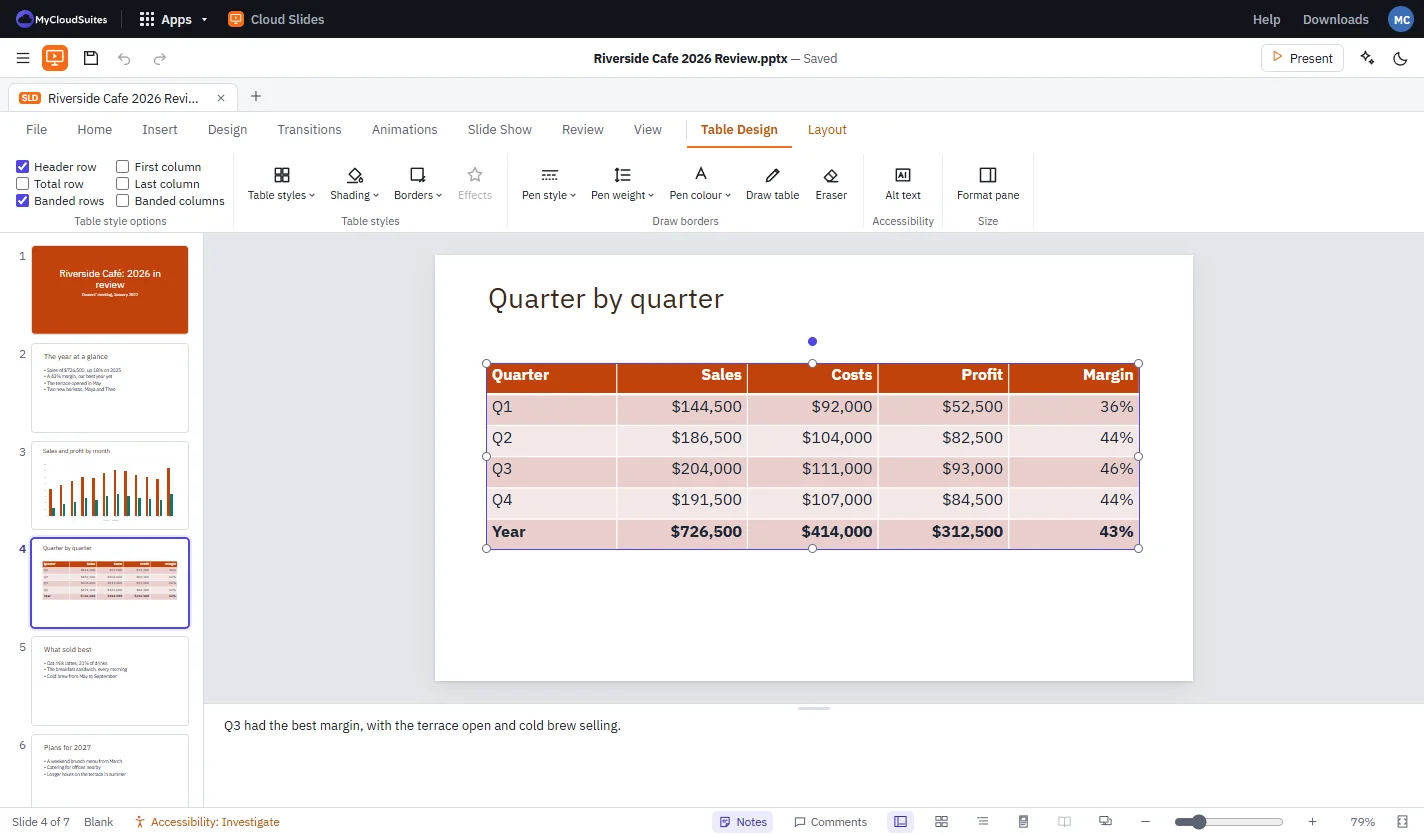
Add a table or a chart and style it to match your theme in one click, then fine-tune shading, borders and labels.

  • Table styles, shading and borders
  • Column, bar, line, pie and more charts
  • SmartArt for lists, steps and org charts
  • Icons, shapes and equations
A Quarter by quarter slide with a selected table of sales, costs, profit and margin in orange, and the Table Design tab’s style options, shading and borders
Present

Your notes and the next slide, only for you.

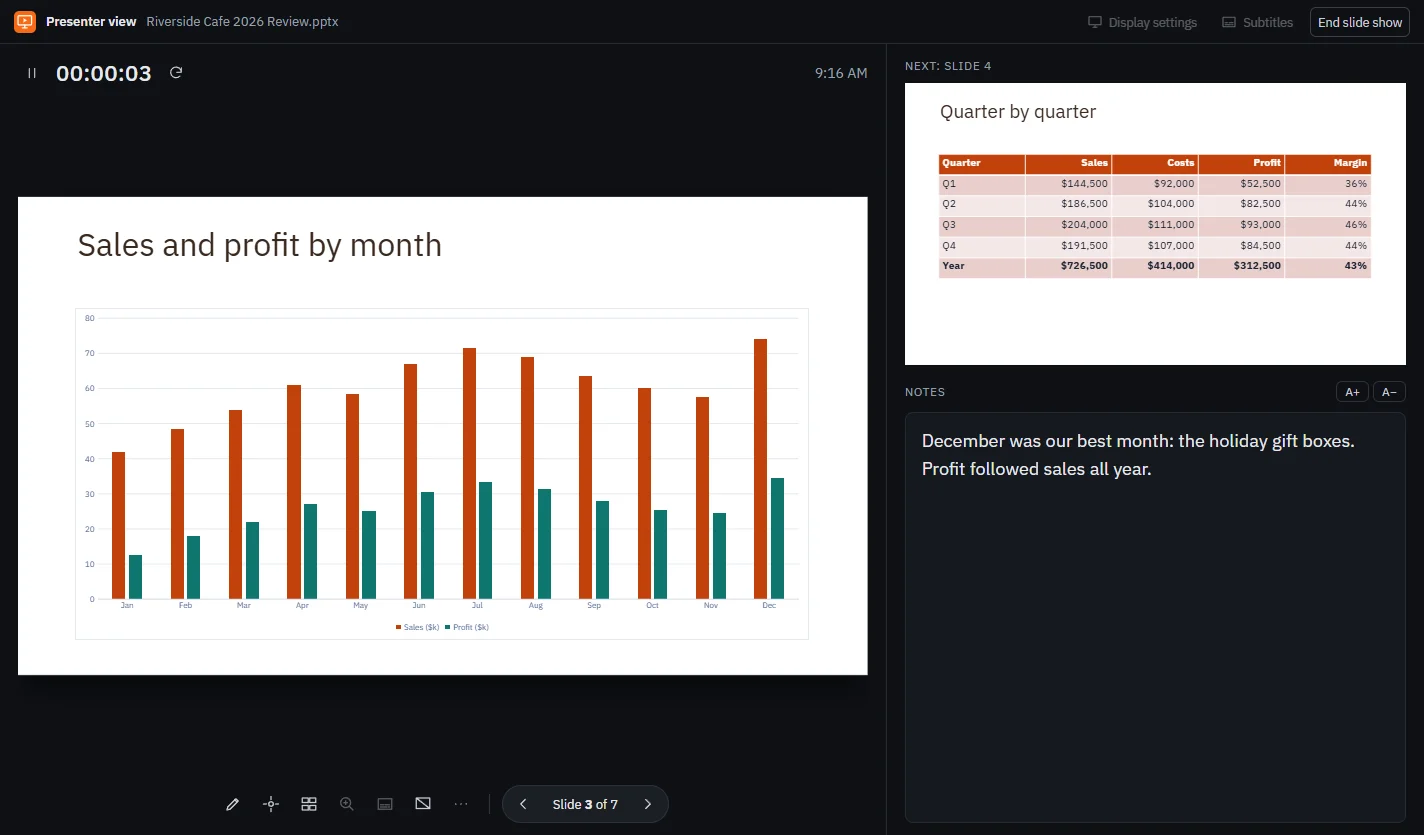
Presenter view shows the slide your audience sees, the next one, a timer and your speaker notes.

  • From the beginning or from the current slide
  • Presenter view on a second screen
  • Custom shows and rehearsed timings
  • Record narration as you present
Cloud Slides presenter view with the sales chart slide large on the left and a running timer, the next slide top right and speaker notes below it

How to make a presentation

Four steps from a blank slide to presenting.

Start a deck

Open Cloud Slides and a blank presentation is ready, or choose File › Open for one you have.

Add your slides

Click Click to add title and type, then add slides with Home › New slide and pick a Layout.

Make it look good

Choose a theme in Design, add a Table, Chart or picture from Insert, and set Transitions.

Present or share

Choose Slide Show › From Beginning (F5) or Presenter View, and save with File › Save or export a PDF.

Works with the files you have.

PowerPoint files first, and every way to share them.

.pptx

  • Presentations (.pptx): open and save
  • Templates (.potx) and shows (.ppsx): open and save

Export

  • PDF and handouts
  • Video (.mp4)
  • Pictures of each slide (PNG or JPEG)

Not yet

  • Older .ppt files
  • Macro-enabled .pptm files

Questions

Is it really free?

Yes, Cloud Slides is free, in your browser and on your computer.

What does beta mean?

Cloud Slides works today, and we’re still adding to it and changing it often. It updates itself when there’s a new version. If something isn’t right, tell us and we’ll fix it.

Will PowerPoint open the presentations I save?

Yes. Cloud Slides saves standard .pptx files with their themes, layouts, transitions, animations, charts and notes.

Do my files get uploaded?

Not unless you choose to. Your presentations open and save where they are. A file is stored with MyCloudSuites only if you save it there with MyCloudSuites Plus, or send it to the AI assistant.

Which computers does it run on?

Windows and Mac, and any computer with current Chrome, Edge, Firefox or Safari at mycloudsuites.com/apps/slides once you sign in.

Is anything missing?

Some things PowerPoint has aren’t in Cloud Slides yet, such as editing with others at the same time, opening older .ppt files, 3D models, Morph and Zoom, add-ins and macros, and presenting online with live subtitles.

Make your next presentation in Cloud Slides.

Free in your browser, or as a desktop app for Windows and Mac that keeps itself up to date.