Cloud Photo by MyCloudSuites

BetaFree

Cloud Photo is in beta: it works, it’s free, and it’s updated often while we finish it. Tell us what you find.

Photo editing with layers, free

Layers, masks and adjustments you can change any time, with selections, retouching, filters and text. Opens and saves .psd with every layer.

Cloud Photo is made for a computer. On a phone, send yourself the link and open it there.

In your browser, and a desktop app for Mac and Windows. Your pictures stay on your computer.

Cloud Photo editing a breakfast photo of croissants and coffee, with Riverside Café text on a dark panel and an orange Two for $5 badge, and the Layers panel listing text, shape, gradient, adjustment and photo layers
  • Opens and saves .psd with its layers
  • Every change can be changed again later
  • Your pictures stay on your computer
  • Free, with every tool included

Everything a photo needs.

From a quick fix to a layered design, on your own computer.

Layers and masks.

Stack photos, text and shapes on layers with 16 blend modes, groups and clipping masks, hide parts of a layer with a mask you can paint, and add layer effects: shadow, stroke, glow, bevel, inner shadow and gradient overlay.

Adjustments.

Exposure, contrast, color, curves and levels, a color mixer, black and white and Looks, all on adjustment layers you can change again.

Selections.

Box, ellipse, lasso, magic wand, quick select and color range, with feather, Refine edge for hair, channels and saved selections, so changes land only where you want them.

Retouching.

Heal, clone, spot heal, patch, red-eye, dodge and burn, and content-aware fill to remove what shouldn’t be there. Liquify, warp, perspective and perspective crop to reshape and straighten.

Filters.

Blur, motion and lens blur, tilt-shift, sharpen, noise and pixelate, as smart filters you can tune or turn off later, plus lens correction by hand.

Text, shapes and gradients.

Paragraph text in any Google font with shadow, stroke and glow, rounded shapes and pen-tool paths that stay sharp, gradients, the paint bucket, and a brush library with drawing-tablet pressure.


See it in action.

These are real screenshots of Cloud Photo. Click any picture to see it full size.

Adjust

Light and color, on a layer you can turn off.

Bend the curve or drag a slider, and the change goes on an adjustment layer. The photo underneath is never touched.

  • Exposure, contrast, highlights, shadows and clarity
  • Temperature, tint, saturation and vibrance
  • Curves and levels for each channel
  • Looks, including your own
Cloud Photo’s Adjust panel showing an S-shaped curve over a histogram, with black, midtone and white levels and light sliders, beside a breakfast photo
Select and mask

Change just the part you pick.

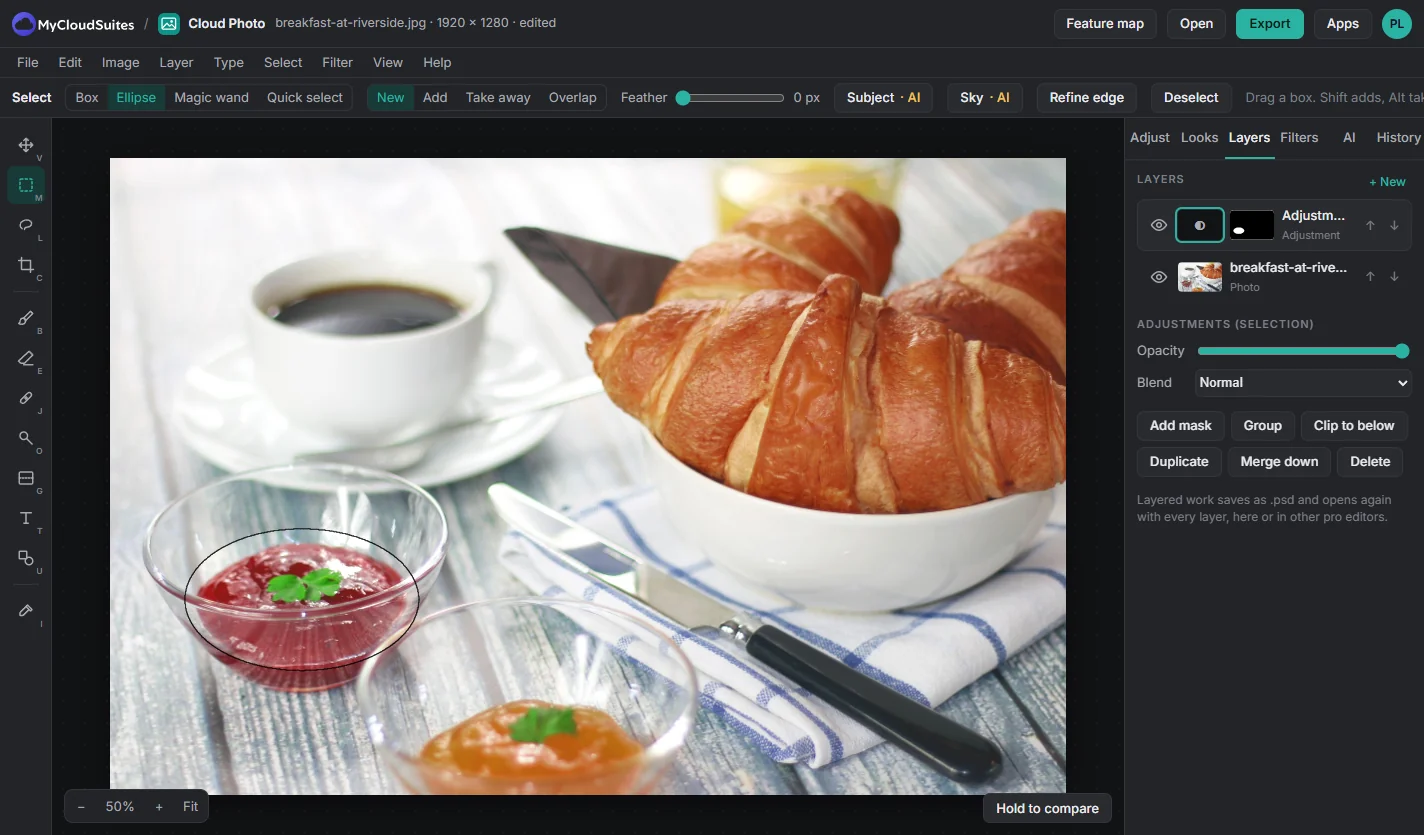
Select part of a photo and the next adjustment applies only there, with a mask you can paint to fine-tune it.

  • Box, ellipse, lasso, polygon, magic wand and quick select
  • Add, take away or overlap selections
  • Feather and Refine edge
  • Paint, invert or turn off a mask at any time
Cloud Photo with an ellipse selection around a bowl of red jam, the selection options along the top, and an adjustment layer with its black-and-white mask in the Layers panel
Retouch

Brush away what shouldn’t be there.

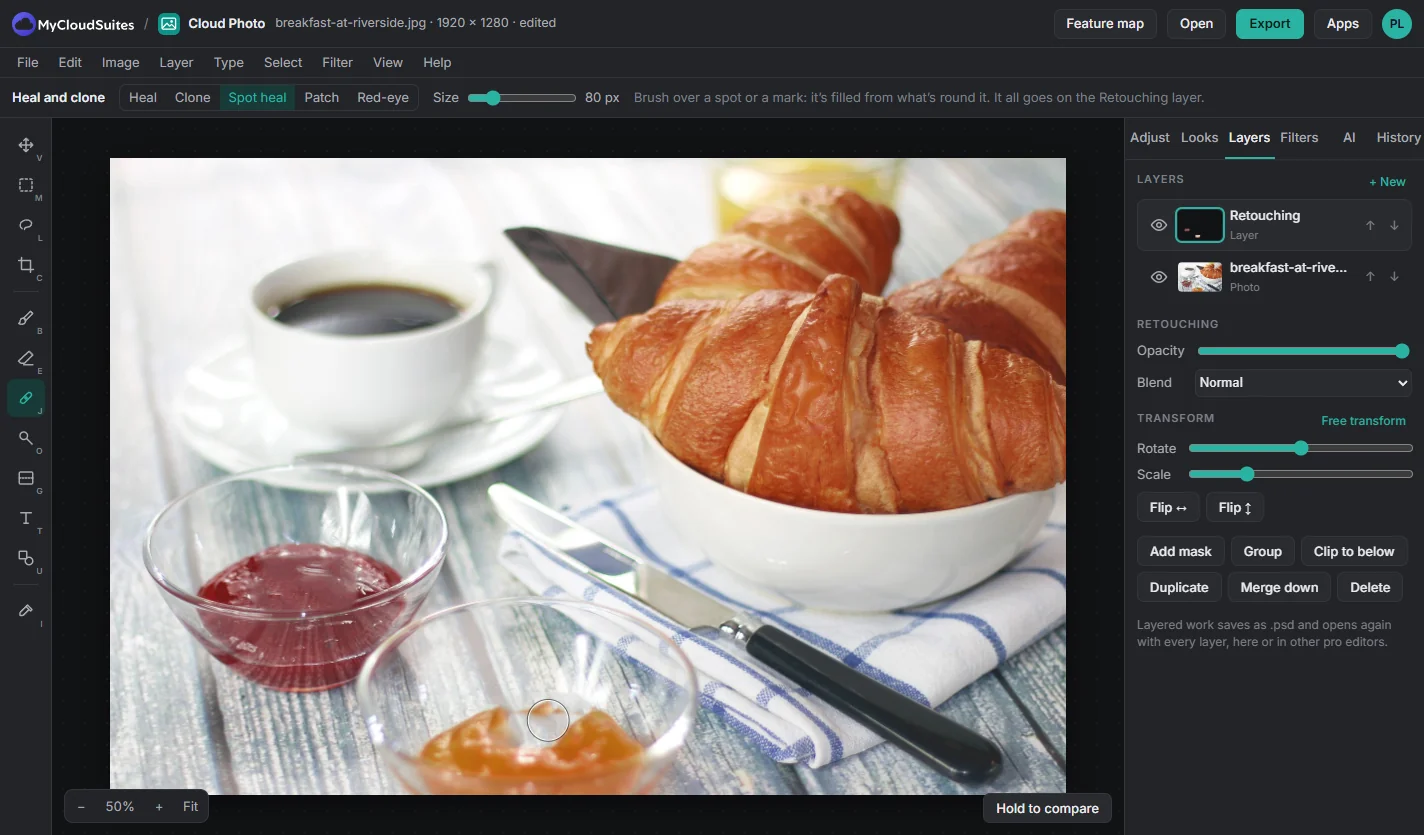
Spot heal, heal, clone and patch work on a layer of their own, so the original photo stays as it was.

  • Spot heal for marks and blemishes
  • Clone and patch for bigger areas
  • Red-eye, dodge and burn
  • Content-aware fill from Edit › Fill
Cloud Photo with the Spot heal tool over a bowl of orange jam where a leaf was removed, the heal and clone options along the top, and a Retouching layer above the photo
Filters

Filters you can still change.

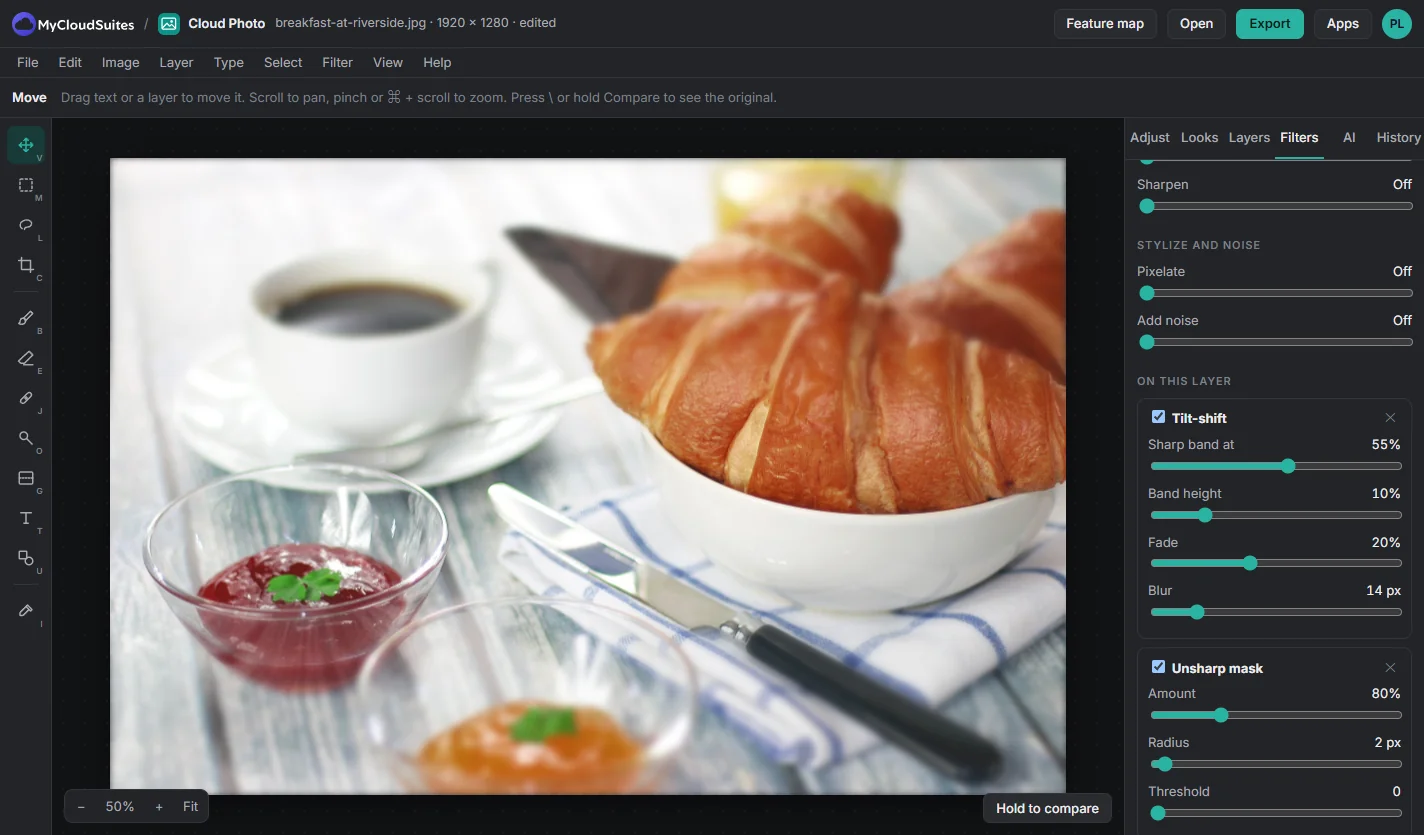
Every filter sits in the layer’s stack with its own sliders, so you can tune it, reorder it or turn it off later.

  • Gaussian, motion and lens blur
  • Tilt-shift
  • Sharpen and unsharp mask
  • Add or reduce noise, and pixelate
Cloud Photo’s Filters panel with tilt-shift and unsharp mask in the layer’s filter stack, each with its own sliders, and the photo blurred at the top and bottom
Text and shapes

Turn a photo into a post or a sign.

Add words in any Google font and shapes with rounded corners that stay sharp at any size.

  • Paragraph text with alignment, line height and spacing
  • Drop shadow, stroke and glow
  • Rectangles, ellipses and lines with fill and stroke
  • Linear and radial gradients
Cloud Photo’s Shape tool with an orange rounded Two for $5 badge selected and its fill, stroke, corner radius and layer effects in the panel
.psd

Save as .psd, open it again with every layer.

Your layered work saves as a .psd that opens again here, or in other professional editors, the way you left it.

  • Layers, groups, masks and clipping masks
  • Adjustment layers, text and effects
  • Turned, scaled and filtered layers stay editable
  • Export JPG, PNG, WebP, AVIF or TIFF in the size you need
Cloud Photo with riverside-cafe-card.psd open and its text, shape, gradient, adjustment and photo layers listed in the Layers panel

How to edit a photo

Four steps, whatever you’re making.

Open your photo

Choose Open, or drop a photo onto the window. File › New canvas starts a blank one.

Adjust it

In the Adjust tab, drag a slider such as Exposure or bend the curve. It goes on an adjustment layer.

Retouch and add

Use Heal and clone to remove marks, and Text and Shape to add words and shapes. Arrange them in Layers.

Export or save

Choose Export for JPG, PNG, WebP, AVIF or TIFF, or File › Save as .psd to keep every layer.

Works with the pictures you have.

Photos from your phone and camera, and layered files from other editors.

.psd

  • Open and save, with layers, masks, adjustments and text
  • Other editors’ smart objects open as placed layers

Photos

  • Open .jpg, .png, .webp, .avif, .gif, .bmp and .tiff
  • Open iPhone photos (.heic, .heif)

Export

  • .jpg, .png, .webp, .avif and .tiff
  • PDF and SVG
  • The original size, 2048 px for the web, or a square post
  • Remove location and camera details if you like

Questions

Is it really free?

Yes. Every tool on this page is free and runs on your own computer.

What does beta mean?

Cloud Photo works today, and we’re still adding to it and changing it often. It updates itself when there’s a new version. If something isn’t right, tell us and we’ll fix it.

Will it open my .psd files?

Yes. Layers, groups, masks, clipping masks, adjustment layers, text and effects open and save. Smart objects made in other editors open as placed layers.

Are my photos uploaded anywhere?

No. Cloud Photo opens and saves pictures on your own computer, and its tools run there too.

Does it have AI tools?

Yes: remove background, select subject or sky, erase an object, expand, upscale and more, using MyCloudSuites AI credits. Every other tool is free. See Privacy for what they send.

Which computers does it run on?

In a current Chrome or Edge on a computer, and as a desktop app for macOS 13 or later and Windows 10 and 11.

Is anything missing?

A few things work differently from professional editors. Cloud Photo edits in RGB: it has a print preview and exports CMYK TIFF and PDF from ICC profiles, but there’s no full CMYK editing, PDF/X or spot colors. 16-bit covers blending, adjustments, camera RAW and 16-bit PNG, while brush and pixel edits and .psd files are 8-bit. RAW files aren’t listed in Windows’ “Open with”, and artboards export as separate files or PDF pages. Actions for batch work don’t record brush strokes or selections yet, and lens correction is by hand, with no camera lens profiles. Merge to HDR is exposure fusion with an 8-bit result, and layer comps don’t export one file per comp. Scratch repair isn’t built yet. Plugins are filters you install from a file: there’s no plugin store, and the Mac gets them in its next update.

Can I add plugins?

Yes, in the browser and on Windows. Choose File › Plugins and install a .cloudphoto-plugin file; its filter shows in Filter › Plugin and puts its result on a new layer. A plugin can only change the pixels it’s given: it can’t reach the internet, your files or your account. To make one, see the plugin guide.

Edit your next photo in Cloud Photo.

Free in your browser, or as a download for Mac and Windows that keeps itself up to date.