

Open .xlsx files online, without uploading them
Cloud Sheets runs in your browser and opens an Excel workbook right from your computer. View it, edit it and save it back, with formulas, charts and formatting intact.
Free. Sign in or create a free account first, then Cloud Sheets opens.
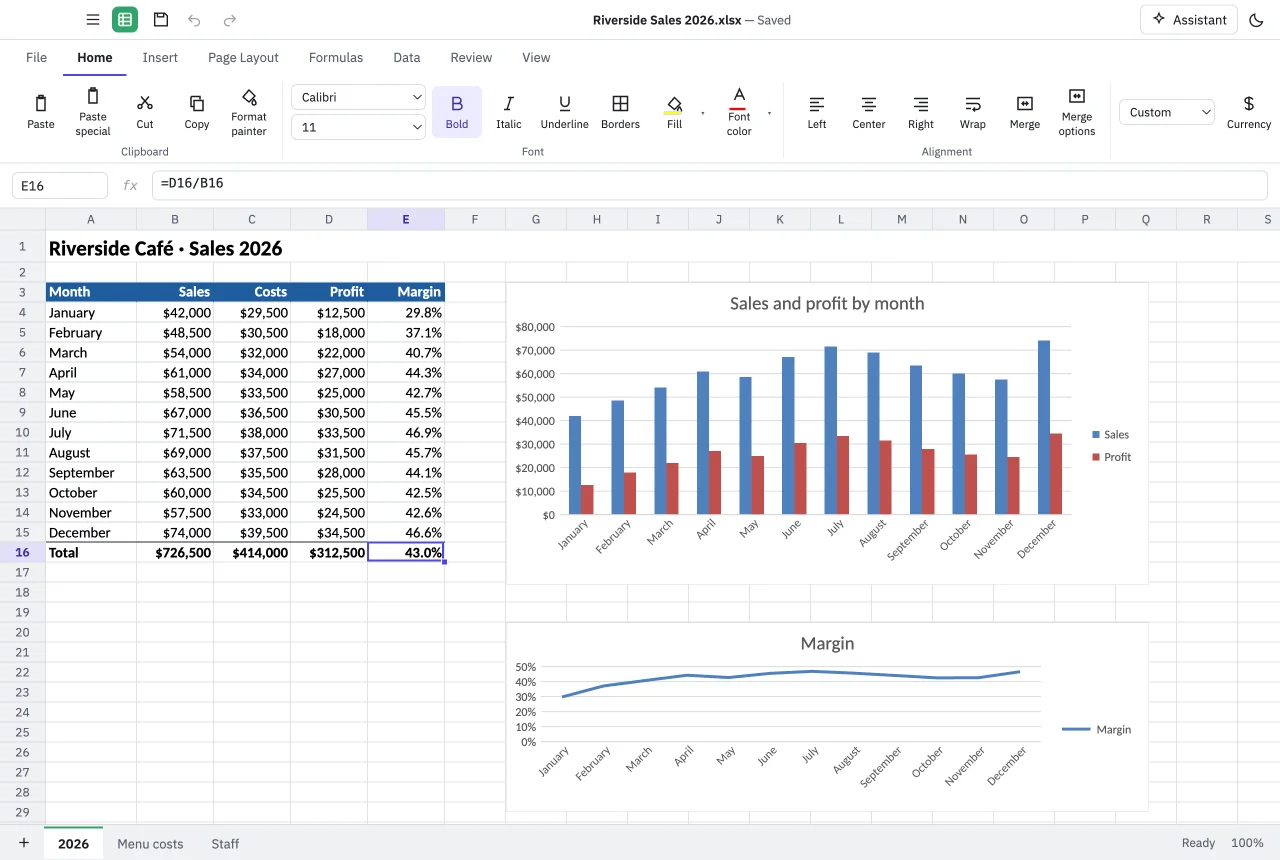
How to open an .xlsx file online
Open Cloud Sheets
Go to mycloudsuites.com/apps/sheets in Chrome or Edge and sign in.
Open your workbook
Choose File › Open and pick the .xlsx file on your computer.
Edit
Change cells and formulas, sort and filter, or add a chart from Insert.
Save
Choose File › Save. Your browser may ask you to allow saving changes to the file.
The files it opens
- Excel workbooks (.xlsx)
- Older Excel 97–2003 workbooks (.xls)
- Binary workbooks (.xlsb)
- Macro-enabled workbooks (.xlsm): macros kept, never run
- Text files (.csv)
Your workbook stays yours
Many online spreadsheet viewers upload your file to their servers. Cloud Sheets doesn't. The browser opens the workbook from your computer and saves it back there, just like a desktop app.
It's stored with MyCloudSuites only if you choose to save it there with MyCloudSuites Plus.
Questions
Is it free to open .xlsx files online?
Yes. Cloud Sheets is free in the browser and on the desktop, with every feature included. You need a free MyCloudSuites account.
Is my workbook uploaded?
Not unless you choose to. It opens from your computer and saves back there; it's stored with MyCloudSuites only if you use MyCloudSuites Plus.
Which browsers work?
A current version of Google Chrome or Microsoft Edge on a desktop or laptop computer.
Will it still open in Excel after I save?
Yes. It's saved as .xlsx, and anything Cloud Sheets doesn't edit yet is kept as it was.
Is there a desktop version?
Yes, for Windows 10 and 11 and macOS 13 or later. Download it free.
More about Cloud Sheets
Open your workbook in the browser now.
Free, private, and nothing to install.