Cloud Time by MyCloudSuites

BetaFree for 5 workers

Cloud Time is in beta: it works, it’s free for up to 5 workers, then $5 a worker a month, and it’s updated often while we finish it. Tell us what you find.

A time clock for crews

Your crew clocks in on their phones at the job, takes their breaks, and moves between jobs during the day. You see who is working where, which breaks the law says you owe, and what each job cost.

Cloud Time is made for a computer. On a phone, send yourself the link and open it there.

In the browser on a phone or a computer. Free for up to 5 workers, then $5 a worker a month. Everybody signs in with their own MyCloudSuites account.

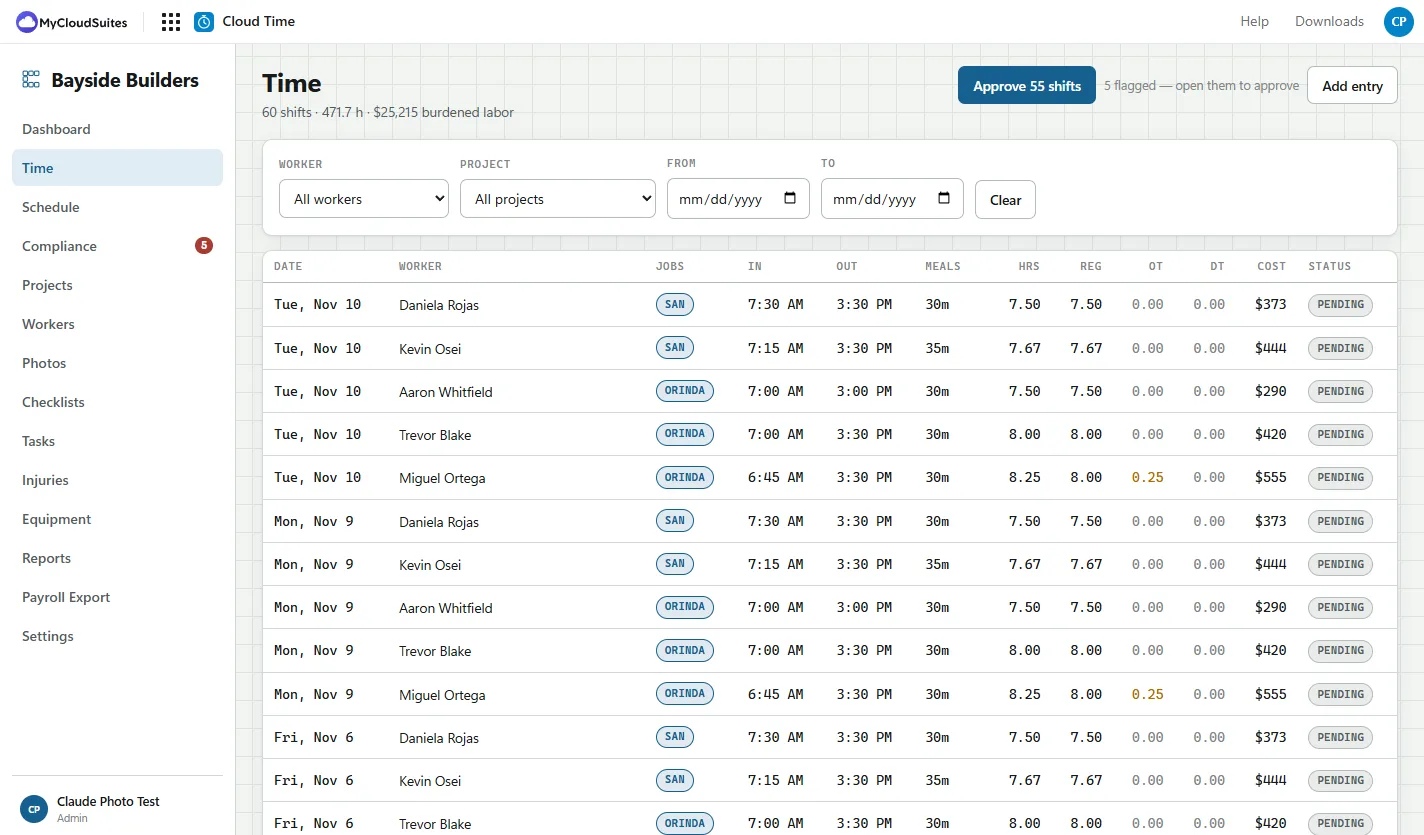
Cloud Time’s Time page for a sample builder: sixty shifts with each worker’s date, job, clock in and out, meal minutes, regular, overtime and double-time hours, cost and status, and a button to approve 55 shifts
  • Free for up to 5 workers
  • Lunch is never taken off automatically
  • The time comes from our server, not the phone’s clock
  • Every correction kept in an audit log

Built for the way crews work.

Several jobs a day, patchy signal, and the breaks the law says you owe.

Scan in at the job.

Print a job’s QR poster and workers scan it with their phone to clock in there. A foreman can clock the whole crew in and out, or a shared tablet at the yard lets each person punch in with their own PIN.

Breaks done right.

Workers stamp their own meal breaks, so there is a record they were taken. A missed, late or short break is flagged, with the premium it owes, before payroll.

Overtime on your state’s rules.

Daily and weekly overtime and double time, worked out from your state’s rules where we’ve reviewed them, and from the federal rules everywhere else.

Works with no signal.

A punch made with no signal waits on the phone and goes in when it’s back online, stamped with when it happened.

What each job really cost.

Hours by job and cost code, at the full cost of each worker, not just their pay rate. A raise never rewrites what last month’s jobs cost.

Ready for payroll.

Approve the pay period, then export the hours for your payroll provider. Sending approved hours into Cloud Books is on the way.

See it in action.

These are real screenshots of Cloud Time, with a sample builder’s crew. Click any picture to see it full size.

Projects

Every job’s budget against what it has cost so far.

Give a job a labor budget and the hours you expect, and the cost comes in shift by shift, at each worker’s full cost.

  • Budget, actual cost and hours on every job
  • A QR poster for each job site
  • A location and a radius, so a punch made away from the job is flagged
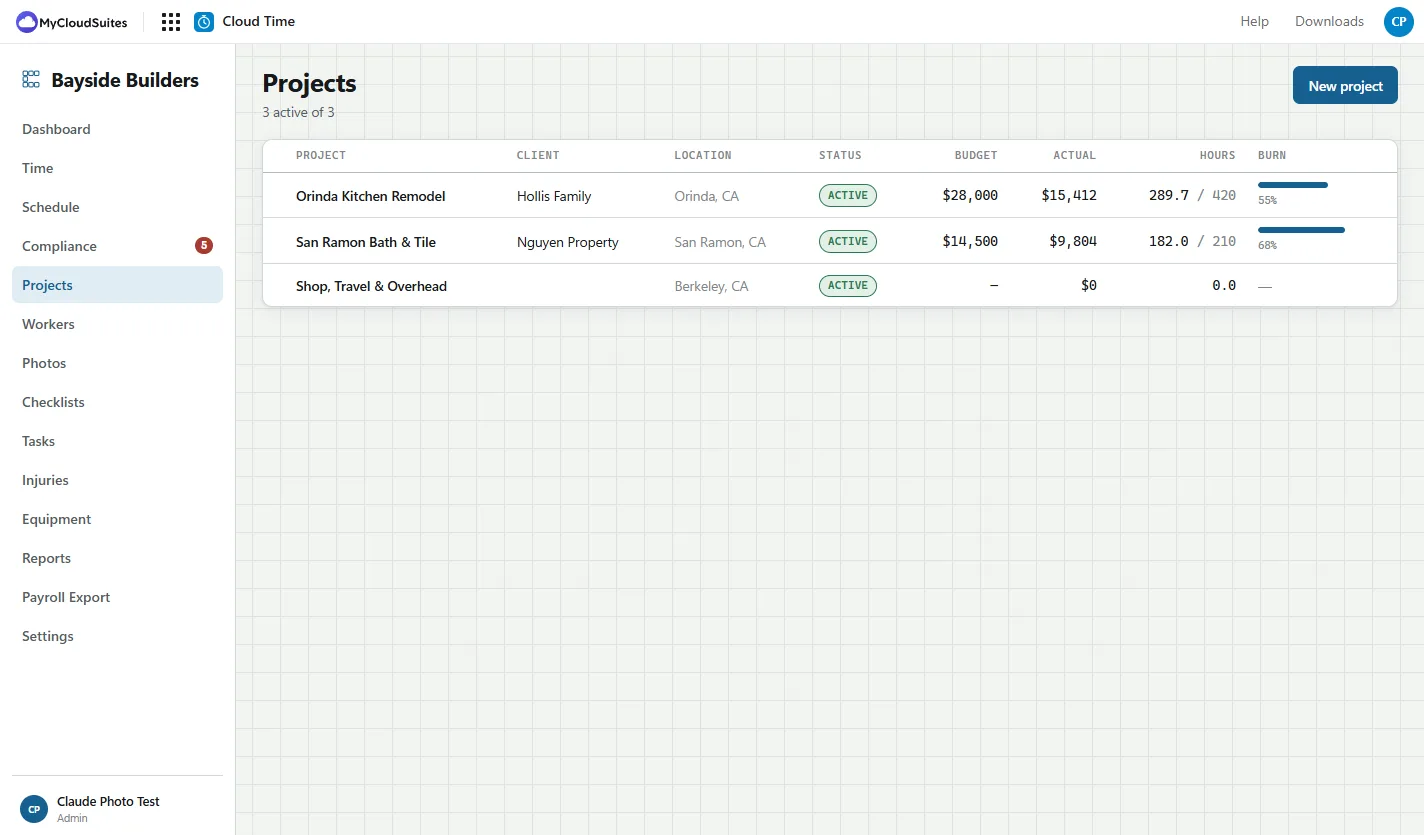
The Projects list for a sample builder: a kitchen remodel at 55% of its budget, a bath and tile job at 68%, and an overhead job, each with client, location, budget, actual cost and hours
Reports

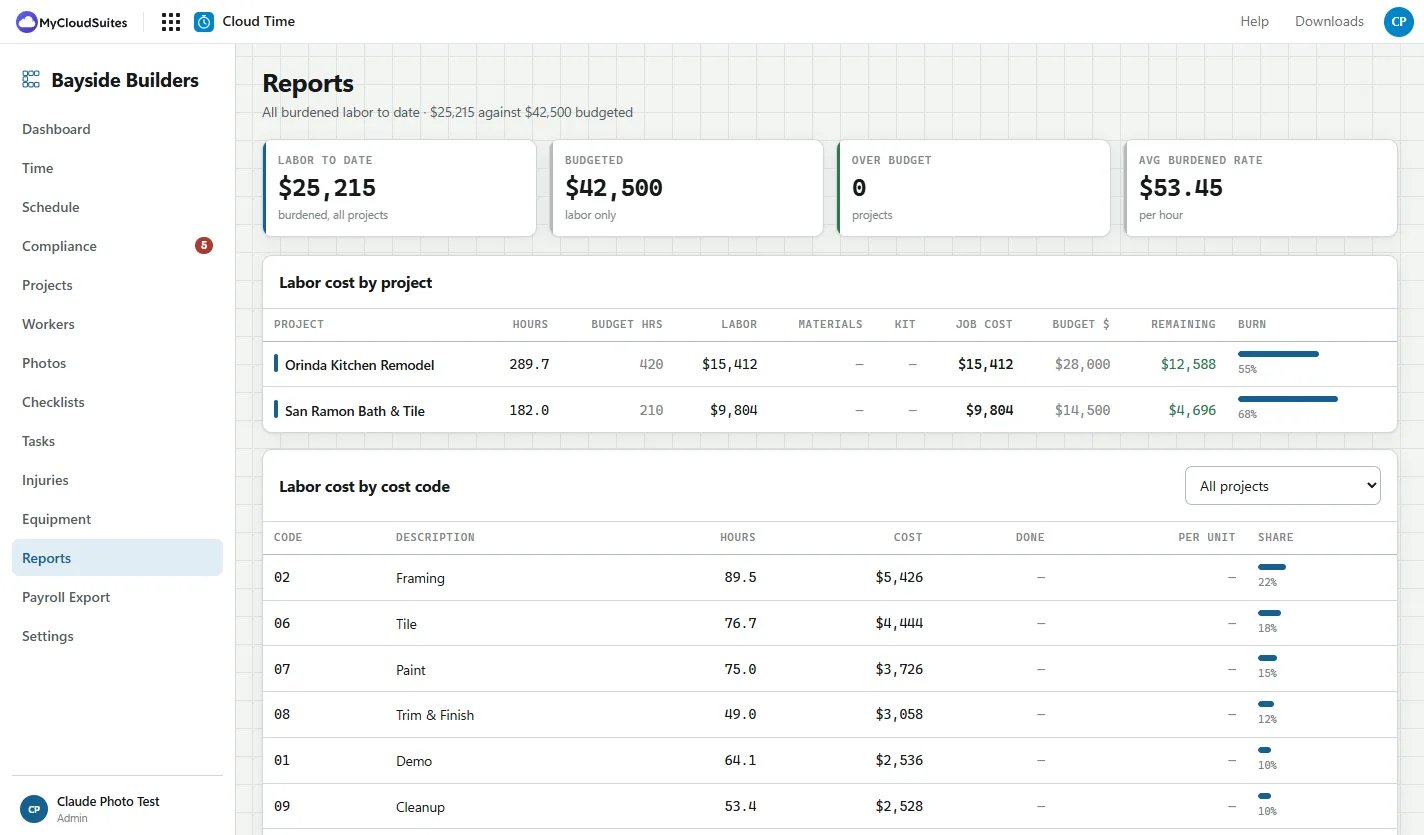
Labor cost by job and by cost code.

See where the hours went, from framing to cleanup, and what each part of the work cost.

  • Labor to date against the budget
  • Cost by job and by cost code
  • Reports saved, scheduled by email, or exported as PDF and spreadsheet
The Reports page: labor to date against the budget, labor cost by project, and labor cost by cost code for framing, tile, paint, trim, demo and cleanup
Time

Check the flags, then approve the period.

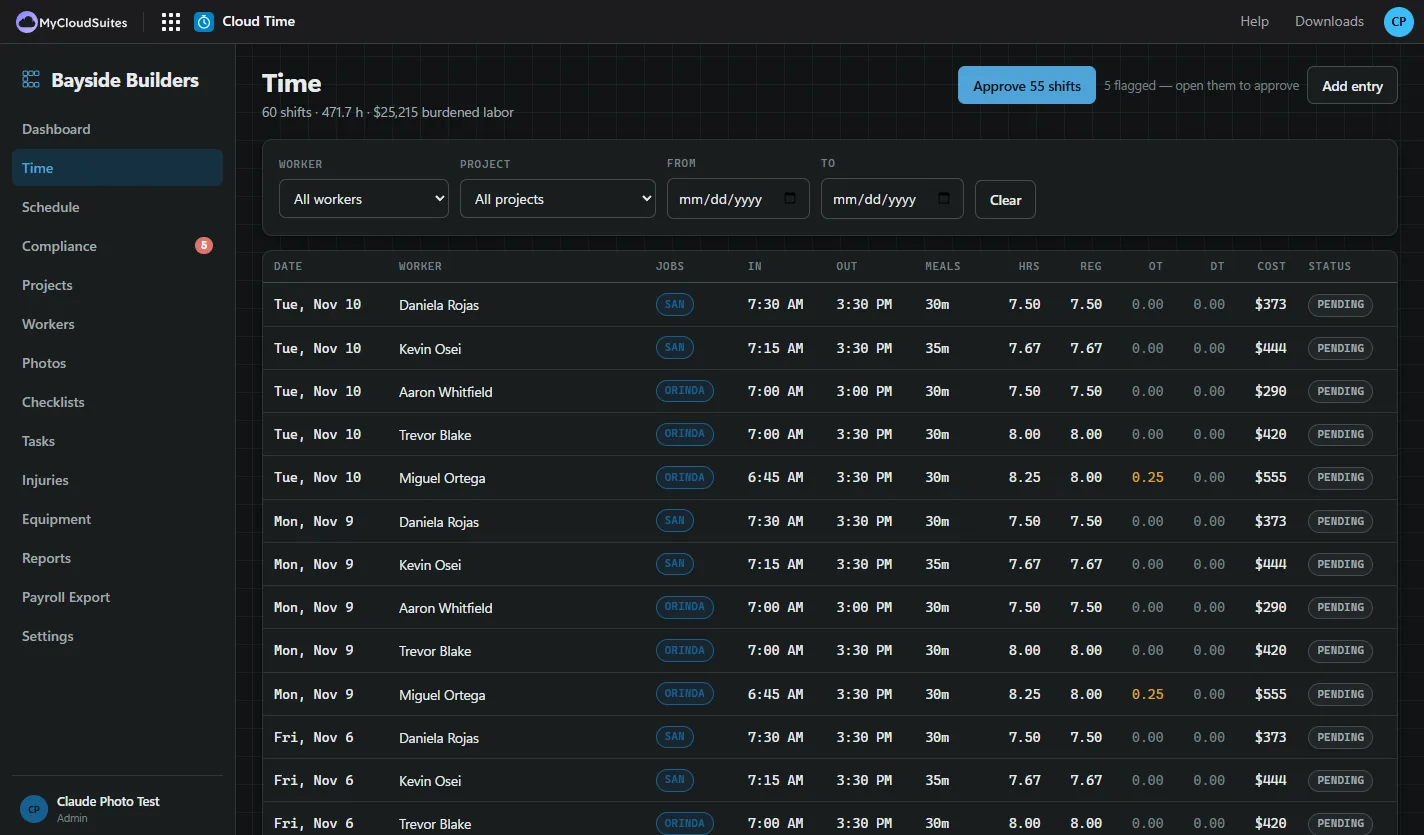
Every shift with its jobs, breaks, regular and overtime hours and cost. Days with a missing or short break are flagged, and are left out of a bulk approval until you look at them.

  • Filter by worker, job and dates
  • Correct a punch, with the change kept in the audit log
  • Light and dark, on a computer or a phone
The Time page in dark mode: each shift’s date, worker, job, clock in and out, meal minutes, regular, overtime and double-time hours, cost and status, with a button to approve 55 shifts

How to get started

Four steps to your crew’s first approved week.

Start your company

Open Cloud Time, sign in with your MyCloudSuites account, fill in your business and its state, and choose Start my company.

Add your jobs

In Projects, add each job, and print its QR poster for the site.

Invite your crew

In Workers, add each person with their email, and send their invitation. They join with their own MyCloudSuites account.

Approve and export

In Time, check the flags, approve the period, then open Payroll Export.

Questions

Is it really free?

For up to 5 workers, yes. After that it’s $5 a worker a month, with no base fee. Break and overtime checks are never extras: every company gets them.

What does beta mean?

Cloud Time works and keeps real time today, and we’re still changing it often. If something isn’t right, tell us and we’ll fix it.

Does everybody need an account?

Yes. The owner, the office and every crew member sign in with their own free MyCloudSuites account. The office invites each person by email, and the invitation only works for that address. A shared tablet is the one exception: once the office has set it up, crew punch in on it with a PIN.

Which states does it know?

It checks the federal rules everywhere, and each state’s own break and overtime rules for the states we’ve reviewed. A state we haven’t reviewed is said so plainly, never checked against another state’s law. It’s a tool to keep good records, not legal advice.

Does it work on a phone?

Yes, in the phone’s browser, and it can be added to the home screen. The CrewQR Time Clock app for iPhone and Android becomes Cloud Time later.

Where is my crew’s time kept?

On our servers, in a database of its own for each company, backed up every night. Only the people your company invites can see it, and you can export everything at any time.

Clock your crew in with Cloud Time.

Free for up to 5 workers, in the browser on any phone or computer.