

Combine PDFs into one file
Pick your files, and Cloud PDF puts them together, one after another, in a new PDF. Then drag pages into the order you want before you save.
Free in Chrome or Edge, or on Windows and Mac. Needs a free account.
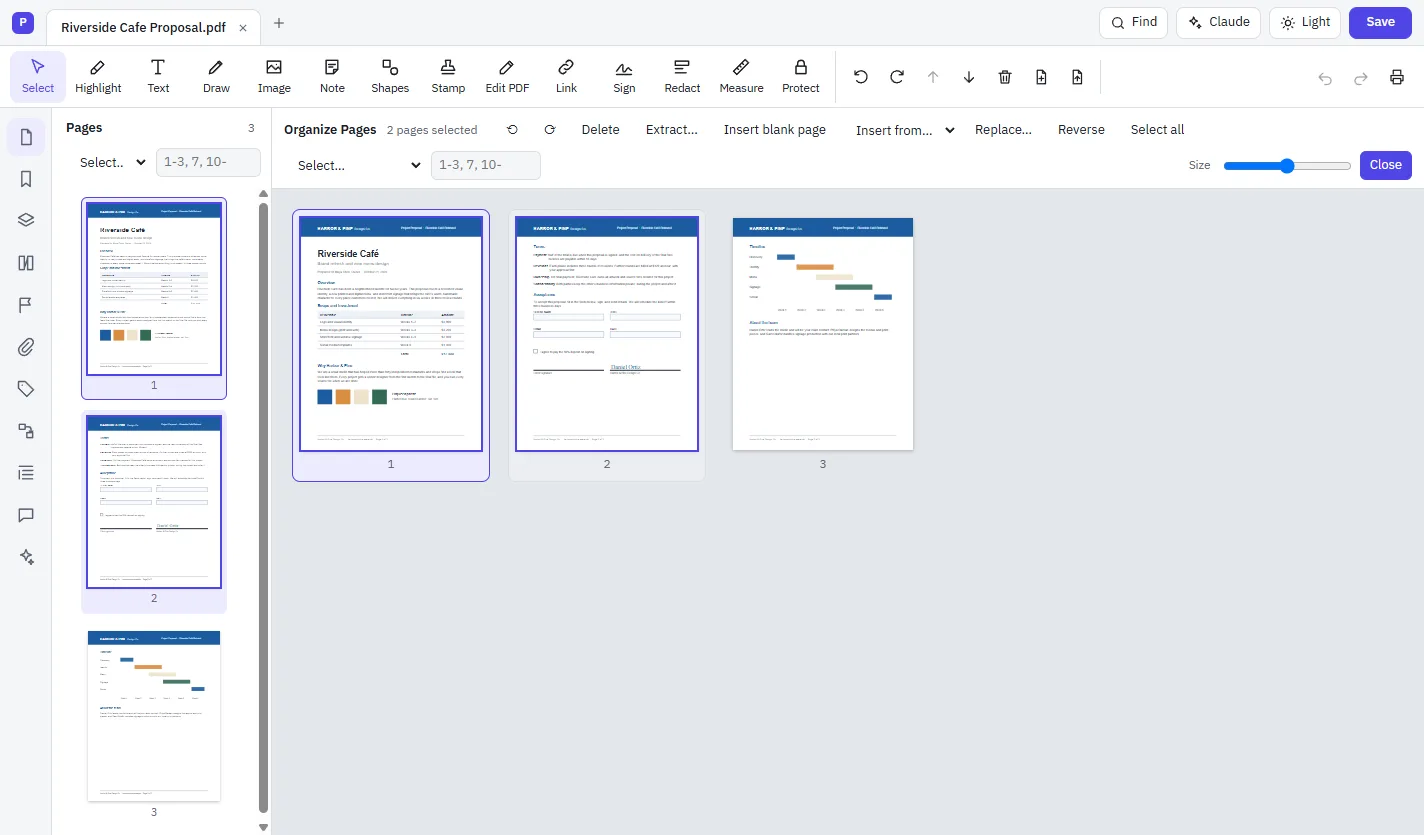
How to combine PDF files
Choose Combine Files
Choose File › Combine Files…, or Combine files on the start screen.
Pick your files
Hold Ctrl and click to choose more than one, then choose Open.
Check the order
The result opens as Combined.pdf. Use Organize Pages to move pages around.
Save
Choose File › Save As… to give it a name. Your original files aren't changed.
Then put every page in its place
- Drag pages to reorder them in a grid
- Rotate, delete, extract or replace pages
- Insert blank pages, or pages from another PDF
- Split a document into several files
- Reverse the page order, or select odd or even pages
Word, Excel and PowerPoint too
In the desktop app, Office files are turned into PDF pages as they're combined. That uses Microsoft Office or the free LibreOffice, if one is installed on your computer.
To add one file to a document you already have open, choose Pages › Insert from File…
Questions
Is combining PDFs free?
Yes. Cloud PDF is free in the browser and on the desktop, with every feature included.
Are my files uploaded?
No. Cloud PDF combines the files on your own computer, in the browser as well as the desktop app.
Can I change the order after combining?
Yes. Open Organize Pages and drag pages where you want them, or rotate and delete them.
Can I combine Word documents into a PDF?
In the desktop app, yes, with Microsoft Office or LibreOffice installed. In the browser, combine PDFs, or save the Word file as a PDF first.