

Saved views
Updated November 13, 2026
Save the filters you use often under a name, for yourself or your whole team.
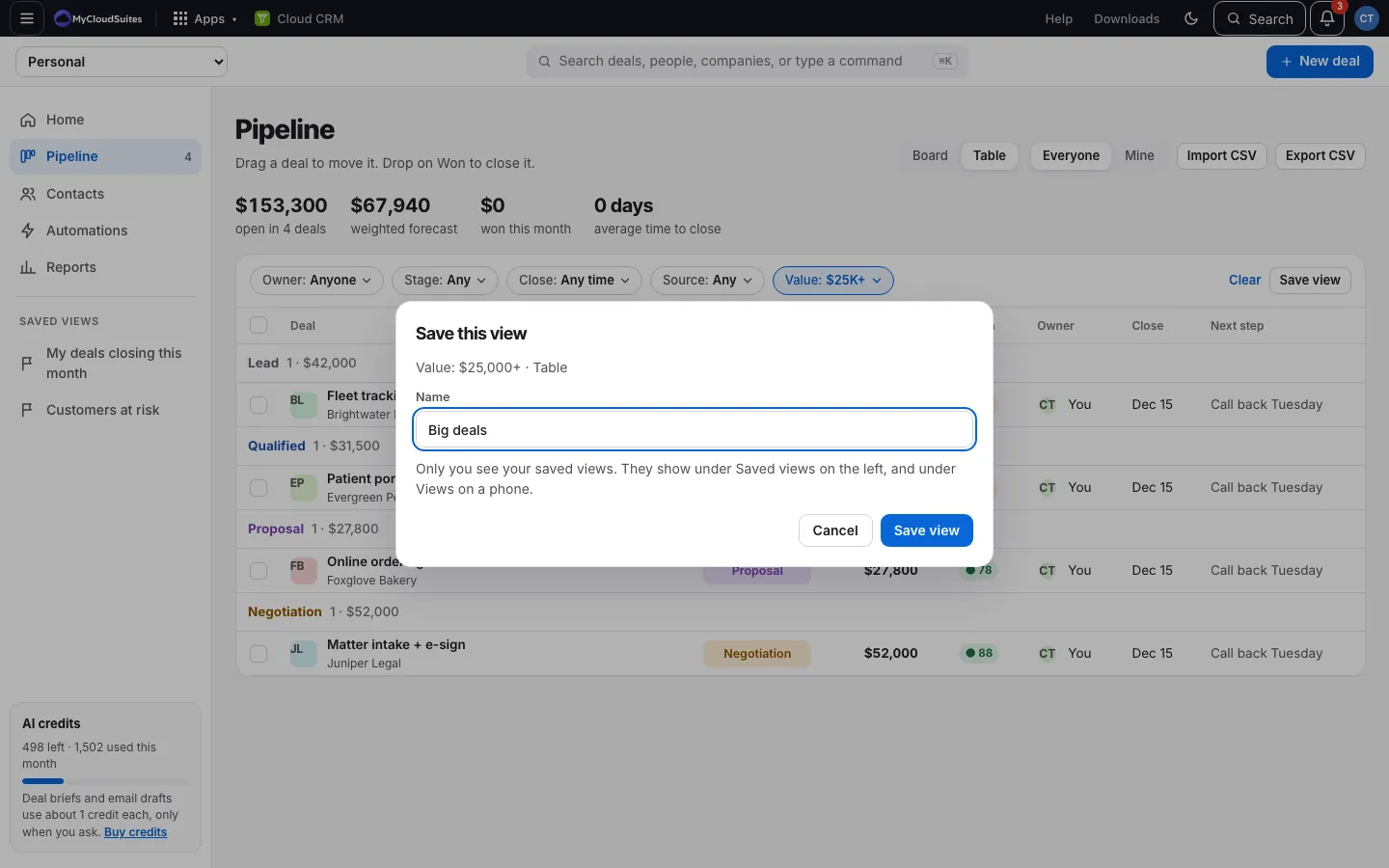
Save a view
- Set the filters you want (and Board or Table on the pipeline).
- Choose Save view.
- Type a name, like “Big deals this quarter”.
- In an organization’s CRM, turn on Share with the team if everyone should have it.
- Choose Save view. It’s listed under Saved views on the left.
Open a view
Click it under Saved views on the left. On a phone, tap Views at the start of the filter row.
Change or delete a view
- Open the view.
- Choose Edit view (or Save changes after changing its filters).
- Rename it, turn sharing on or off, or choose Delete view.
Who sees what
- A view is yours alone unless you share it.
- A shared view shows for everyone in that CRM. Only the person who made it, or an owner or admin, can change or delete it.
- With view-only access you can keep views of your own, but not share them.
Good to know
- My deals closing this month and Customers at risk are always there and can’t be changed.
- You can keep up to 50 views in each CRM.