

Change many at once
Updated November 13, 2026
Tick several deals, people or companies, then change their owner, stage or lifecycle, export them, or delete them in one go.
Steps
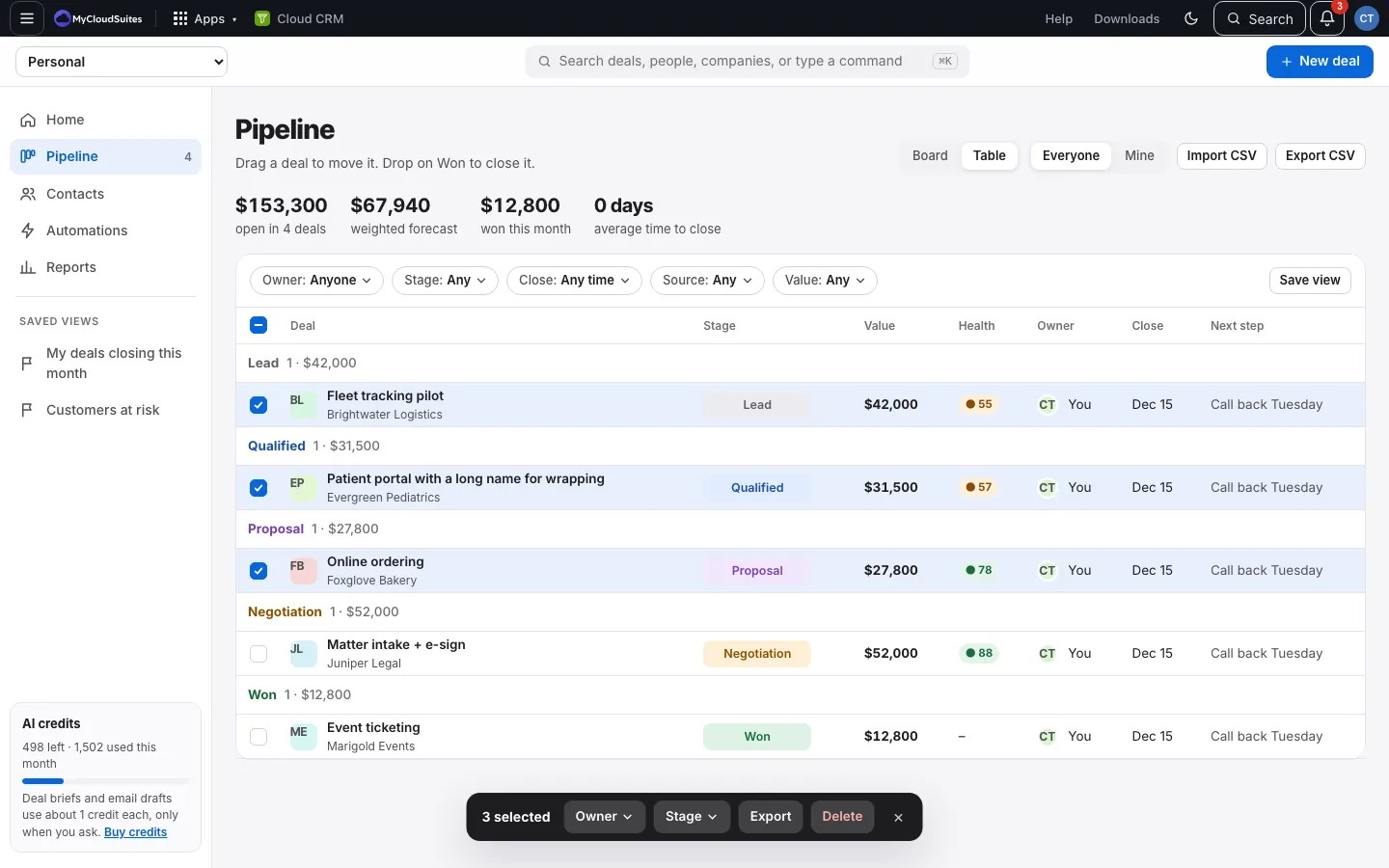
- Open Pipeline and choose Table, or open Contacts.
- Tick the box next to each one you want. The box at the top ticks everything shown.
- A bar appears at the bottom, like 3 selected. Choose:
- Owner: give them all to one person.
- Stage (deals): move them all to one stage.
- Lifecycle (people): set them all to one lifecycle.
- Export: save just these as a CSV file.
- Delete: delete them, after you confirm.
- × clears the ticks.
Who can delete what
- An owner or admin of the organization (and you, in your Personal CRM) can delete any of them.
- Everyone else can delete only the ones they own. Before you confirm, Cloud CRM says how many aren’t yours and will stay, for example “1 deal isn’t yours, so it stays.”
Good to know
- On a phone, the bar sits above the tabs: tap the number to clear the ticks, and the icons for Export and Delete.
- Moving deals to Won or Lost in bulk asks first. Automations run for each deal moved to Won, like a draft invoice in Cloud Books.
- Anything that can’t be changed is skipped, and the message says why.