

Create and send an invoice
Updated November 17, 2026
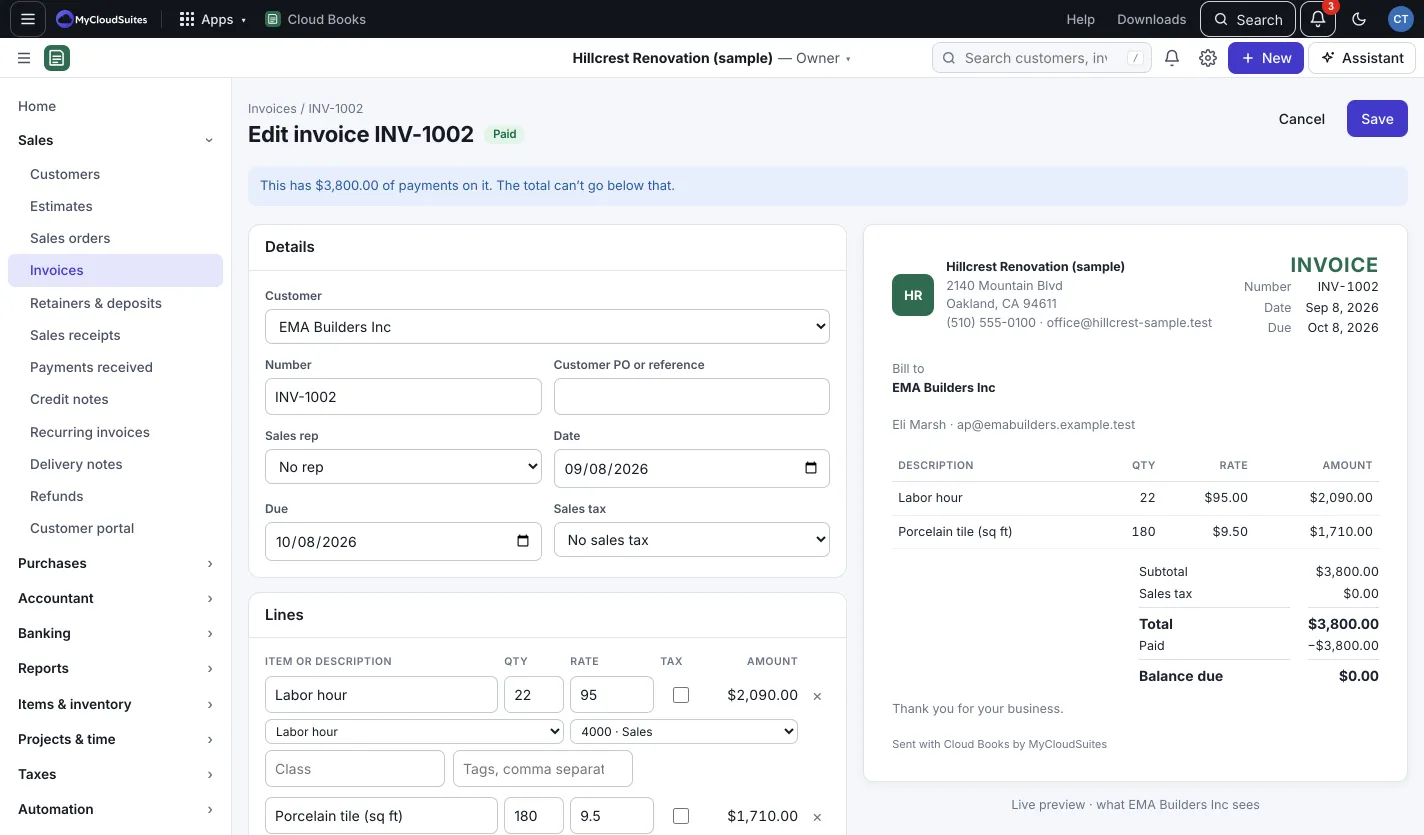
As you type, the invoice shows on the right exactly as your customer will see it.
Make the invoice
- Press New › Invoice, or go to Sales › Invoices.
- Under Details, pick the Customer. Their terms fill in the due date, and their usual tax rate fills in Sales tax.
- Leave Number empty to use the next number, or type your own.
- Under Lines, pick a Product or service… or type a description, then the quantity and rate. Tick the tax box on lines that are taxable.
- Press + Add a line for more. Add a Discount or Shipping under the totals if you need to.
- Under Notes, the Note to the customer (printed) shows on the invoice. The Private memo (only your team sees it) doesn’t.
- Type any Terms and conditions to print on it. To start every new invoice with them, press Make these the default for every invoice under the box.
Send it
- Send to (customer name): saves the invoice and opens Send. This shows when the customer has an email address.
- Save and mark as sent: saves it as sent without emailing, for invoices you hand over or mail.
- Save as draft: keeps it for later. Drafts don’t touch your books.
In the Send drawer:
- Check To (up to 10 addresses, separated by commas), Cc, Subject and Message.
- Leave Attach the PDF ticked to include it.
- Press Send.
The email has a private link where your customer can see and download the invoice, and pay online if you take payments online.
After it’s sent
On the invoice page you’ll see Activity: when it was emailed, opened by the customer, and paid. From there you can:
- Record payment when money comes in another way.
- Send reminder while it’s unpaid.
- Copy customer link to paste into a text or email.
- Make recurring to bill the same thing on a schedule.
- Download PDF opens the PDF and saves a copy.
- Duplicate, Edit, Void or Delete.
Find your invoices
Sales › Invoices lists them. All leaves voided invoices out; they’re on the Void tab.
Tick invoices to bring up the bar along the top of the list. It can send reminders, email, mark as sent, duplicate and void them. When every invoice you picked is a draft or has no payment on it, it can Delete them too.
Good to know
- Have unbilled hours on the customer’s projects? The new invoice offers them: press Add, or Not now.
- + Add billable expenses brings in expense lines you marked billable to this customer.
- An invoice with no payment on it can be deleted whatever its status, with Delete (Delete draft on a draft). It comes out of your books and the customer’s link stops working. If it was sent, Books asks you first.
- An invoice with a payment on it can’t be deleted: remove the payment first.
- To keep an invoice on file instead, Void it. It stays marked Void and comes out of your books.
- If the books are closed through a date, invoices can’t be dated on or before it. See Close the books.