

Record a payment you received
Updated November 13, 2026
Online payments are recorded for you. For money that arrives another way, record it yourself.
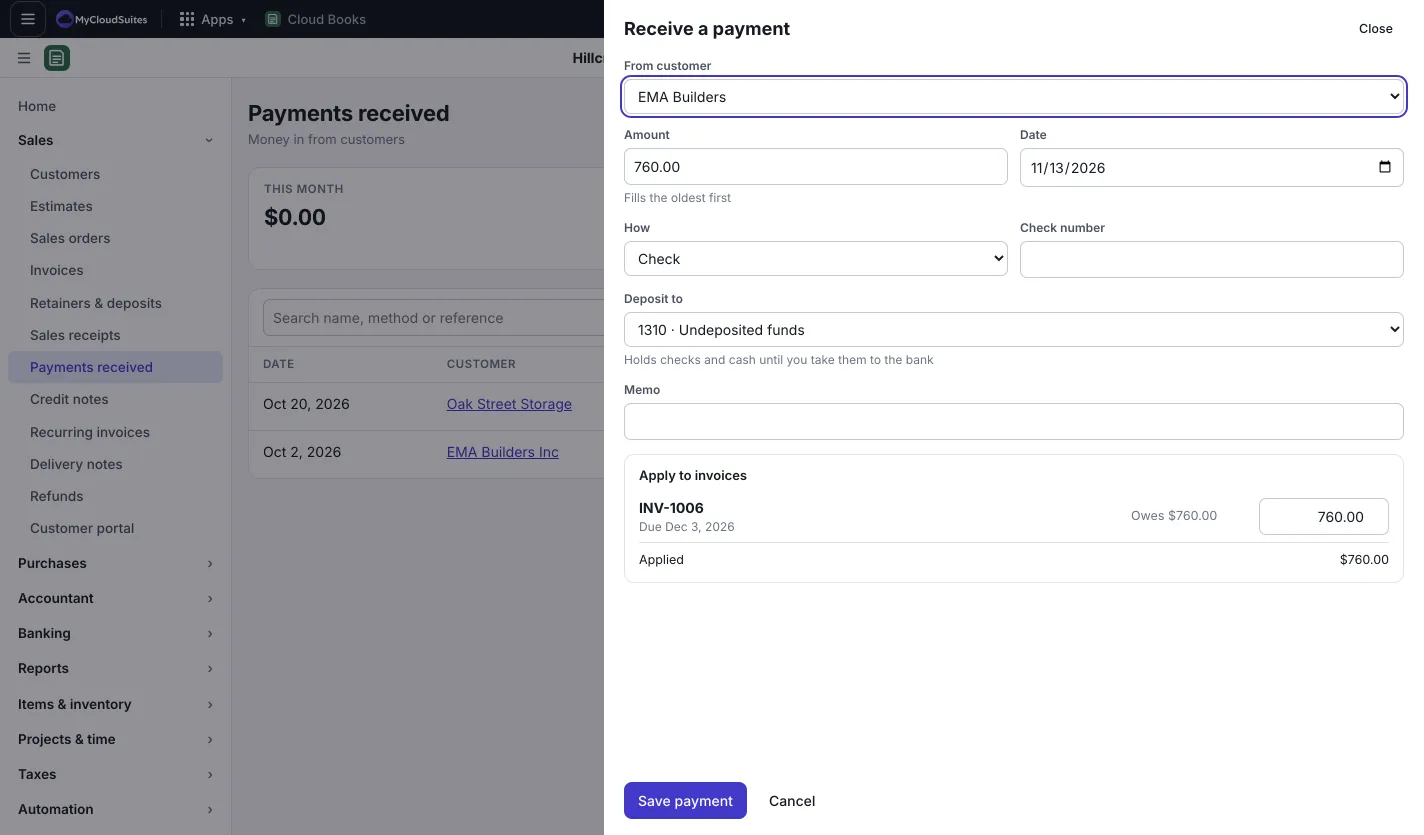
Record a payment
- Open the invoice and press Record payment. Or press New › Receive payment.
- Pick the customer under From customer.
- Type the Amount. It fills the oldest invoices first; change the amounts under Apply to invoices if it’s for different ones.
- Set the Date and How (for example Check, ACH / bank transfer, Cash, Card (in person) or Zelle). For a check, add the Check number.
- Pick Deposit to: the bank account, or Undeposited funds for checks and cash you haven’t taken to the bank yet.
- Press Save payment.
Paid more than they owe?
Anything not applied is kept as a credit (a deposit) for the customer. You’ll see it as Left as a customer credit, and on Payments received under Not applied yet. Use it on a later invoice, or refund it from Sales › Refunds.
Take checks to the bank
Checks and cash you record into Undeposited funds wait there until you take them to the bank. When you deposit several at once:
- Press New › Deposit, or Make a deposit on Banking › Bank accounts.
- Pick the account it went Into and the Date.
- Under Waiting to be deposited, tick the payments you took to the bank together.
- Add any cash back or bank fee under Other lines (cash back, bank fees as negative).
- Press Deposit (the total).
Your books then show one deposit, matching your bank statement.
Fix or void a payment
On Sales › Payments received, press Edit on a payment. Change what you need and press Save changes, or press Void payment and then Void payment again to confirm. What it paid will owe again.
Good to know
- To change who paid, void the payment and record it again.
- Payments made to vendors work the same way under Purchases › Payments made.