

Customer links and the customer portal
Updated November 17, 2026
Customers can see their documents without an account: through a private link to one document, or through a portal with all of them.
A link to one document
Every invoice or estimate you email includes a private link. You can also copy it yourself:
- Open a sent invoice, estimate, sales order, credit note, retainer invoice, sales receipt or change order.
- Press Copy customer link. It’s copied; paste it into a text or email.
On an estimate’s link, your customer can accept and sign or decline. When they accept, they can add their own change order number under Your change order no. (optional). It goes into the estimate’s Customer PO or reference, and onto the invoice you make from it.
Anyone with the link can see the document, so share it only with your customer. To stop every link to that document, including ones already sent, open Copy customer link and press Turn off all links.
The customer portal
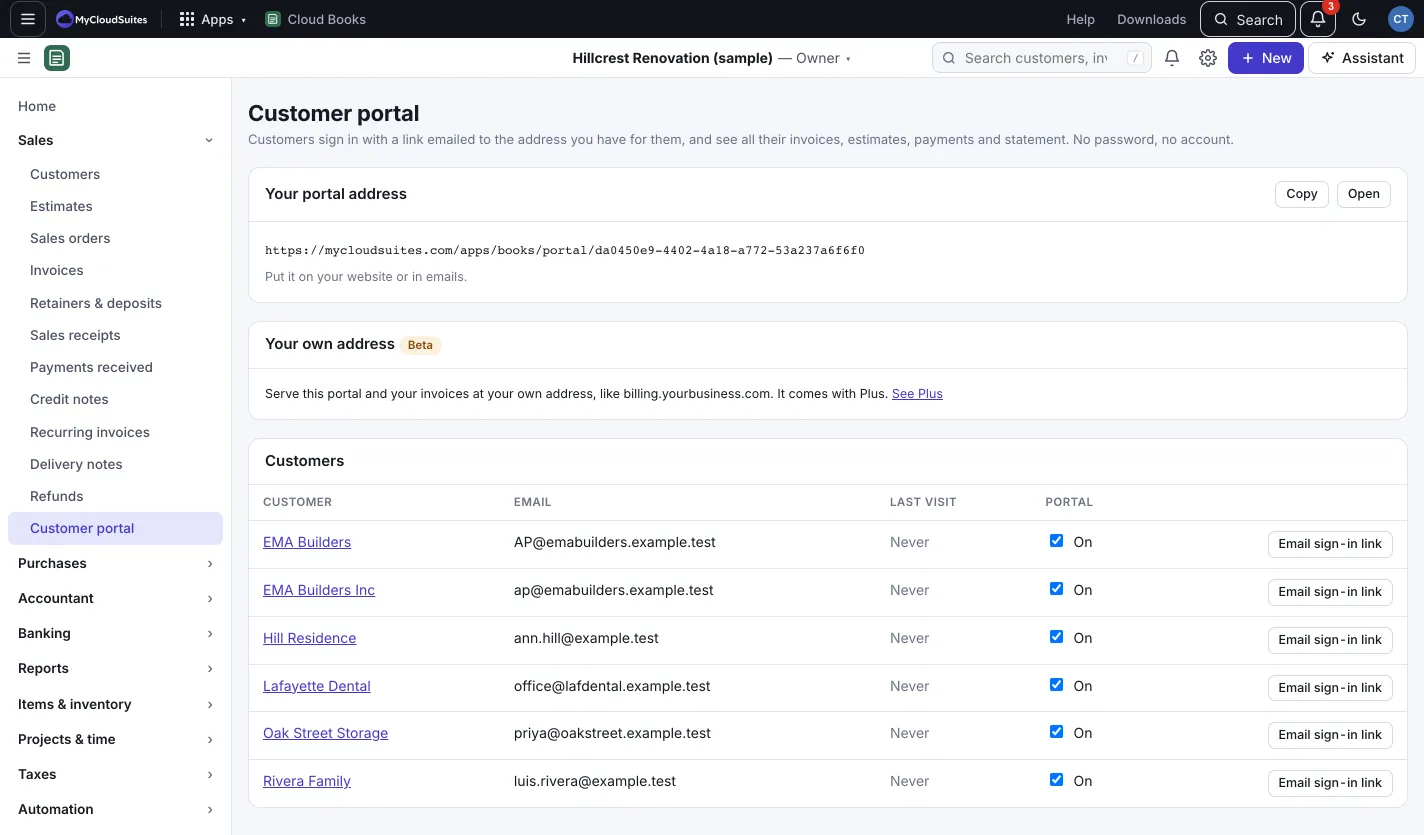
The portal is one page where a customer sees all their invoices, estimates, payments and statement. They sign in with a link emailed to the address you have for them. No password, no account.
Turn it on and invite a customer
- Go to Sales › Customer portal.
- Under Your portal address, press Copy to put it on your website or in emails, or Open to see it.
- Under Customers, tick the box in the Portal column for each customer who should have it. It shows On or Off.
- Press Email sign-in link to send them a link now.
You can do the same from a customer’s page, on the Details tab, in Customer portal.
What customers can do there
- See what they owe, open invoices and estimates to review.
- Pay open invoices, if you take payments online.
- Send you messages. You answer on the customer’s Messages tab.
- Download a statement: Open invoices (PDF) or All activity this year (PDF).
Your own address (Plus, beta)
With MyCloudSuites Plus, the portal and your invoices can open at your own web address, like billing.yourbusiness.com.
- On Customer portal, under Your own address, type the address and press Use this address.
- Add the DNS record shown (a CNAME) where you manage your domain. Press Copy value to copy it.
- Press Check. When it’s working, you’ll see Open.
Your mycloudsuites.com links keep working, and Books checks the address again every morning. To stop using it, press Remove. Only an owner or admin can set this up.
Good to know
- A customer without an email address can’t sign in to the portal.
- Last visit shows when each customer last opened it.