

Take payments online
Updated November 13, 2026
Customers pay into your own payment account. Cloud Books takes no fee and never holds your money. Your processor charges its usual fees, the same as if you used it directly.
Connect Stripe
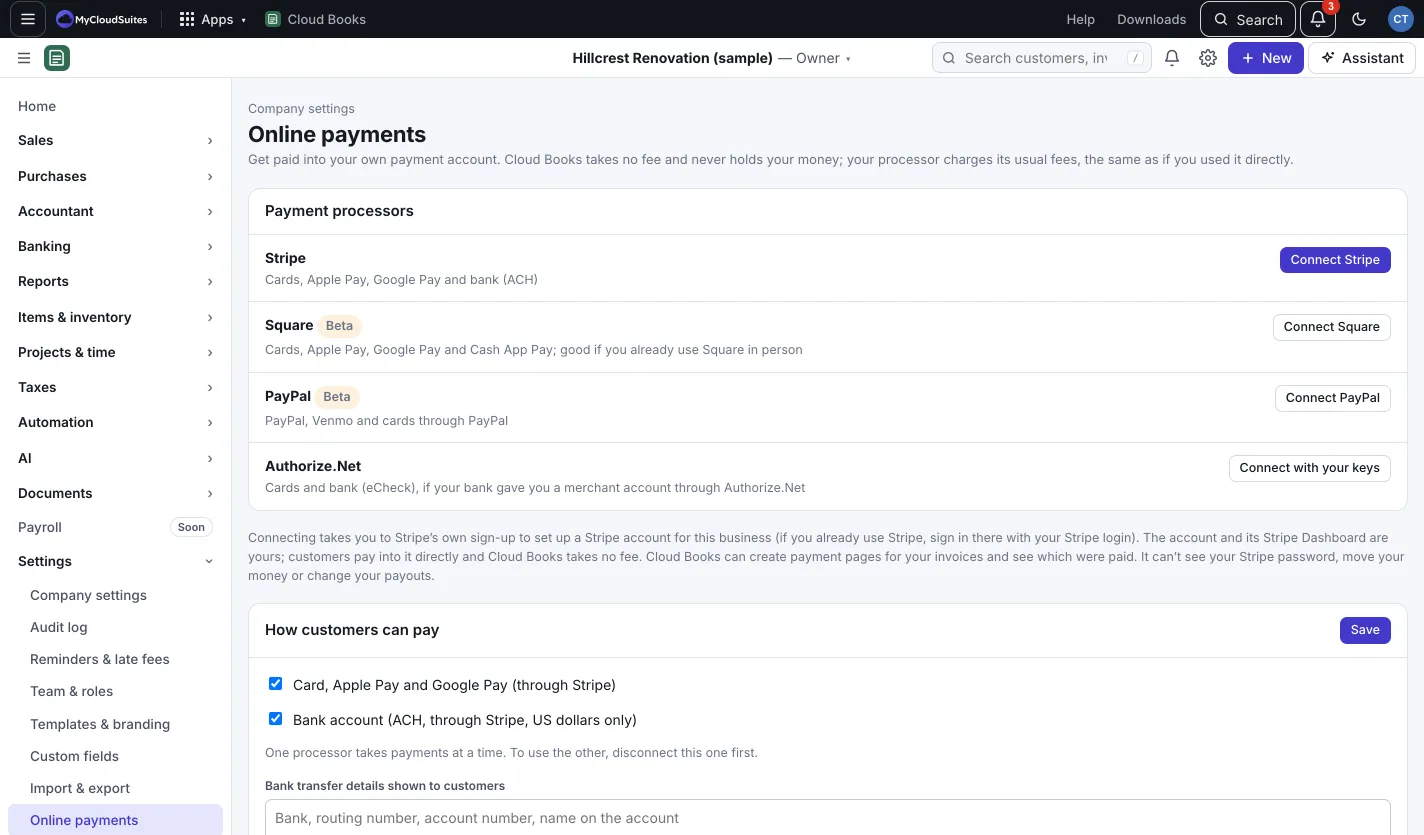
- Go to Settings › Online payments. (Only the owner or an admin can connect.)
- Next to Stripe, press Connect Stripe.
- Stripe’s own sign-up opens. Set up a Stripe account for this business, or sign in with your Stripe login if you already have one.
- When you come back, you’ll see “Stripe is connected. Customers can now pay your invoices online.”
If Stripe still needs details, you’ll see Waiting for Stripe. Press Continue with Stripe to finish; it remembers where you were.
Or connect Authorize.Net
If your bank gave you a merchant account through Authorize.Net:
- In Settings › Online payments, press Connect with your keys next to Authorize.Net.
- From the Authorize.Net Merchant Interface (Account › Settings › Security Settings › API Credentials & Keys), paste the API Login ID, a new Transaction Key and a Signature Key.
- Pick Live, then press Check and connect.
One processor takes payments at a time. To switch, disconnect the one you have first.
Choose how customers can pay
Under How customers can pay:
- Tick card (with Stripe this is Card, Apple Pay and Google Pay (through Stripe)) and, if you like, bank account (Bank account (ACH, through Stripe, US dollars only)). ACH is a direct bank payment; it usually takes 3 to 4 business days to clear.
- Optionally add Bank transfer details shown to customers, your Zelle and Checks payable to. These show beside the online options. You record money paid these ways yourself, with Receive payment.
- Press Save.
What your customer sees
On the invoice’s page, your customer sees Pay with the amount, picks a method, and pays on a secure Stripe (or Authorize.Net) page. Cloud Books records the payment on the invoice for you.
Good to know
- What it costs on the same page shows the Cloud Books fee: $0.00 on every payment.
- Card numbers never reach Cloud Books.
- See your payouts, fees and refunds under Banking › Stripe payouts. See Saved cards, autopay and Stripe payouts.