

Saved cards, autopay and Stripe payouts
Updated November 13, 2026
These need Stripe connected in Settings › Online payments. See Take payments online.
Ask a customer to save a payment method
- Open the customer and go to the Payment methods tab.
- Press Ask (name) to save a method.
- Check Send to, add a message if you like, and leave Offer autopay on the same page ticked to offer autopay.
- Press Send link.
They get a secure Stripe page that works for 7 days. Nothing is charged until an invoice is due. Customers can also save a method when they pay.
Autopay
Autopay starts only when your customer agrees to it, on the page you send them or when they pay in the portal. You can’t switch it on for them. Once they agree, on their Payment methods tab:
- Turn on Charge open invoices automatically. On the due date, the primary method is charged. If it fails, the others are tried, then you and your customer get an email.
- Under Which invoices, pick Recurring invoices only or Every invoice.
- Set Most one charge can be if you want a limit. Anything bigger waits for you to charge it from the invoice.
- Press Save.
To charge a saved method yourself, open the invoice and press Charge (amount) now in Saved payment method.
Stripe payouts
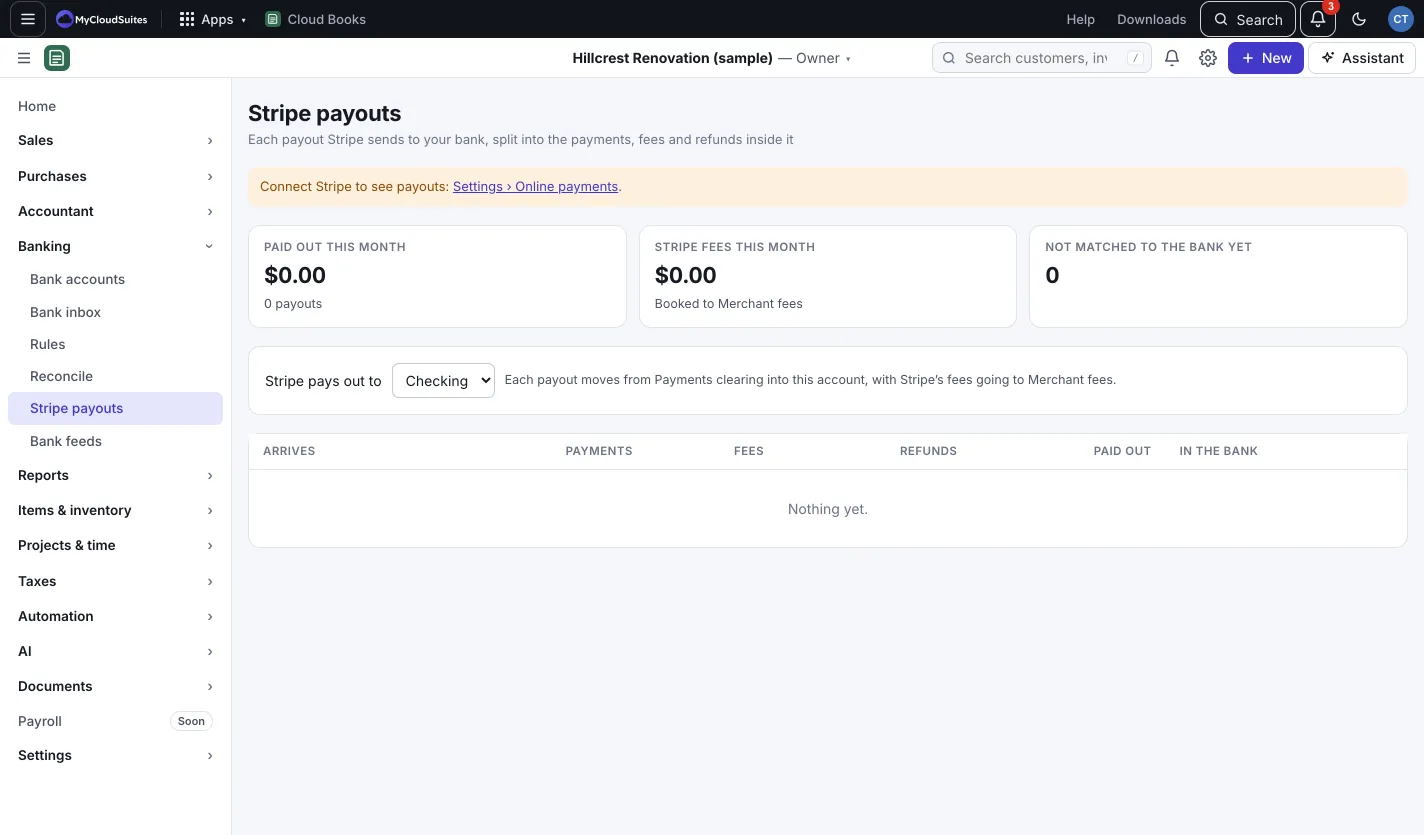
Stripe sends your money to your bank in payouts. Banking › Stripe payouts shows each one split into payments, fees and refunds.
- Pick the bank account under Stripe pays out to.
- Press Bring in payouts to bring in payouts from the last 90 days.
- Click a payout’s date to see what’s in it.
Each payout moves from Payments clearing into your bank, with Stripe’s fees going to Merchant fees. If part of a payout didn’t come through Cloud Books (sales made elsewhere with the same Stripe account), it shows Needs you: pick where that part goes and press Book the payout.
Good to know
- Card and bank numbers stay with Stripe; Cloud Books keeps only the last four digits.
- The money goes straight to your own Stripe account. Cloud Books takes no fee.