

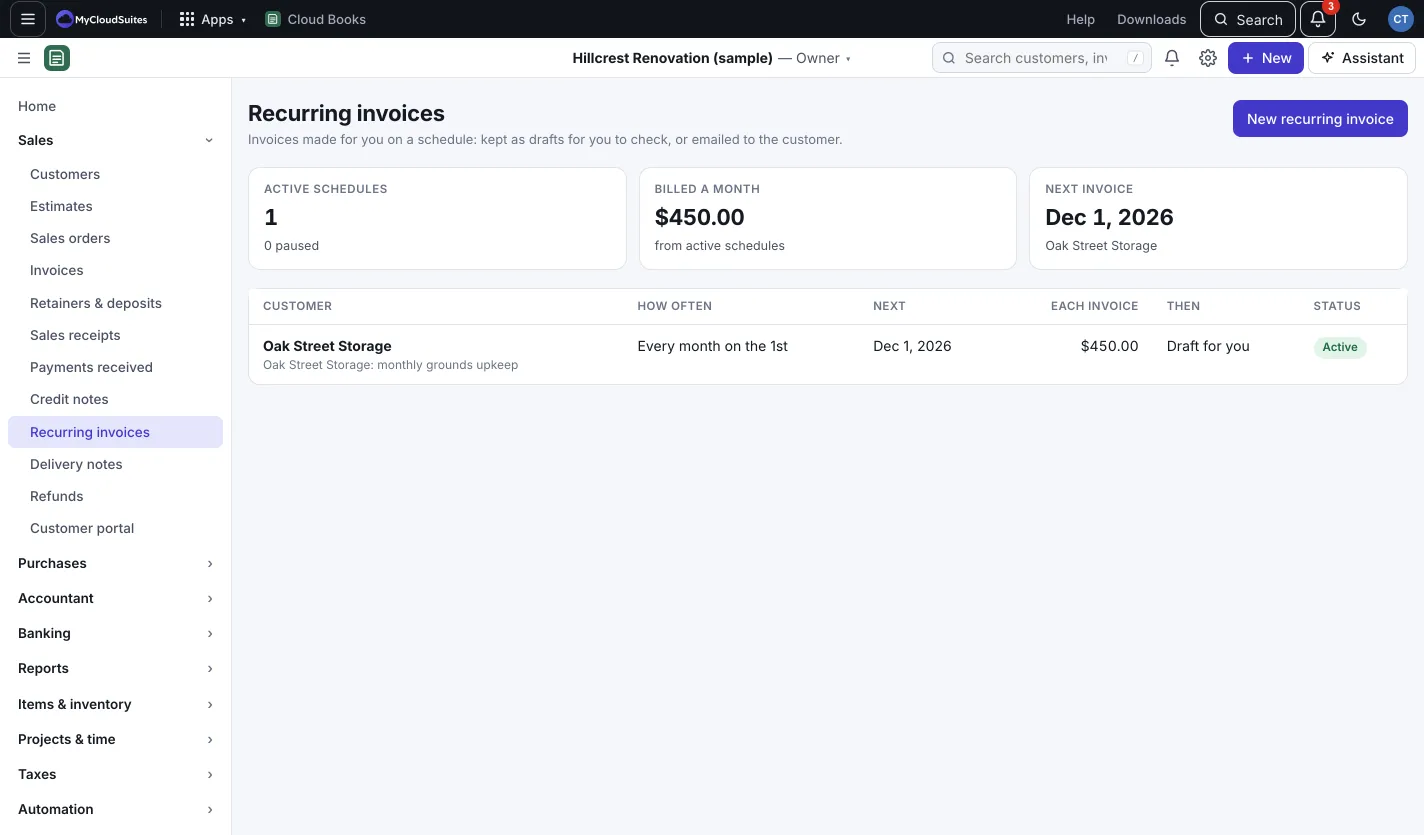
Recurring invoices
Updated November 13, 2026
Bill a monthly maintenance plan, a retainer or a subscription without making the invoice each time.
Set up a schedule
- Go to Sales › Recurring invoices and press New recurring invoice. Or open an existing invoice and press Make recurring to start from its lines.
- Under Who and when, pick the Customer and give it a Name (for you), like “Hill Residence: monthly maintenance”.
- Pick how often it Repeats (Weekly, Monthly, Every quarter or Yearly) and Every how many weeks, months, quarters or years.
- Set the First invoice date and, for monthly and longer, the Day of the month. Short months use their last day.
- Pick when it Ends: Never, On a date or After a number of invoices.
- Set Due (days after the invoice date).
- Under When an invoice is made, pick Keep it as a draft for me to check and send, or Email it to the customer.
- Add the Lines on each invoice, then press Start schedule.
Coming up shows the next dates and amounts before you save.
Manage a schedule
Open it from Recurring invoices to see Invoices it made and what’s Coming up. You can:
- Pause it (no invoices until you Resume; missed dates aren’t made).
- Edit the lines, dates or amounts.
- End schedule (invoices already made stay), or Delete it if it hasn’t made any.
Good to know
- Invoices are made early each morning, Pacific time. If a date was missed, it’s made the next morning with its own date.
- If the customer has no email address, emailed invoices wait as drafts.
- The customer of a schedule can’t change. Make a new schedule instead.
- Recurring bills and expenses work the same way. See Recurring bills and expenses.