

Recurring bills and expenses
Updated November 13, 2026
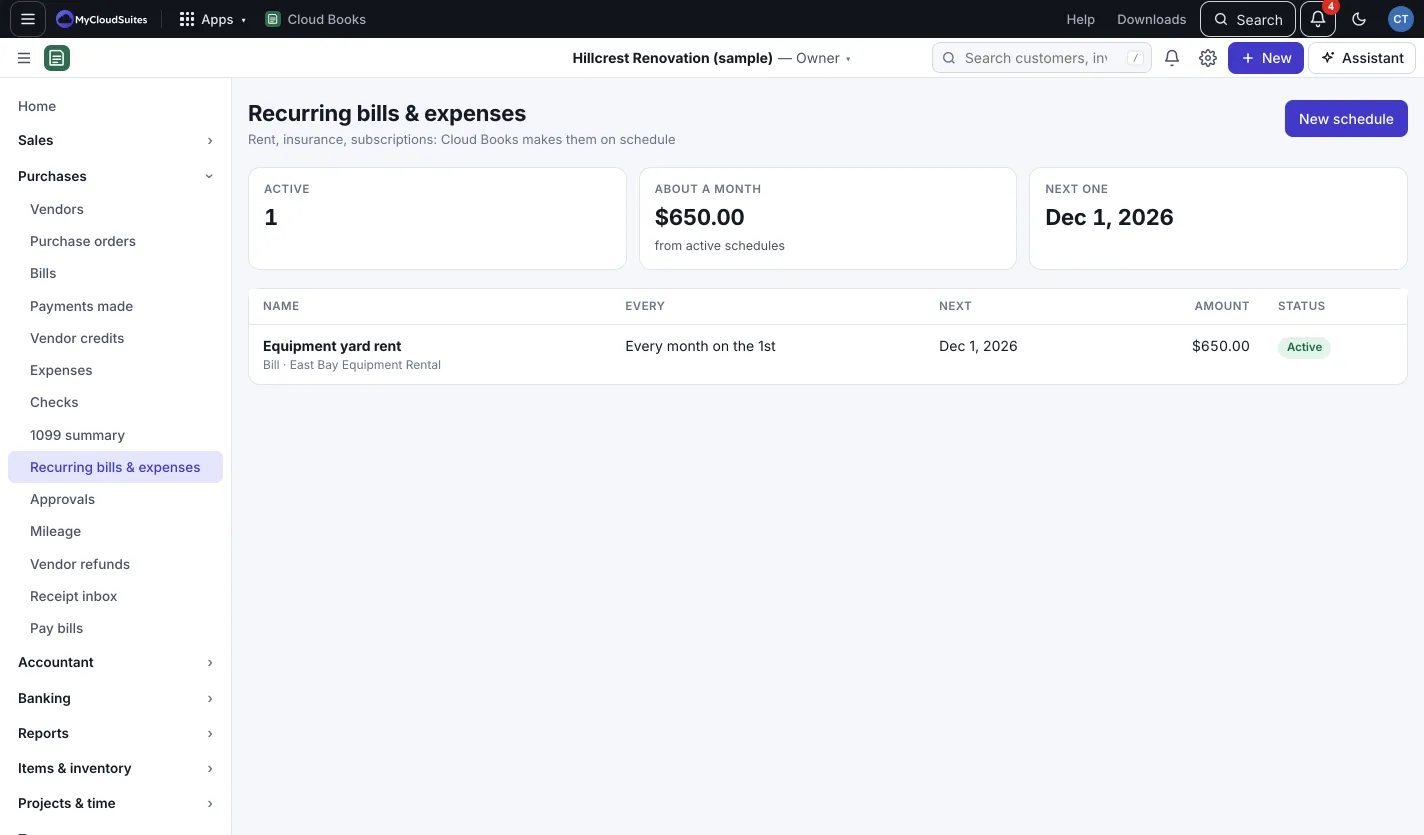
Rent, insurance, subscriptions: Cloud Books can make the same bill or expense for you on a schedule.
Set up a schedule
- Go to Purchases › Recurring bills & expenses and press New schedule (or New › Recurring bill).
- Under Make a, pick Bill (pay later) or Expense (already paid, e.g. card autopay).
- Pick the Vendor and give it a Name, like “Yard rent”.
- Choose Every (Week, Month, Quarter or Year), How many (every N), the First date and, if you like, Stop after (optional).
- For bills, choose what Each bill is. Bills your approval rules cover go for approval anyway. For expenses, pick Paid from.
- Add the Lines, then press Save schedule.
Suggested from your spending
Cloud Books looks for charges that repeat on a steady schedule (same vendor, similar amount, monthly, quarterly or yearly). They’re listed under Suggested from your spending.
- Press Set up to open the form already filled in. Nothing is made until you save the schedule.
- Press Not recurring to hide a suggestion. Books remembers.
Manage a schedule
Open it to see what it Made so far. You can Pause, Resume, Make today’s now or Delete it. Bills and expenses it already made stay.