

The vendor portal
Updated November 13, 2026
The vendor portal is a page where your vendors sign in with an emailed link. They see their bills and what you’ve paid, their purchase orders, and they can send you an invoice. No password and no account for them.
Turn it on
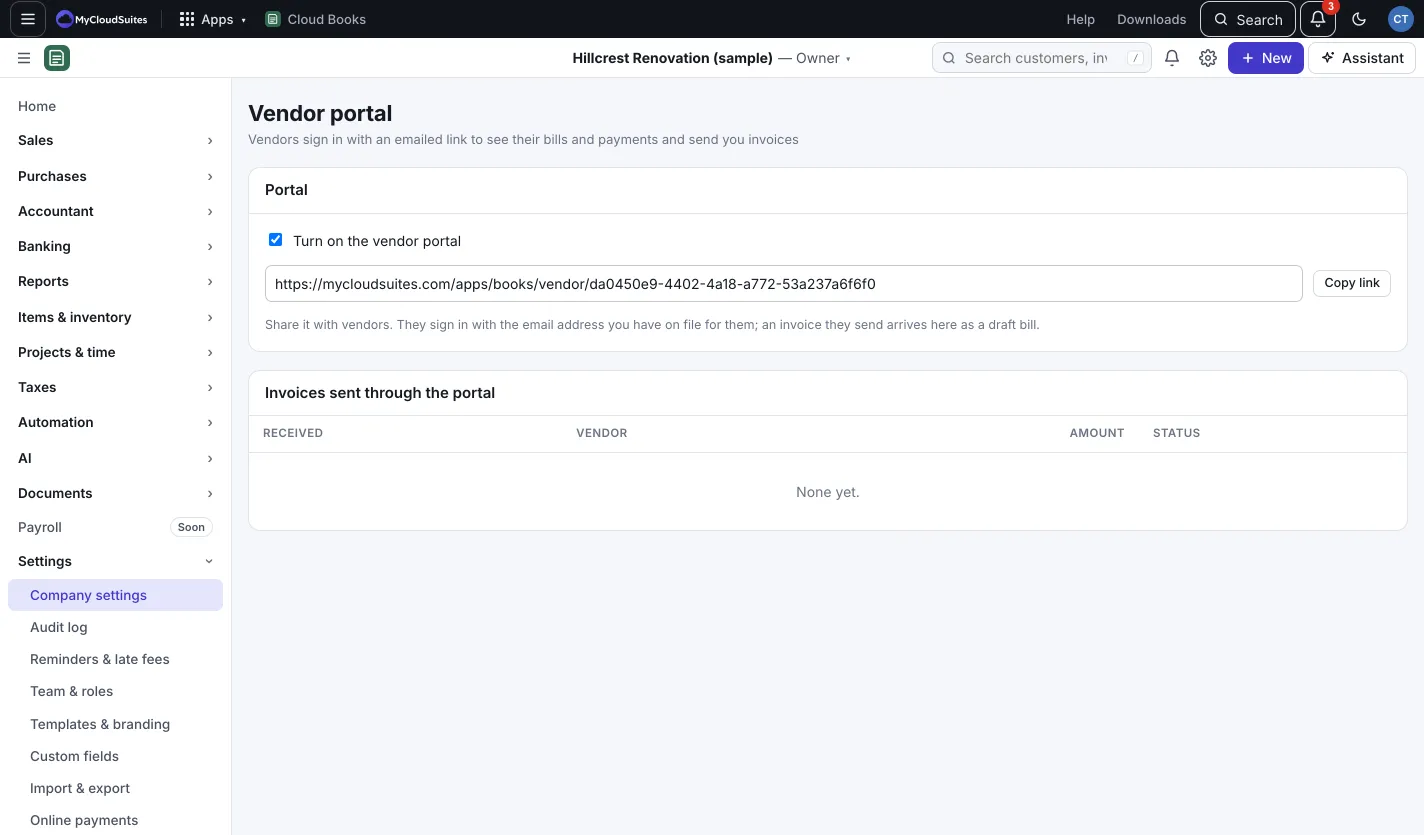
- Go to Settings › Vendor portal. (Only the owner or an admin can turn it on or off.)
- Tick Turn on the vendor portal.
- Press Copy link and share it with your vendors.
Vendors sign in with the email address you have on file for them.
What vendors can do
On their page a vendor sees Still to be paid, then these tabs:
- Bills: each bill with its status and the payments made on it.
- Purchase orders: your orders to them, with the lines.
- Send an invoice: they type their invoice number, amount, dates and what it’s for, then press Send invoice.
- Payment details: the email where your payment notices go.
Invoices from vendors
An invoice a vendor sends arrives in your books as a draft bill. It’s listed under Invoices sent through the portal, marked To check. Open it, check it, and save it as you would any bill. See Enter bills and get them approved.
Good to know
- Vendors can’t attach a PDF to an invoice they send yet.
- Untick Turn on the vendor portal to close it. The link stops working for everyone.