

Enter bills and get them approved
Updated November 17, 2026
A bill is what a vendor asks you to pay later. Entering it now keeps your costs and what you owe up to date.
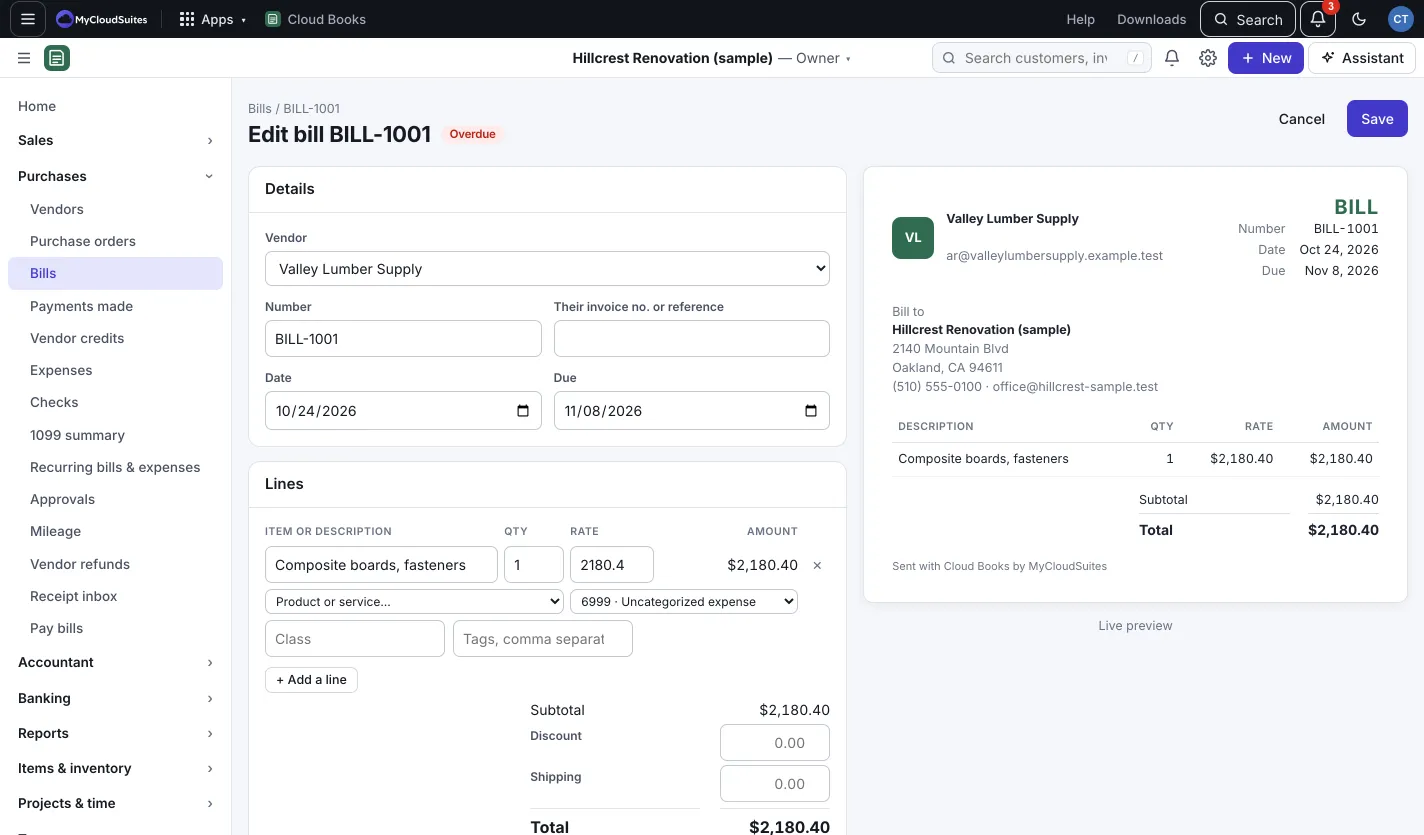
Enter a bill
- Press New › Bill, or go to Purchases › Bills.
- Pick the Vendor and type Their invoice no. or reference.
- Set the Date and Due date. The due date fills in from the vendor’s terms.
- Add lines. Pick a product, or choose the account each cost goes to.
- Save it one of two ways:
- Save as ready to pay: it’s in your books and ready for Pay bills.
- Save, waiting for approval: it waits for the owner or an admin (or your approval rules) before it reaches your books.
Got the bill as a PDF or photo? Drop it in the Receipt inbox and let AI read it. See Receipt inbox and bills email.
Approve a bill
Bills waiting for a yes are listed under Purchases › Approvals, with Waiting for you at the top.
- Press Decide (or Review for an expense) on a bill.
- Add a comment if you like (a comment is needed to reject).
- Press Approve or Reject.
If no approval rule covers a bill, the owner or an admin can open it and press Approve.
Set approval rules
- Go to Settings › Approval rules and press New rule.
- Under For, pick Bills, Purchase orders or Expenses (review after).
- Set the amount band: From (amount) and, if you like, Up to (optional).
- Under Who approves, pick a role or A specific person. Press + Add a first level for a two-step approval.
- Press Save rule.
The highest band an amount falls in applies. The last level is always the owner or an admin.
A bill an approval rule covers can’t skip it: if you press Save as ready to pay, it’s saved waiting for approval instead, and the approvers hear of it.
Whoever saved or sent a bill can’t approve it under a rule, but they can still reject it. The exception is when nobody else in the company can approve that level, such as a one-person company. Then they can approve it themselves, and the audit log says “approved own bill (only approver)”.
Good to know
- A custom role can set Bills and expenses up to an amount. Bigger ones are saved as drafts for approval. See Team and roles.
- If a bill came from a purchase order and doesn’t match it, it’s held. You’ll see it on Home as “bills on hold”. Open the bill and check Purchase order check; press Approve anyway if it’s right. Set how close counts as a match in Settings › Preferences.
- Vendor portal: in Settings › Vendor portal, tick Turn on the vendor portal and share the link. Vendors sign in with the email you have for them, see their bills and payments, and send you invoices, which arrive as draft bills.