

Track mileage
Updated November 13, 2026
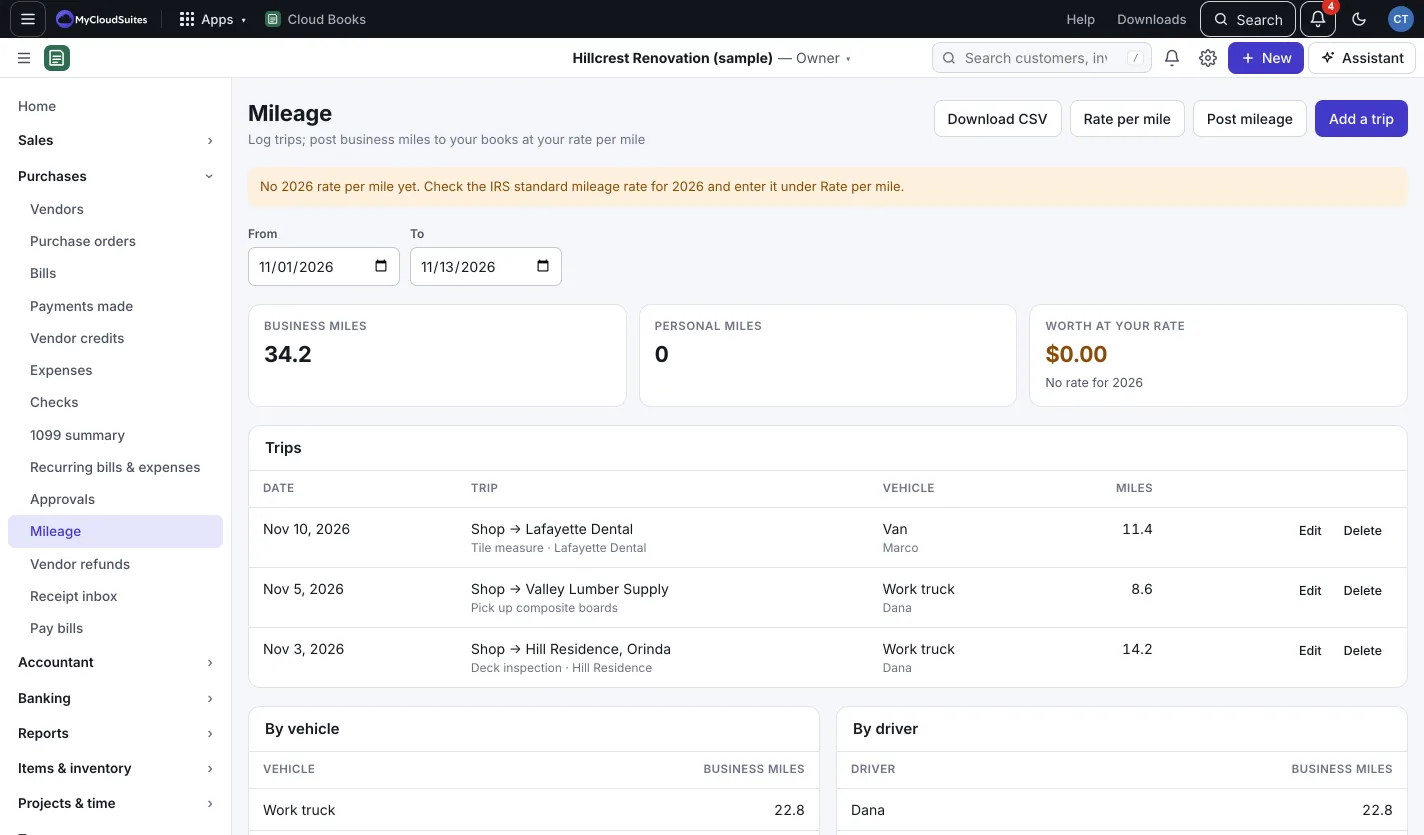
Log business trips, see what they’re worth at your rate per mile, and post them to your books.
Set your rate per mile (once a year)
- Go to Purchases › Mileage and press Rate per mile (owners and admins).
- Enter the rate in cents per mile for each year. Check the IRS standard mileage rate for that year; Cloud Books doesn’t fill it in for you.
- Under Post mileage against, pick Owner’s investment (your own car, sole proprietor) or Mileage owed to drivers (you reimburse them).
- Press Save.
Log a trip
- On Mileage, press Add a trip (or New › Mileage trip).
- Fill in Date, Miles, From, To and Purpose. Add the Vehicle and Driver if you track more than one.
- Leave Business trip (not personal) ticked for business miles.
- Optionally pick For a customer (optional) and tick Billable to that customer.
- Press Save.
Post mileage to your books
- Press Post mileage.
- Pick the From and To dates.
- Press Post (number) trips.
This makes one entry for the period: Vehicle mileage (an expense) against Owner’s investment, or Mileage owed to drivers.
Good to know
- Posted trips can’t be edited until you undo the posting. Press Undo under Posted to your books.
- Download CSV gives you a mileage log for the dates shown, handy for your tax records.
- The page shows business and personal miles, what they’re worth at your rate, and miles by vehicle and by driver.