

Merge duplicate customers, vendors and products
Updated November 13, 2026
Sometimes the same customer ends up in your books twice, for example “Hill Residence” and “Hill Residence (old)”. Merging moves everything from one onto the other, so you have one record with the whole history. Amounts and dates don’t change.
Merge two customers or vendors
- Open the customer or vendor you want to get rid of.
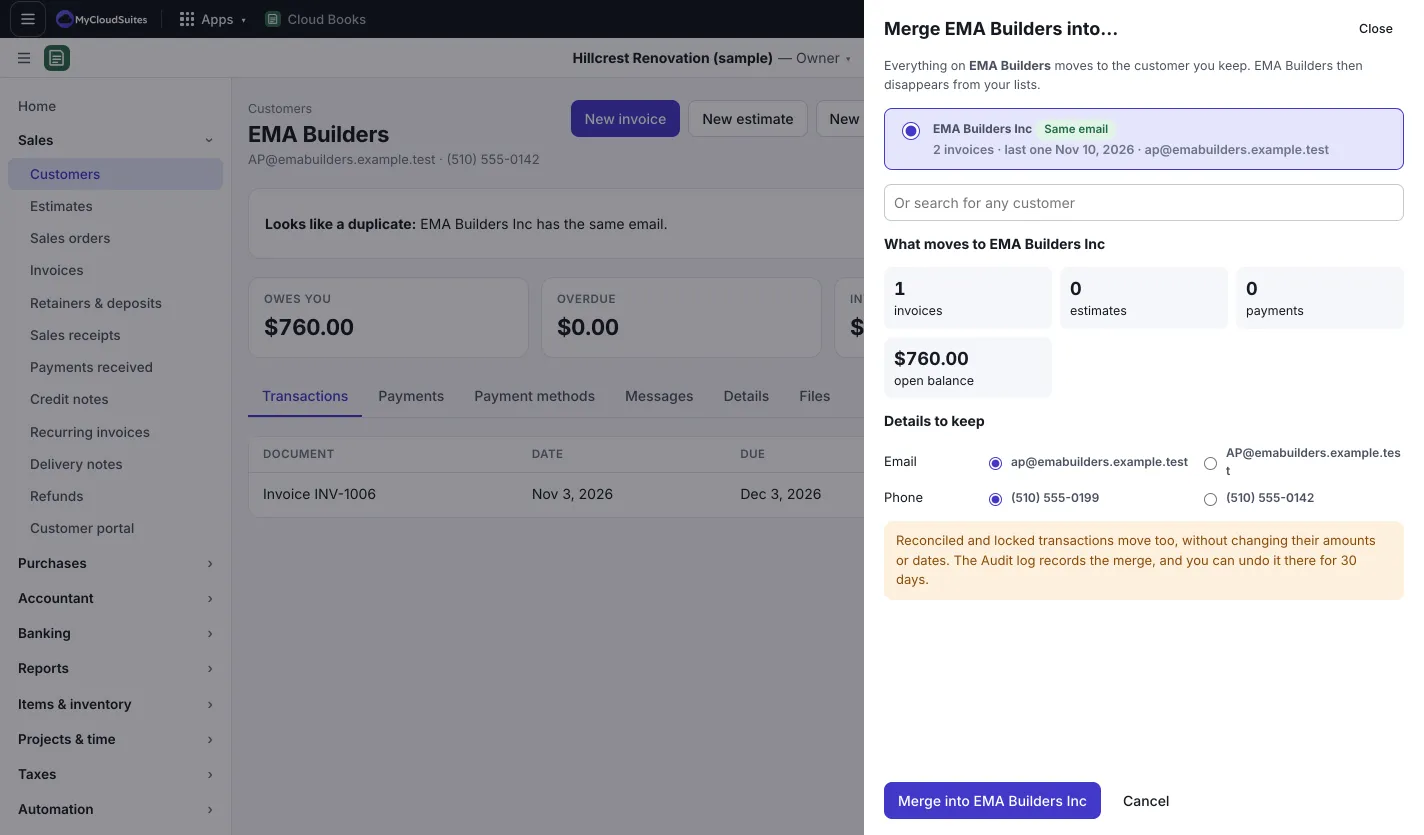
- If Books thinks it’s a duplicate, you’ll see Looks like a duplicate: with the reason (same email, same phone, or a very similar name). Press Review. Otherwise, press Merge… at the top of the page.
- Pick the one to keep. Likely duplicates are listed first, or type in Or search for any customer (or vendor).
- Check What moves to the one you keep: invoices, estimates, payments, jobs, bank lines and the open balance.
- Under Details to keep, choose which Email, Phone, Address and Terms to keep.
- Press Merge into (the name of the one you keep).
Merge two products or services
- Go to Accountant › Products & services and click the product you want to get rid of.
- Press Merge into….
- Under Keep, pick the product to keep, then press Merge.
Invoices, bills, price lists and bundles that used it now use the one you kept.
Undo a merge
- Go to Settings › Audit log.
- Find the merge and press Details.
- Press Put it back the way it was, then confirm. This splits them back as they were.
Good to know
- Only the owner or an admin can merge.
- You can undo a merge for 30 days.
- Reconciled and locked transactions move too, without changing their amounts or dates.
- Products that track stock can’t be merged yet.