

The audit log and undo
Updated November 18, 2026
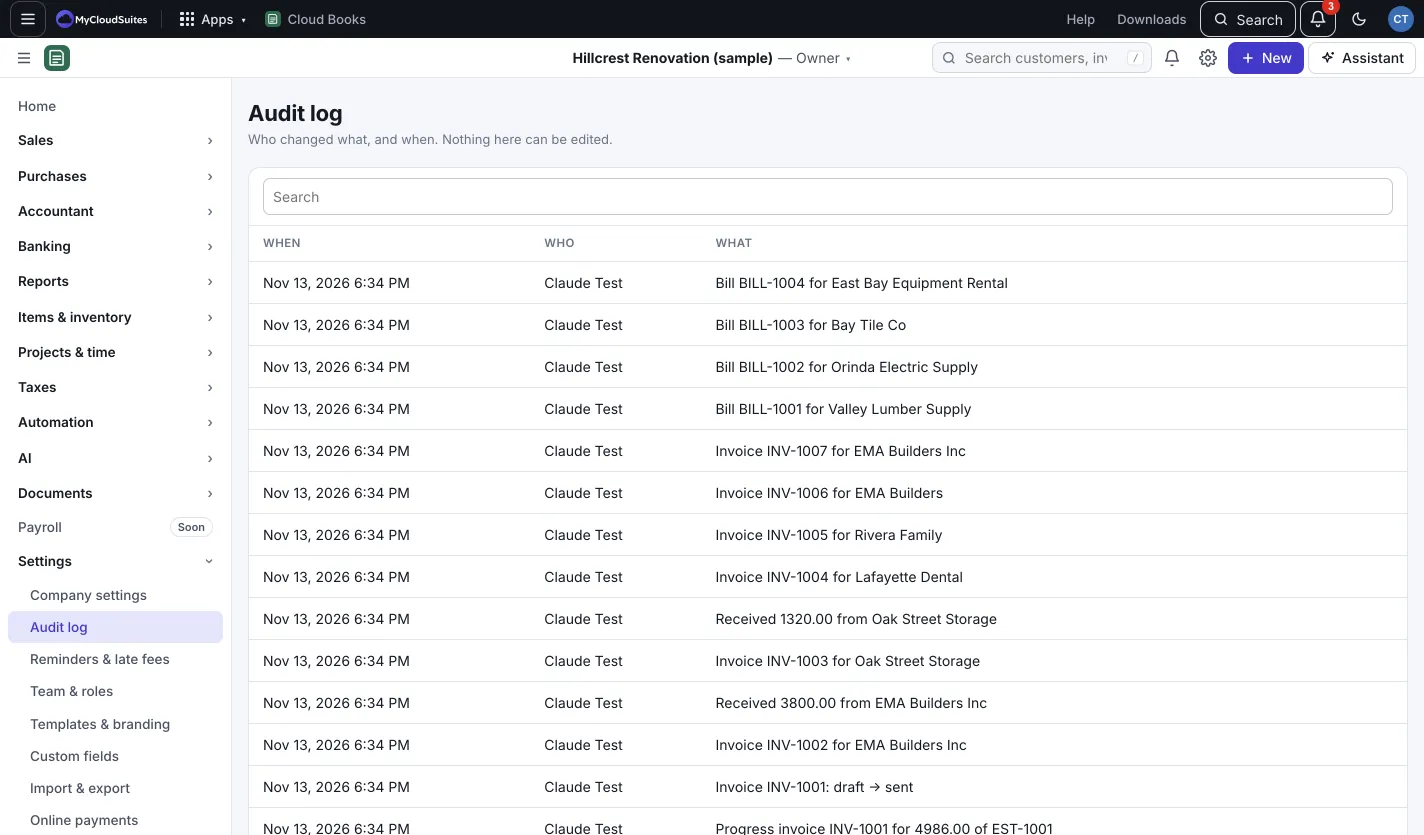
Every change in your books is written to the audit log. Nothing in it can be edited.
Open the audit log
- Go to Settings › Audit log. (Only the owner or an admin can see it.)
- Each row shows When, Who and What. Type in Search to find a change.
- Press Details to see each field Before and After.
- Press Show older to go further back.
Put something back
For some changes, the details show Put it back the way it was:
- An edited document goes back as it was, as a new edit.
- A deleted document is made again, as a draft. Recently deleted lists everything that can come back this way, with time, trips and files too.
- A customer’s, vendor’s or product’s details go back as they were.
- A merge splits back, for 30 days.
Press it, then confirm. The history keeps both changes. It can’t be done inside a closed period.
Other ways to undo
- Bank lines: in Bank transactions, press Undo on a confirmed line to send it back to For review.
- Deposits used, write-offs and refunds: press Undo in the invoice’s panel.
- Imports: in Import & export › History, press Undo while nothing in the import has changed.
- Mileage postings and sales tax returns: press Undo on the posting or the period.
- Ask Books: Done by Ask Books lists what you approved there, with Undo for 30 days.
Good to know
- Posted documents are never deleted. Void keeps them on file, marked Void, out of your books.
- Online refunds can’t be undone.