

Your firm: tools for bookkeepers and accountants
Updated November 13, 2026
Your firm is for bookkeepers and accountants: your clients’ books in one place, and your team on the right clients. It’s free for your firm; each client keeps their own plan.
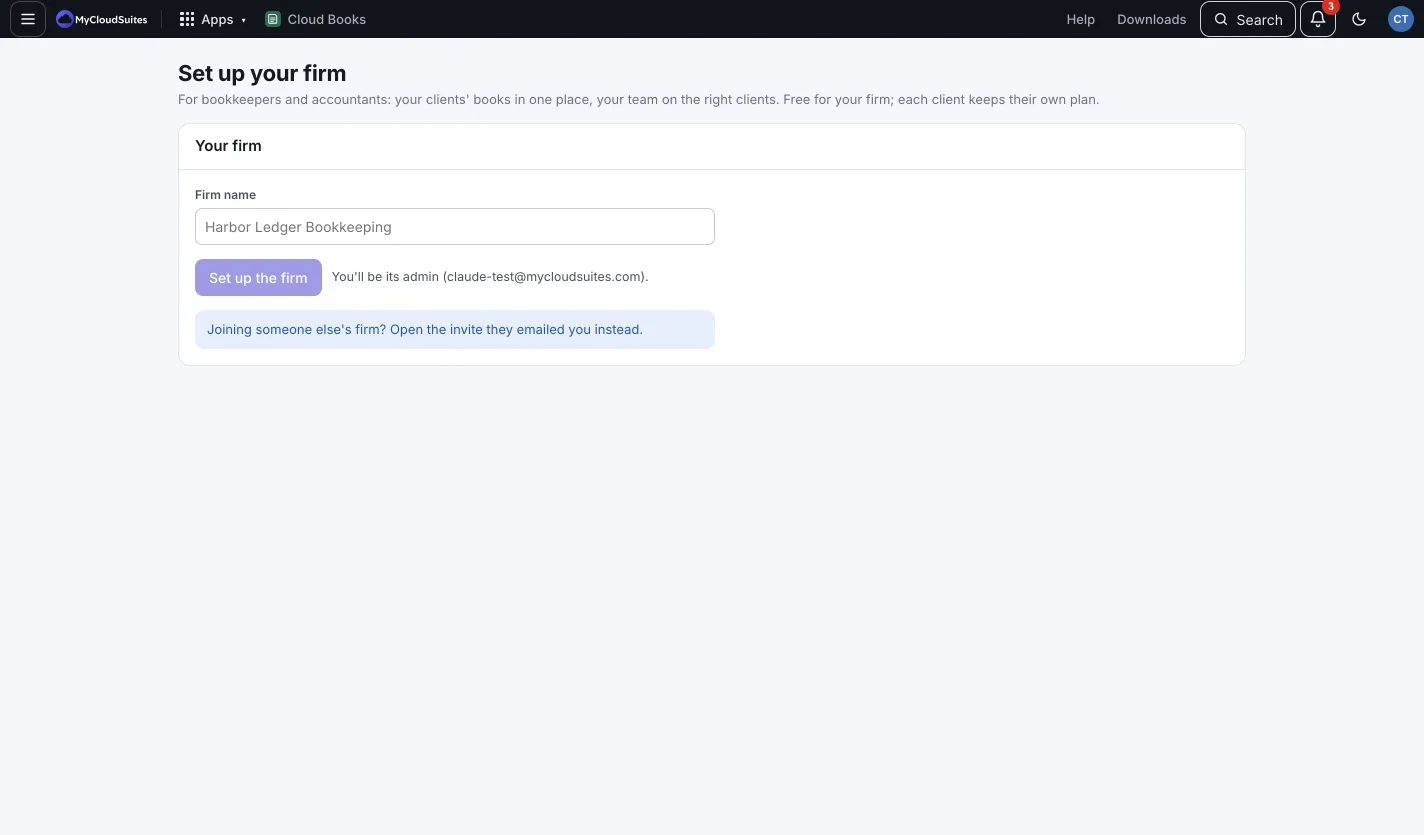
Set up your firm
- Go to Accountant › Your firm.
- Type the Firm name and press Set up the firm. You’re its admin.
Joining someone else’s firm? Open the invite they emailed you instead.
Take on clients
- Add a client: type the Owner’s email and an optional message, and press Send. The owner gets an email to bring your firm into their books, and your firm gets Accountant access.
- When an owner asks your firm in from their own books, they show under Asking for your firm. Press Take them on or Turn down.
Clients lists every client, who on your staff works on it, and what Needs attention: overdue invoices, bank lines to review, uncategorized money and sales tax due. Press Open to work in a client’s books.
Your team
- Open the Firm team tab and press Invite to the firm.
- Type their Email, pick the Firm role, and press Send invite:
- Staff: the clients they’re assigned.
- Admin: every client, the team and adding clients.
- On Clients, press Assign beside a client to pick which staff work on it.
Change someone’s firm role from the list, or press Take out to remove them. They lose every client at once.
Month-end close for every client
The Month-end close tab shows each client’s close for the last few months: Closed, how many steps are done, or Late. Click one to open that client’s close. See Month-end close.
Good to know
- Clients see your firm in Settings › Team & roles and can take it out any time.
- Accountants can’t see a client’s bank sign-ins or billing.