

Change orders
Updated November 13, 2026
A change order records work added to, or taken off, an estimate your customer already accepted. Once it’s approved, it counts in the job’s total, and your next progress invoice picks up its lines.
Make a change order
- Open the accepted estimate.
- In The job’s total, press New change order.
- The customer is the estimate’s customer. Add a line for each change. To take work off, use a negative amount.
- Press Send to and the customer’s name to email it, or Save as draft to keep it for later.
To share it another way, open the sent change order and press Copy customer link.
Your customer signs it
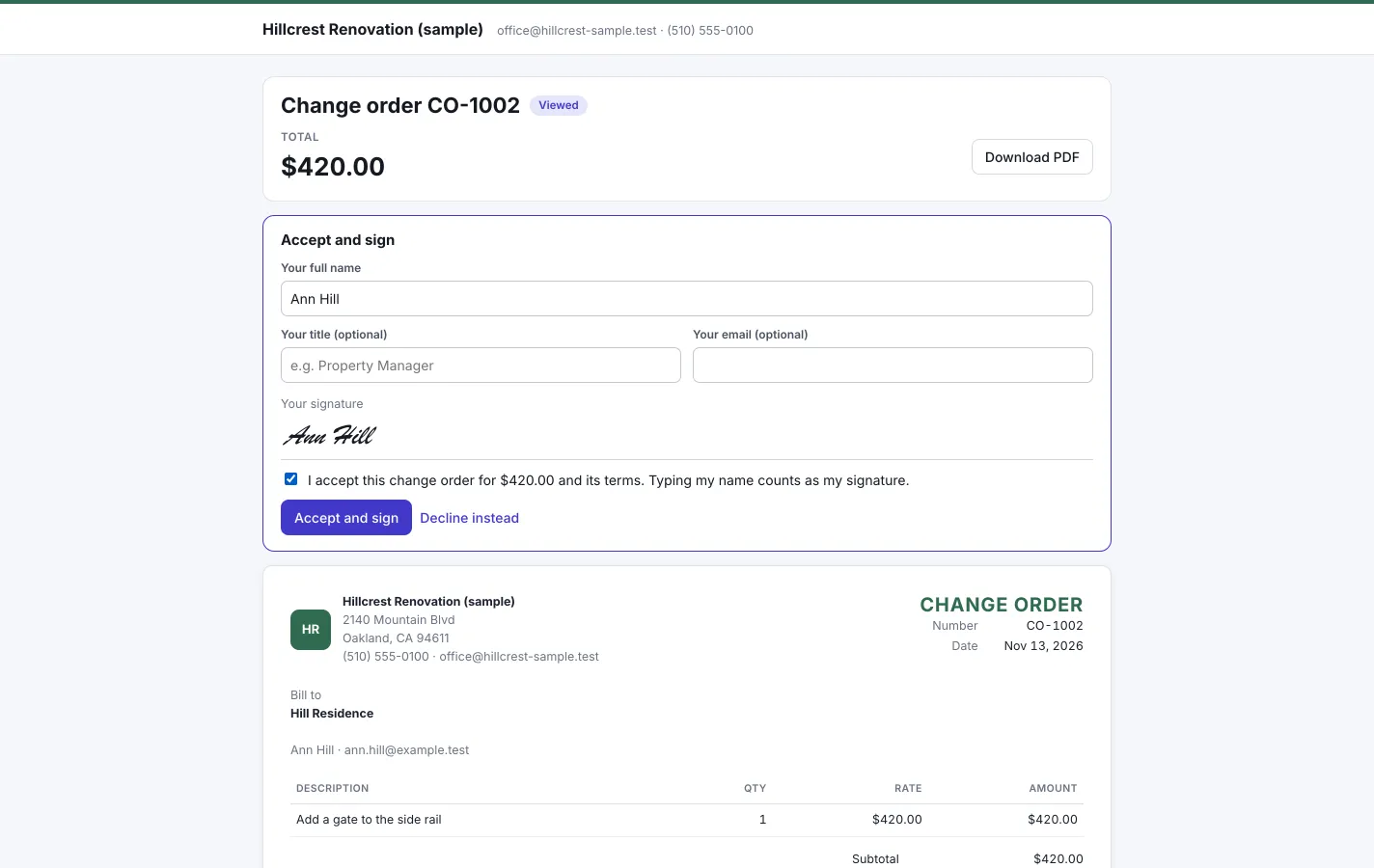
The email has a link to the change order. On that page your customer types their name (and, if they like, their title and email), ticks the box to accept, and presses Accept and sign. Typing their name counts as their signature. They can press Decline instead if they don’t agree.
Once it’s signed, it counts in the job’s total. You see it in the change order’s Activity.
Agreed another way?
If your customer agreed on the phone or in person, open the change order and press Mark as approved. It counts in the job’s total straight away.
Read the job’s total
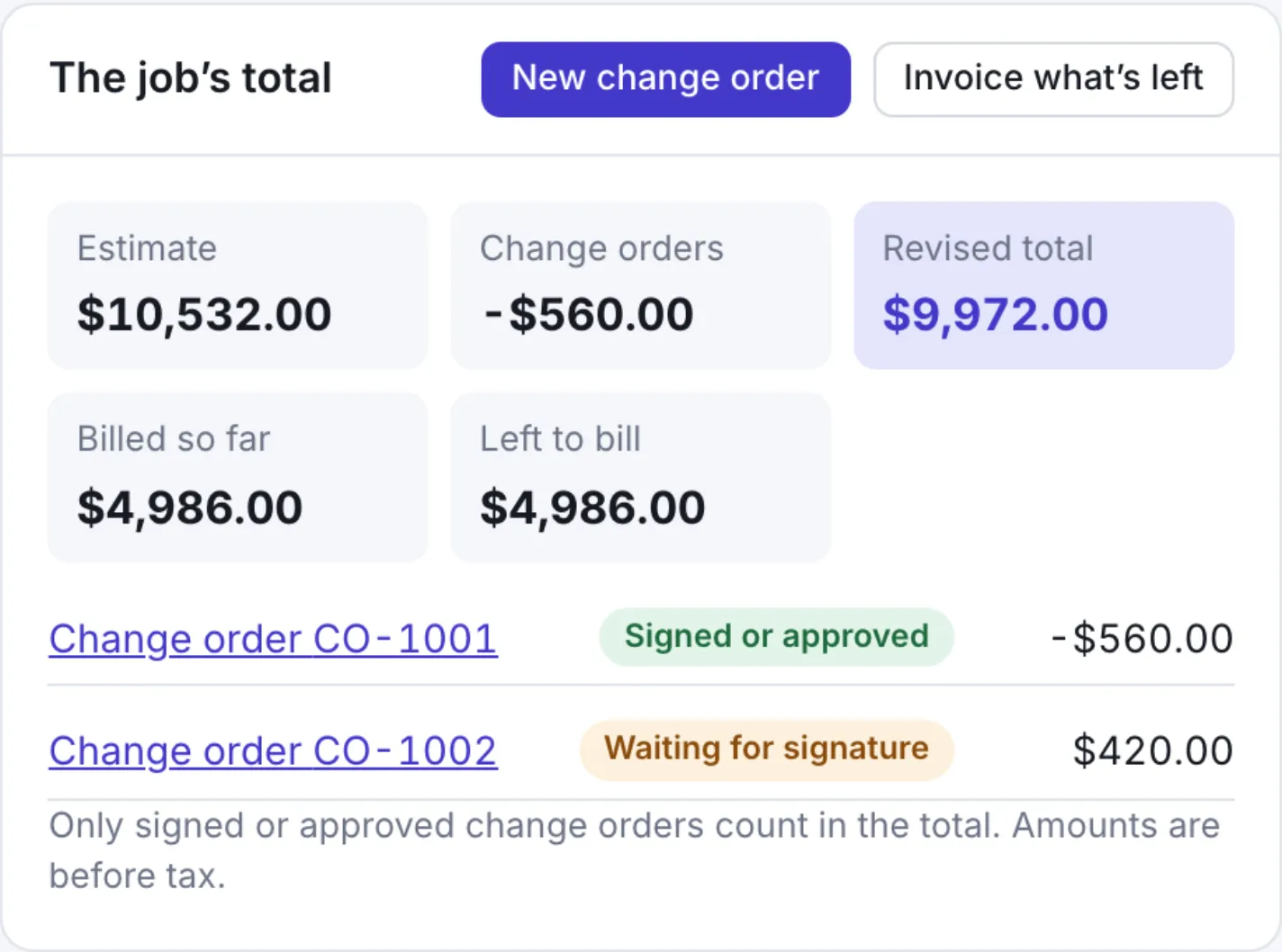
On the estimate, The job’s total shows:
- Estimate: the original amount.
- Change orders: approved changes added up.
- Revised total: the two together.
- Billed so far and Left to bill.
Each change order is listed with its status: Draft, Waiting for signature, Signed or approved or Declined.
Bill the rest
Press Invoice what’s left to make a draft invoice for everything not billed yet, including approved change orders. Or use Invoice part of it in Progress billing. See Bill a job in stages.
Good to know
- Only signed or approved change orders count in the total. Amounts are before tax.
- Change orders don’t touch your books. The invoices you make from the job do.
- Once an estimate has approved change orders, Turn into invoice is refused. Use Invoice what’s left or Invoice part of it so the change orders are included.