

Send invoices in a batch
Updated November 13, 2026
A batch makes many invoices at once: a monthly maintenance visit for every customer in a group, or each customer’s unbilled time and expenses at the end of the month.
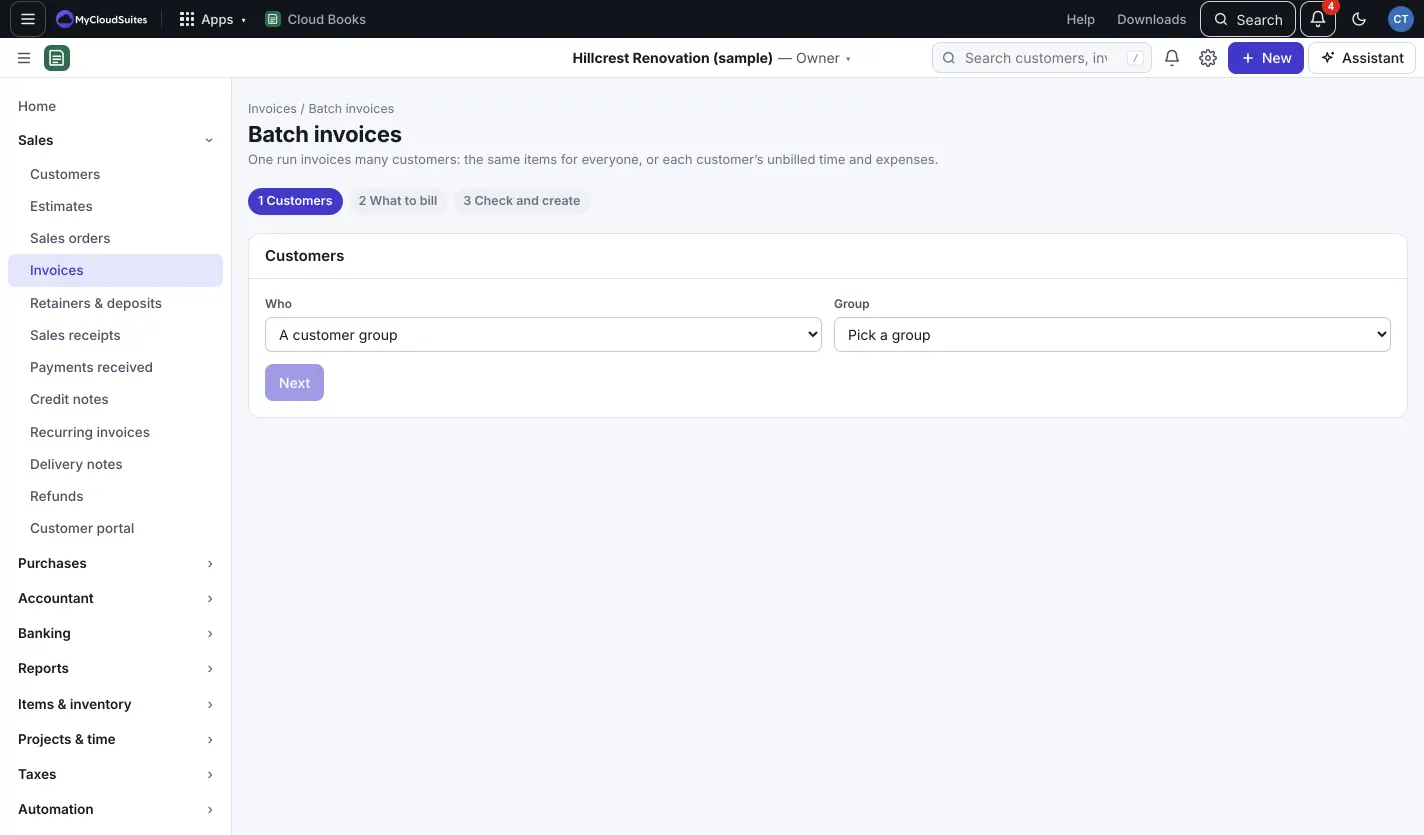
Make a batch
- Go to Invoices and press Batch invoices (or New › Batch invoices).
- Customers: pick A customer group, or Pick customers and tick them. Press Next.
- What to bill:
- The same items for everyone: add the products or services and quantities. Leave Rate empty to use each customer’s own price (their price list and your pricing rules), or type a rate for everyone.
- Each customer’s unbilled time and expenses: approved, billable time on their time-and-materials projects, and their billable expenses. Pick the Invoice date, then press Next.
- Check and create: each customer with their lines and amount before tax.
- Customers Over credit limit start unticked.
- Customers with Nothing to bill are left out.
- No email means the invoice is marked sent for you to download and send another way.
- Press Create and send to email them now, or Create as drafts to look first.
Undo a batch
Made them as drafts and changed your mind? On the results page, press Undo the batch (delete these drafts). A batch can be undone only while every invoice in it is still a draft; void any sent ones one by one.
The Audit log has one entry for each batch.