

Products and services
Updated November 13, 2026
Saved products and services fill in invoice and bill lines with the right description, price, account and sales tax, so you don’t type them each time.
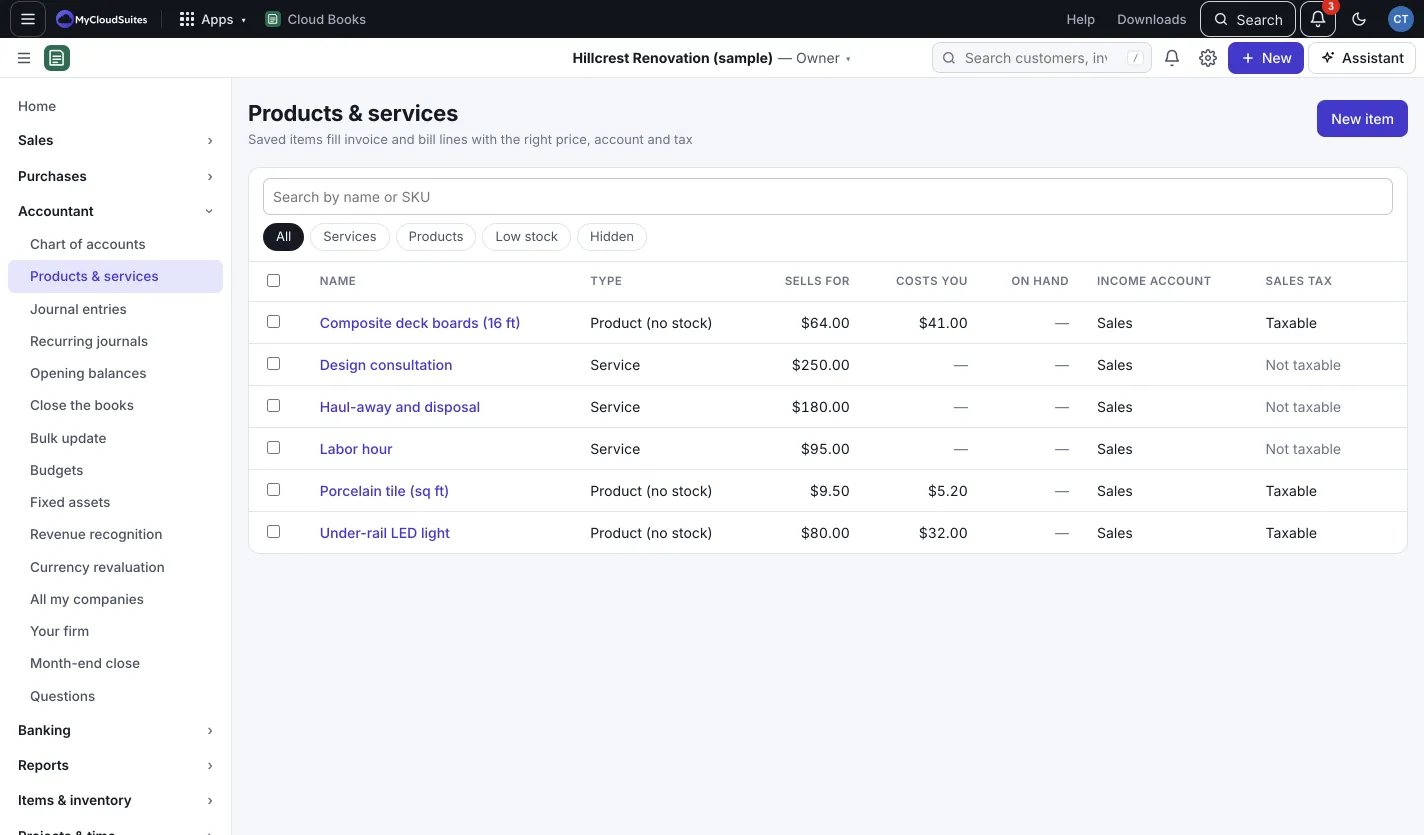
Add a product or service
- Go to Accountant › Products & services and press New item. (Or New › Product or service.)
- Type the Name, and pick the Type:
- Service: work you do, like labor by the hour.
- Product (no stock): something you sell but don’t count.
- Inventory (tracks stock): Books keeps count of how many you have and what they cost. See Track inventory.
- Bundle: several products and services sold as one.
- Fill in the SKU or code, Price you charge, Unit (like hour or each) and What it costs you (used on bills and purchase orders).
- Pick where Income goes to and where Costs go to.
- Add a Description on invoices, and tick Charge sales tax on this if it’s taxable.
- Press Save.
Set up a bundle
After you save a bundle, click Parts beside it in the list, press Stock settings, then + Add a part for each product or service and its quantity. Press Save. Only products that track stock leave stock when the bundle sells; services in it are just part of the price.
Change many at once
Tick the products you want, then press Change prices or Change costs. Pick change by %, change by an amount or set to, enter the number, and press Apply to (number). Hide takes them out of lists; find them later under the Hidden filter and press Show again.
Good to know
- Filter the list by Services, Products, Low stock or Hidden, or search by name or SKU.
- Two products for the same thing? Open one and press Merge into… (owners and admins). Products that track stock can’t be merged yet. See Merge duplicates.
- Untick Show in lists on a product to hide just that one.