

Set pricing rules
Updated November 13, 2026
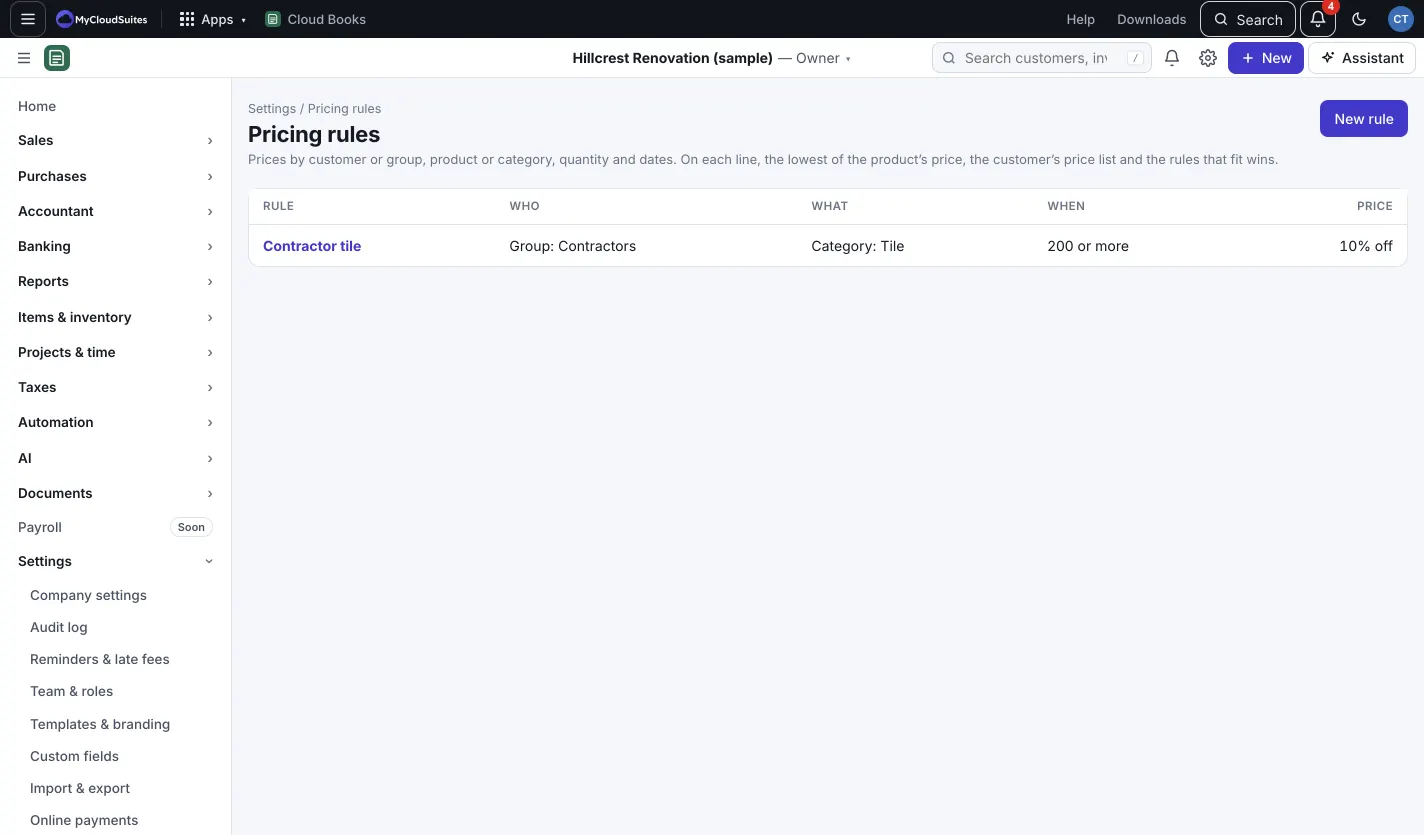
Pricing rules set prices on invoices, estimates, sales orders and batch invoices for you: 12% off fittings for contractors buying 200 or more, a winter sale on heaters, a fixed labor rate for one customer.
Before you start
- Customer groups: open a customer, press Edit, and type a Customer group (for example Contractors).
- Product categories: open a product in Products & services, press Edit, and type a Category (for example Fittings).
Make a rule
Owners and admins make rules.
- Go to Settings › Pricing rules and press New rule.
- Give it a Name.
- Pick Who it’s for: Everyone, A customer group or Some customers.
- Pick Which products: Everything, A category or Some products.
- Optionally, set Quantity on the line, at least, and the Starts and Ends dates.
- Pick the Price: Percent off, Amount off each, A fixed price or Cost plus a percent, and fill in the number.
- Press Save rule.
To pause a rule, open it and press Turn off.
Which price wins
For each line, Cloud Books takes the lowest of:
- the product’s own price,
- the customer’s price list price (see /help/price-lists),
- every active rule that fits the customer, product, quantity and date.
A rule never raises a price. When the customer is on a price list, a percent off is taken from the list price if it’s lower.
On the invoice
When you pick a product, the rate fills in from the winning price, and the line says Price from the rule with its name. Change the quantity and the price follows it. Type your own rate and the rule lets go of that line.