

Price lists
Updated November 13, 2026
A price list gives some customers special prices, like contract pricing for a builder or a discount for repeat homeowners. When you pick a product on their invoice or estimate, their price fills in.
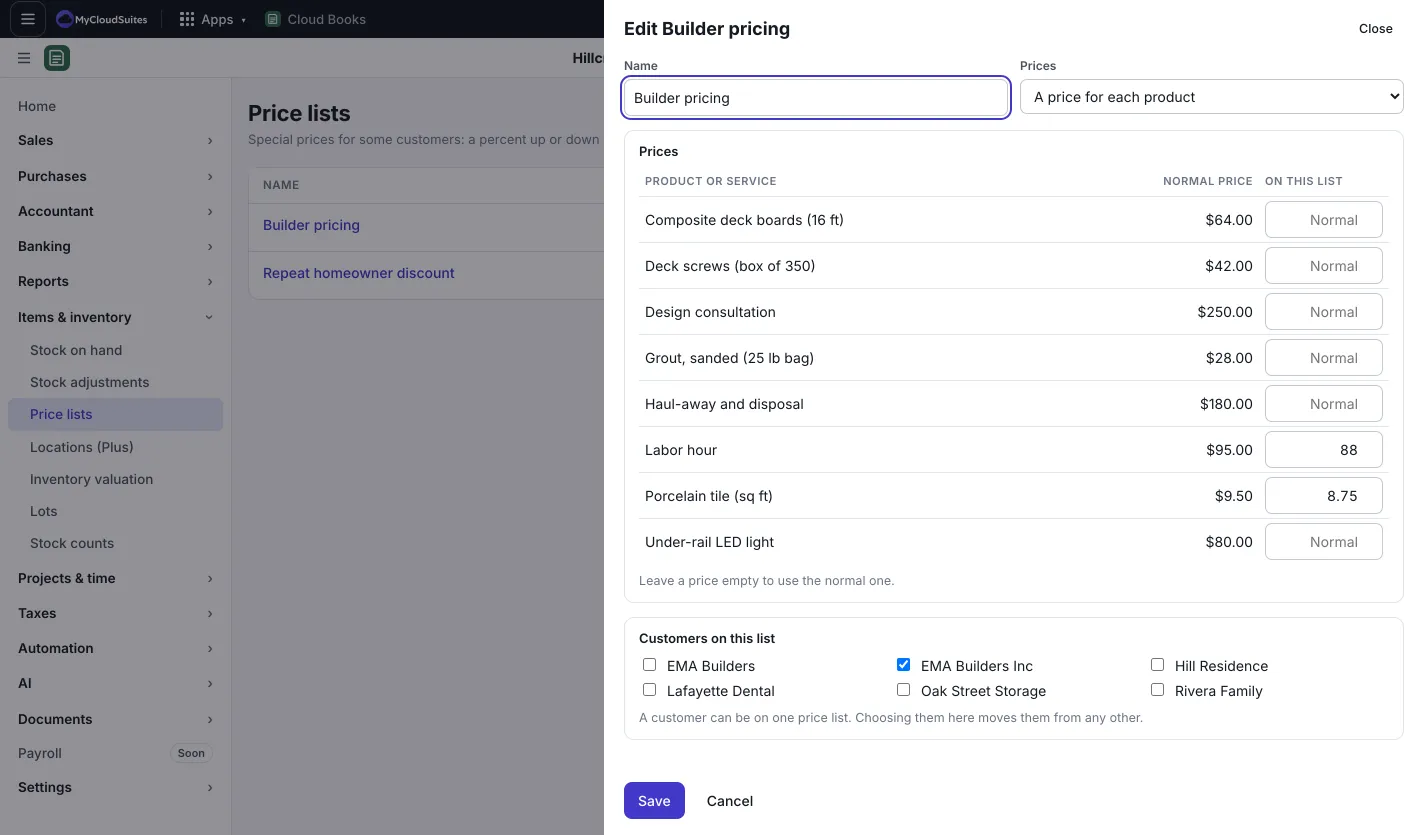
Make a price list
- Go to Items & inventory › Price lists and press New price list (or New › Price list).
- Give it a Name, like “Builder pricing”.
- Under Prices, pick one:
- A percent up or down on everything: type the Percent. -10 means 10% off the normal price.
- A price for each product: type the price beside each product you want to change. Leave a price empty to use the normal one.
- Under Customers on this list, tick the customers who get these prices.
- Press Save.
Change or remove one
Click a list’s name to change it. Press Delete beside a list to remove it.
Good to know
- A customer can be on one price list. Ticking them on a new list moves them from any other.
- The price fills in when you pick the product on a sales document. You can still change the rate on any line.
- A stocked product’s page (from Stock on hand) shows its price on each list.
For prices by quantity, dates, customer groups or product categories, use pricing rules: the lowest price wins on each line. See /help/pricing-rules.