

Build assemblies
Updated November 13, 2026
An assembly is a stocked product made from other products: a shower valve kit from a valve body and a cartridge. When you build it, the parts come out of stock at their cost and the assembly goes in. Bundles are different: they’re sold together but never built.
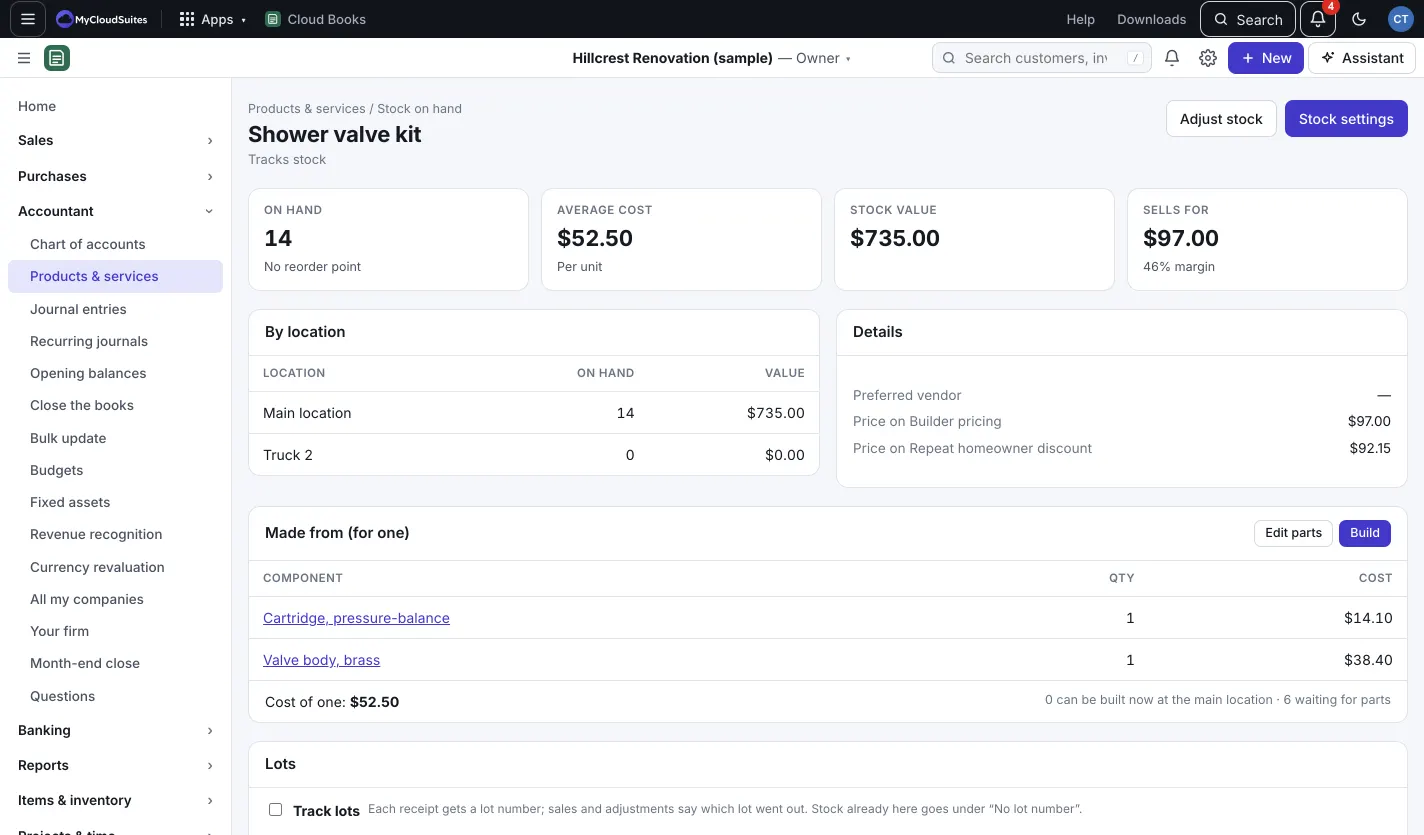
Make a product an assembly
- Open a stocked product (its Type is Inventory (tracks stock)).
- Under Assembly, press Make it an assembly.
- Pick each Part and its Quantity for one. Parts are stocked products or services; a part can be an assembly too.
- Press Save.
The product now shows Made from (for one), the Cost of one, and how many can be built at the main location.
Build
- On the product, press Build.
- Type How many.
- If there are enough parts, press Build. If not:
- Build 14, hold 6 builds what the parts allow and keeps the rest as a pending build;
- Build 14 only builds what you can and stops.
Stock never goes below zero. Services (like bench labor) add their cost to the assembly. Nothing reaches profit until you sell it.
Builds, waiting and parts to order
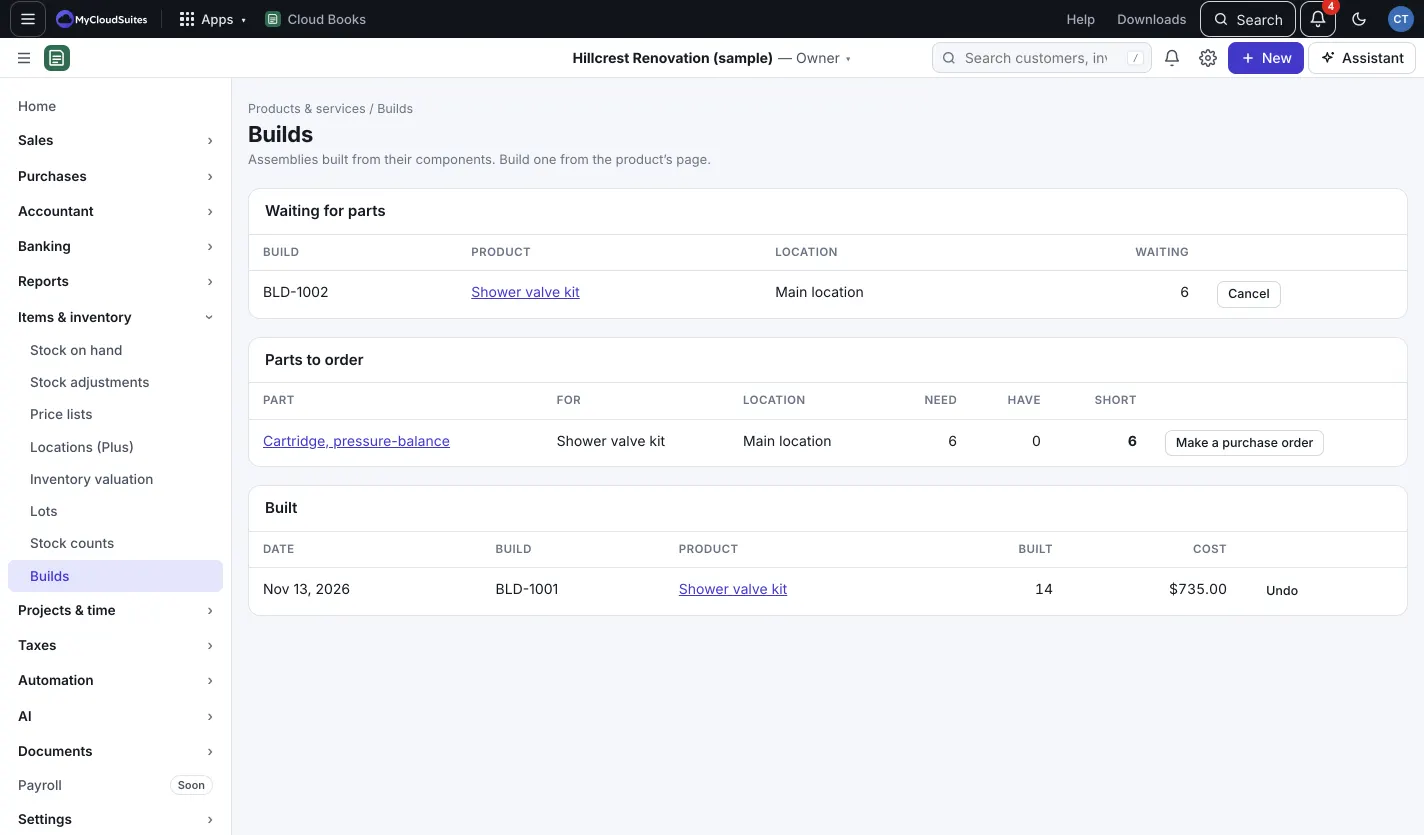
Items & inventory › Builds lists:
- Waiting for parts: pending builds. When the parts arrive, press Build 6 now (it shows how many the parts allow), or Cancel.
- Parts to order: what’s short for pending builds, with Make a purchase order.
- Built: past builds. Undo puts the parts back, as long as the assemblies are still in stock.
Build and sell
On an invoice, if an assembly has fewer in stock than the line needs, the line offers Build 2 and sell. It builds what the parts allow and holds the rest.