

Payment reminders and late fees
Updated November 17, 2026
Cloud Books can email customers about unpaid invoices for you, and add a late fee when an invoice is overdue.
Turn on automatic reminders
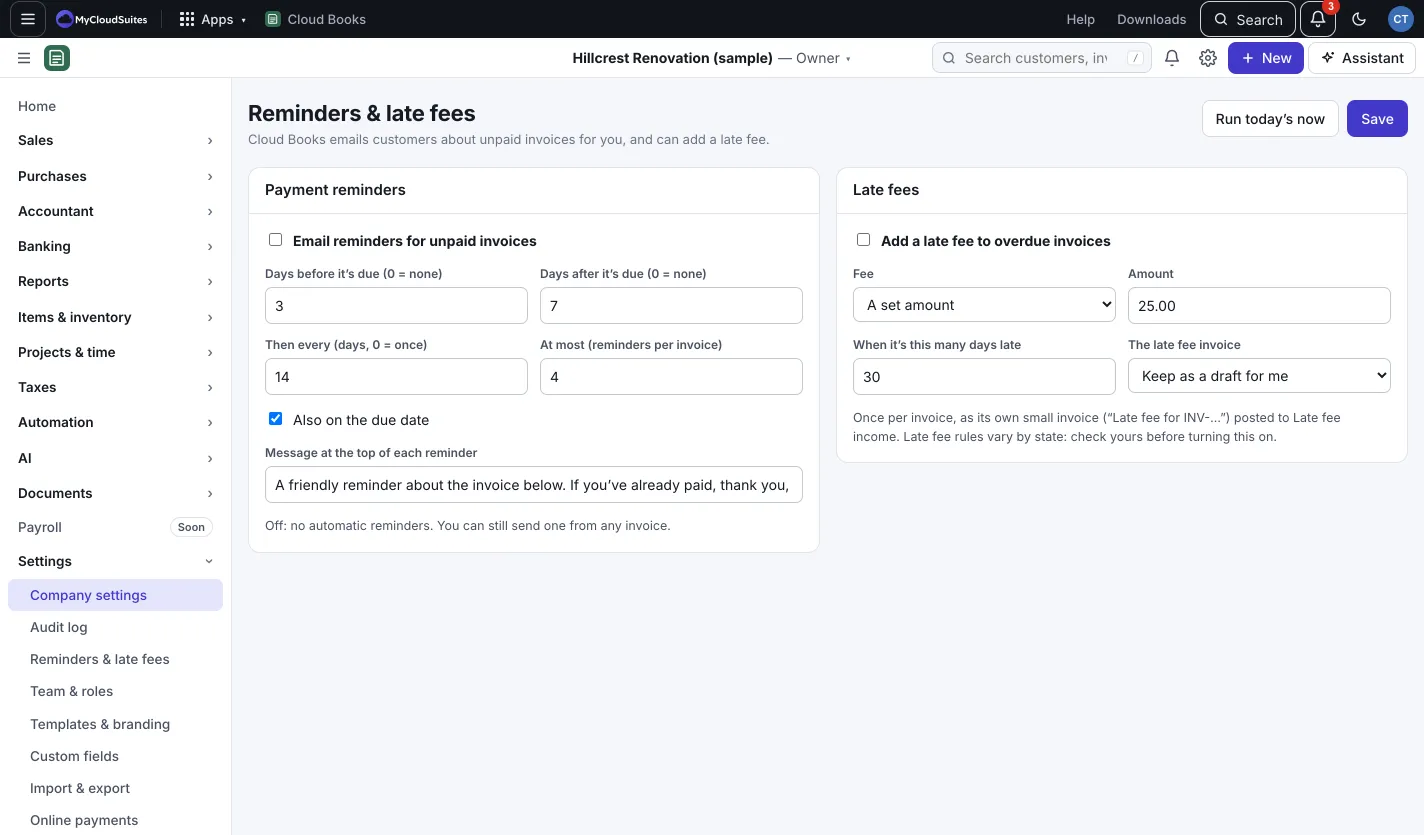
- Go to Settings › Reminders & late fees. (Only the owner or an admin can change these.)
- Under Payment reminders, tick Email reminders for unpaid invoices.
- Choose when they go:
- Days before it’s due (0 = none)
- Also on the due date
- Days after it’s due (0 = none), Then every (days, 0 = once)
- At most (reminders per invoice)
- Add a Message at the top of each reminder if you like.
- Press Save.
The page sums it up, for example “Reminders go 3 days before it’s due, on the due date, 7 days late, then every 7 days”. Never two on the same day, and paid invoices are skipped.
Add a late fee
- On the same page, under Late fees, tick Add a late fee to overdue invoices.
- Under Fee, pick A set amount or A percentage of what’s owed, and enter it.
- Set When it’s this many days late.
- Under The late fee invoice, pick Keep as a draft for me or Email it to the customer.
- Press Save.
The fee is added once per invoice, as its own small invoice (“Late fee for INV-…”) posted to Late fee income. Late fee rules vary by state: check yours before turning this on.
Change reminders for one customer or invoice
- One customer: on their Details tab, untick Send this customer automatic payment reminders.
- One invoice: open it and, in Reminders, pick Use the company’s plan, Its own reminders or No reminders. With Its own reminders, press + Add a reminder for each one (up to 8), set the days and whether it’s before, on or after the due date, then press Save.
Send one now
Open an unpaid invoice and press Send reminder. It counts on the invoice’s Reminders card, along with the automatic ones: for example “Sent 2: last …”.
Good to know
- Reminders and recurring invoices run early each morning. Run today’s now runs today’s at once.
- Reminders stop once the invoice is paid.