

Bulk update: move many transactions at once
Updated November 13, 2026
Bulk update moves many transactions to the right account, or gives them a class, in one go. It’s handy for cleaning up, for example everything that landed in Uncategorized expense.
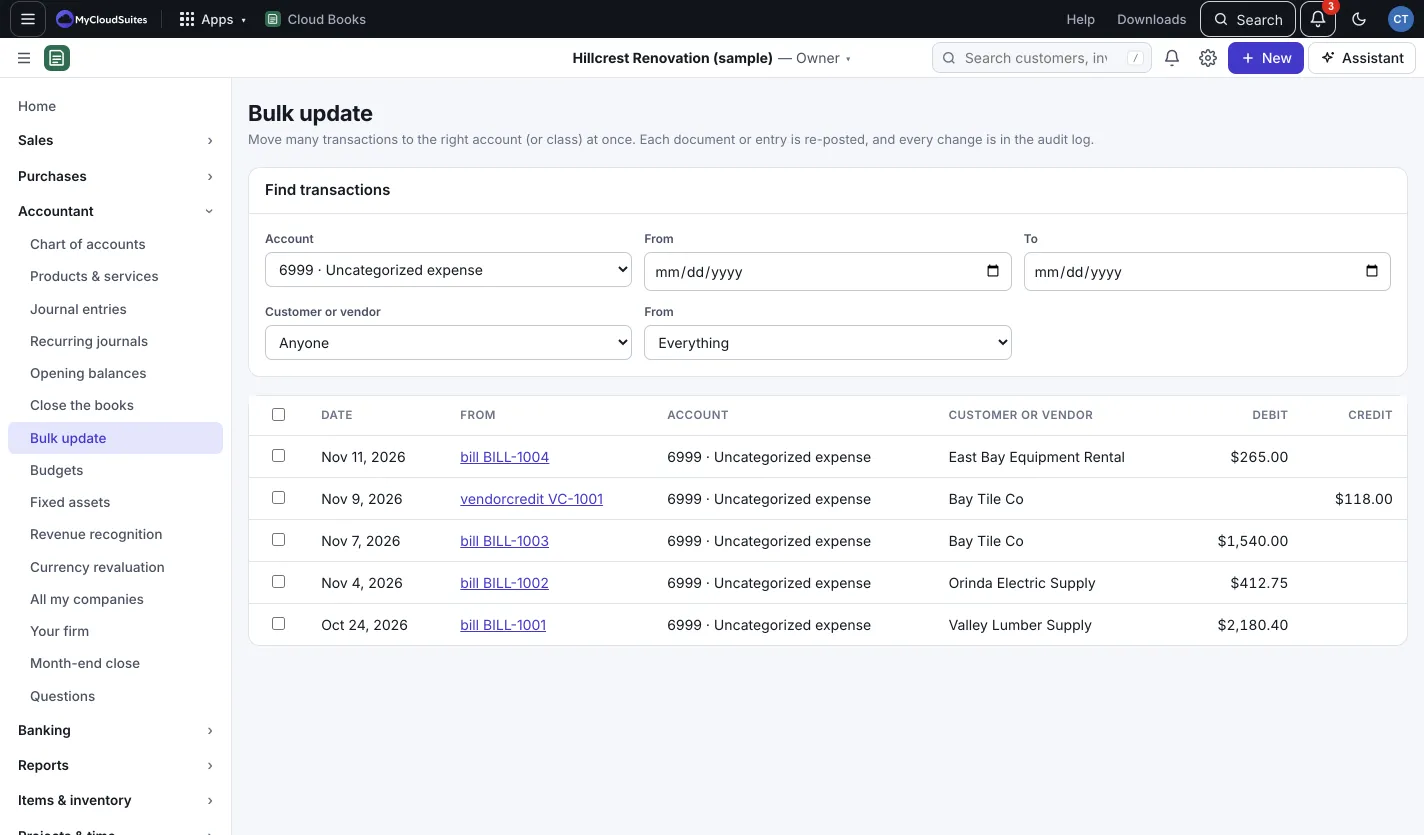
Move transactions
- Go to Accountant › Bulk update.
- Under Find transactions, pick an Account, a Customer or vendor, or a From and To date. Under the second From, pick Everything, Invoices, bills and other documents or Journal entries.
- Tick the transactions to change, or tick the box at the top to pick all that can move.
- Under Change (number) selected, pick the account to move them to, or type a class in Set class (optional), or both.
- Press Apply to (number).
Good to know
- Each document or entry is re-posted with the change, and every change is in the audit log. See The audit log and undo.
- Some lines can’t move, for example ones in a closed period. Their box is greyed out, with the reason under them.