

Review bank lines in the Bank inbox
Updated November 13, 2026
Every line from your bank waits in the Bank inbox until you confirm it. Books suggests what each line is; you confirm or change it.
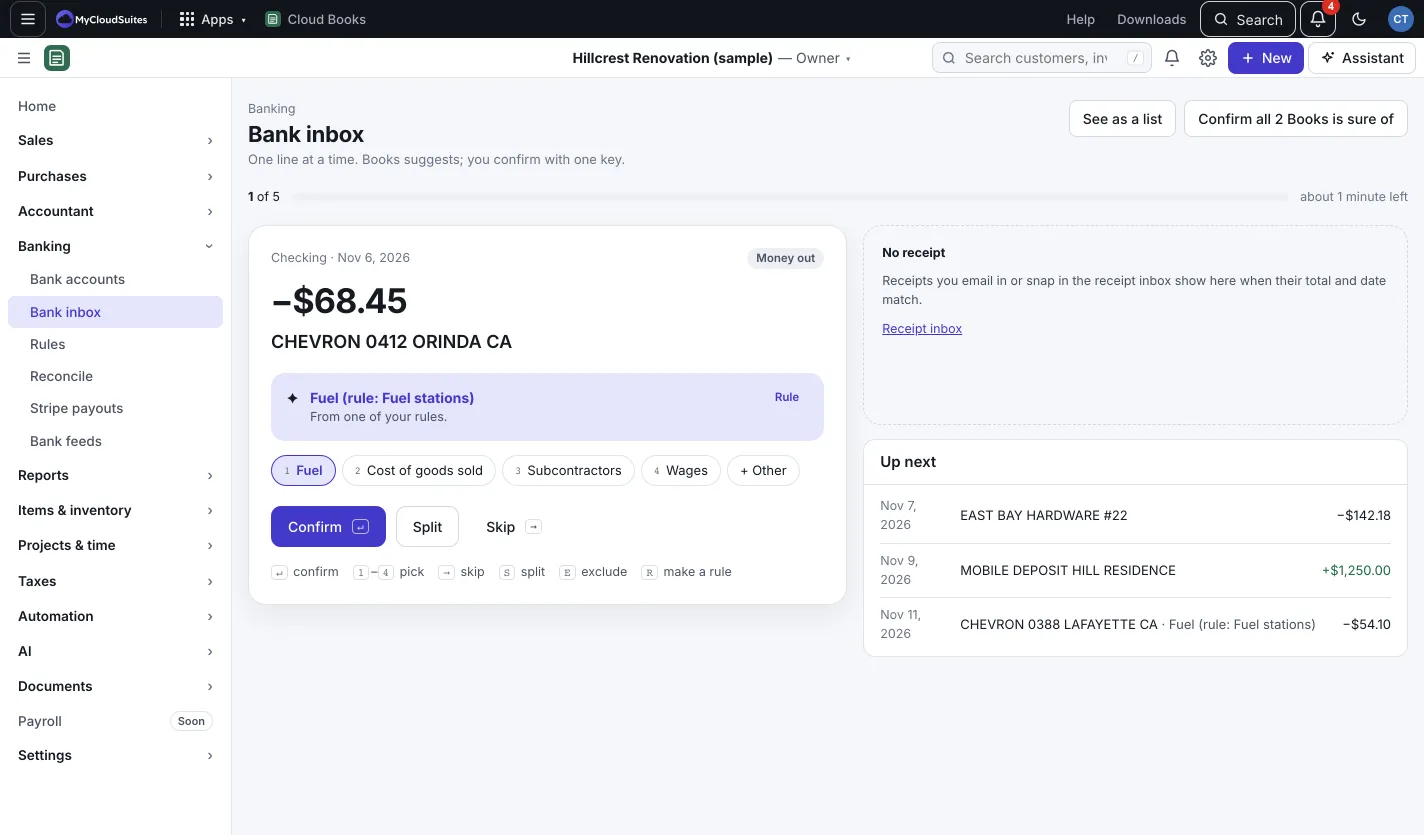
One line at a time
- Go to Banking › Bank inbox.
- Books shows the oldest line first, with its guess:
- a match to something already in your books (nothing is posted twice),
- a payment of an open invoice or bill,
- a rule you made, or what you filed this merchant as before.
- If the guess is right, press Confirm (or press Enter).
- If not, pick one of up to four categories below it (or press 1 to 4), or + Other for any account.
- Need to split it? Press Split (or S). Not a business transaction? Press E to exclude it. Want to come back to it? Press Skip (or the right arrow).
Not sure what a line is? Press Ask Claude for a guess (a few AI credits).
Confirm many at once
- Press Confirm all (number) Books is sure of at the top.
- Or press See as a list, tick lines and press Confirm (number) selected.
Change, undo or make a rule
- In the list, press Change on a line to categorize it, record it as Payment for an invoice or Payment of a bill, or mark it a Transfer.
- In the Categorized tab, press Undo to send a line back to For review, or Make a rule to file lines like it automatically.
Autopilot
After you’ve confirmed 20 AI picks yourself, the list view offers Autopilot under For review. It confirms AI picks Claude is at least 90% sure of, and only for merchants you’ve categorized before. Each one is marked Done by AI and can be undone for 30 days. It uses about 1 AI credit per 10 lines. To see what it did, open Categorized and press Done by AI.
Good to know
- A receipt in your Receipt inbox with the same total within 7 days shows beside the line. Press Attach to link it.
- If your accountant works on your books, they can press Ask the client on a line to ask you about it.
- Keyboard keys don’t work while you’re typing in a field or a drawer is open.