

Bank rules
Updated November 13, 2026
A bank rule says “when a line looks like this, file it like that”. Rules suggest a category, and can also confirm lines for you on import.
Make a rule
- Go to Banking › Rules and press New rule. Or, from a line you’ve categorized, press Make a rule (or R in the Bank inbox).
- Give it a Rule name.
- Under When a bank line…, set any of: Description contains (for example “chevron”), Or description is exactly, Direction, In account, Amount at least, Amount at most. Under Matches when, pick whether all tests must hold or any one.
- Under …then, pick the Category, and if you like a Payee or customer, Class and Memo. To split it, press Split it between accounts by %; the parts must add up to 100%.
- Tick Confirm these automatically on import (otherwise it only suggests) to let it file lines by itself.
- Press Save rule.
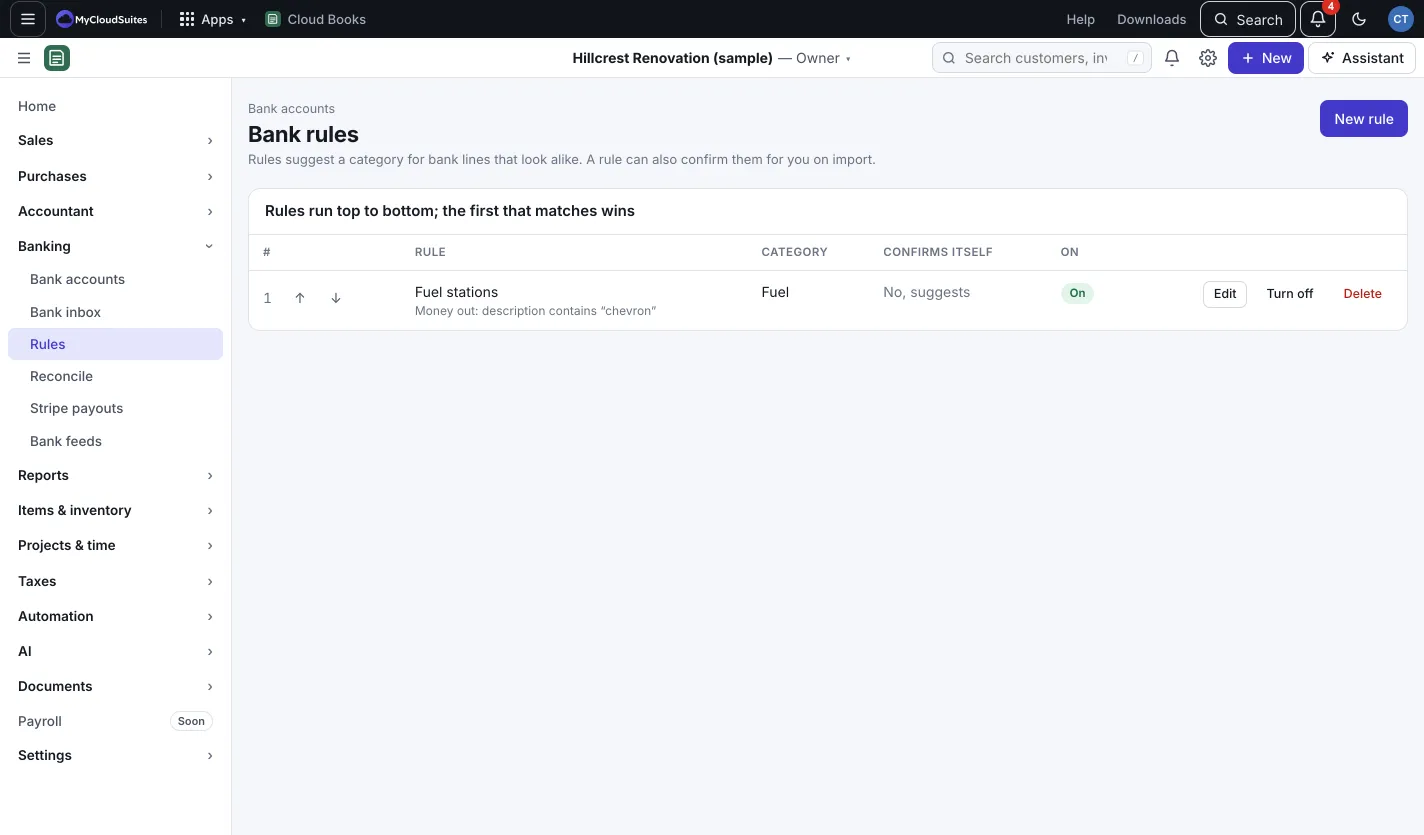
Put rules in order
Rules run top to bottom; the first that matches wins. Use the up and down arrows to move a rule. Before you save, Books shows What the new order changes for lines from the last 90 days. Press Save this order, or Undo.
Good to know
- Turn off stops a rule without deleting it.
- Deleting a rule doesn’t change lines it already categorized.
- Rules run on statement imports and live bank feeds.