

Fixed assets and depreciation
Updated November 13, 2026
Trucks, equipment and other things that last years aren’t an expense all at once. Their cost is spread over their useful life as depreciation. Cloud Books works out the schedule and posts it for you.
Add an asset
First, record the purchase itself as a bill or expense to the asset account, so it’s in your books. Then:
- Go to Accountant › Fixed assets and press Add an asset. (Or New › Fixed asset.)
- Give it a Name, the Cost, the Salvage value (what it will be worth at the end), In service from and the Useful life (years).
- Pick the Asset account, the Accumulated depreciation account and the Depreciation expense account.
- Pick the Method: Straight line, Declining balance, Sum of the years’ digits or Units of use. For units of use, enter the Units over its life and record the units each month on the asset’s page with Record usage.
- Optional: under Tax book (optional), pick a MACRS class, and any Bonus depreciation (%) and Section 179 amount. The tax book feeds Schedule C line 13 and never touches your books. Check the rates with your tax preparer.
- Press Add asset.
Post depreciation
On Fixed assets, under Run depreciation, pick the month to go Through and press Post depreciation. Each month posts once, dated the month’s last day. Running it again posts nothing new.
Sell or scrap an asset
- Open the asset and press Sell or scrap.
- Enter the Date and what it Sold for (0.00 if scrapped). If it sold, pick where the Money went into.
- Press Record it.
The asset and its depreciation come off your books. Selling for more than its book value is a gain; less is a loss.
Good to know
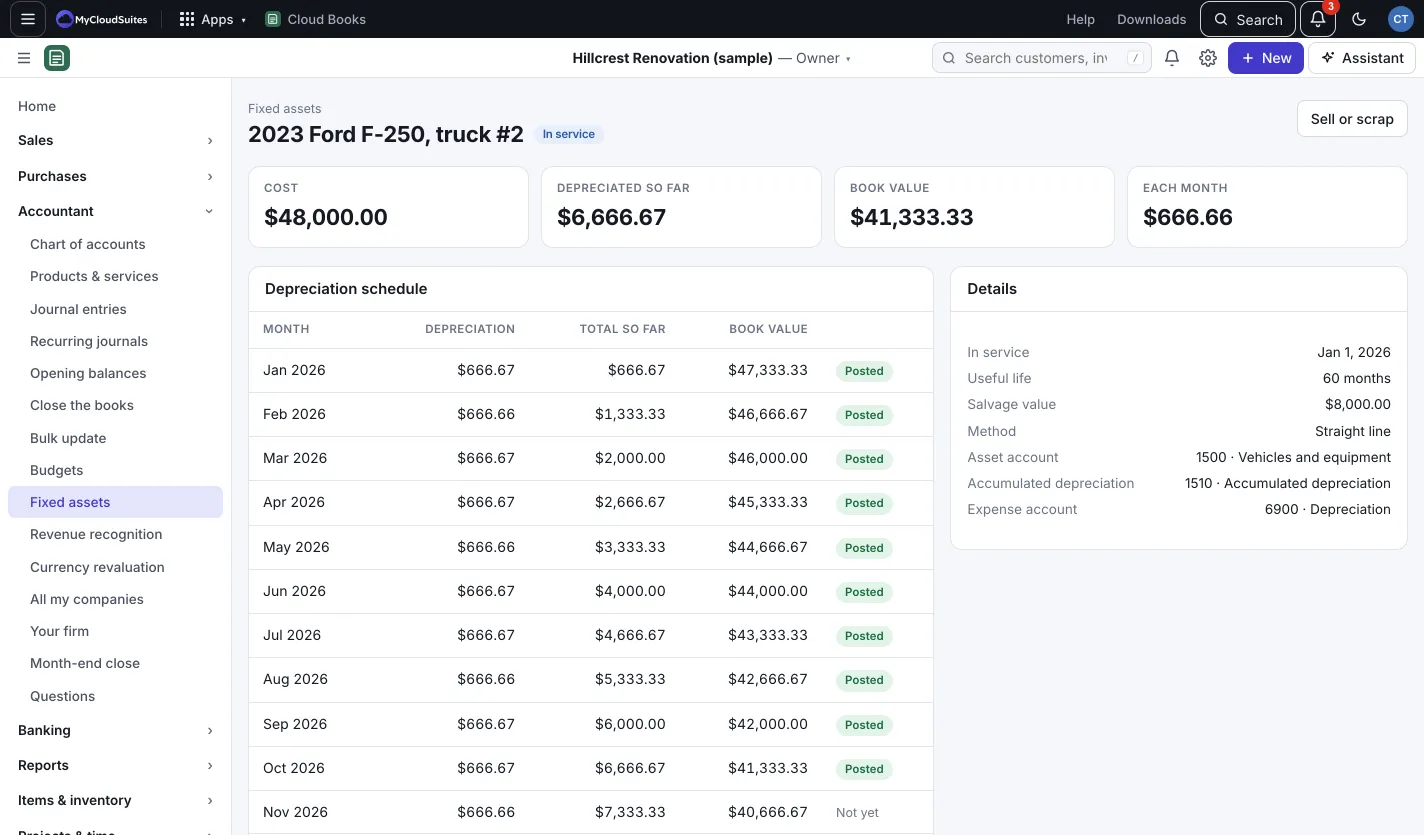
- The tiles show the Cost, Depreciated so far, Book value and how much depreciation posts Each month.
- Each asset’s Depreciation schedule shows every month, with Posted beside the months already in your books.