

Notifications and the bell in Cloud Books
Updated November 13, 2026
The bell in the Cloud Books top bar shows things like payments, customer messages and bills waiting for approval. It rings for the company’s owners and admins.
Check the bell
- Click the bell. The number on it is how many are new.
- Click a notification to go straight to it.
- Press Mark all read to clear the number.
Choose what rings the bell
- Go to Settings › Notifications, or click the bell and choose Choose what rings the bell.
- Under Ring the bell when, switch each kind on or off, for example A customer paid, A bill waits for approval or The nightly books checkup found something.
- Under Email, turn on Also email me a daily summary if you want one. It comes once a day, only when there’s something new you haven’t seen.
- Press Save.
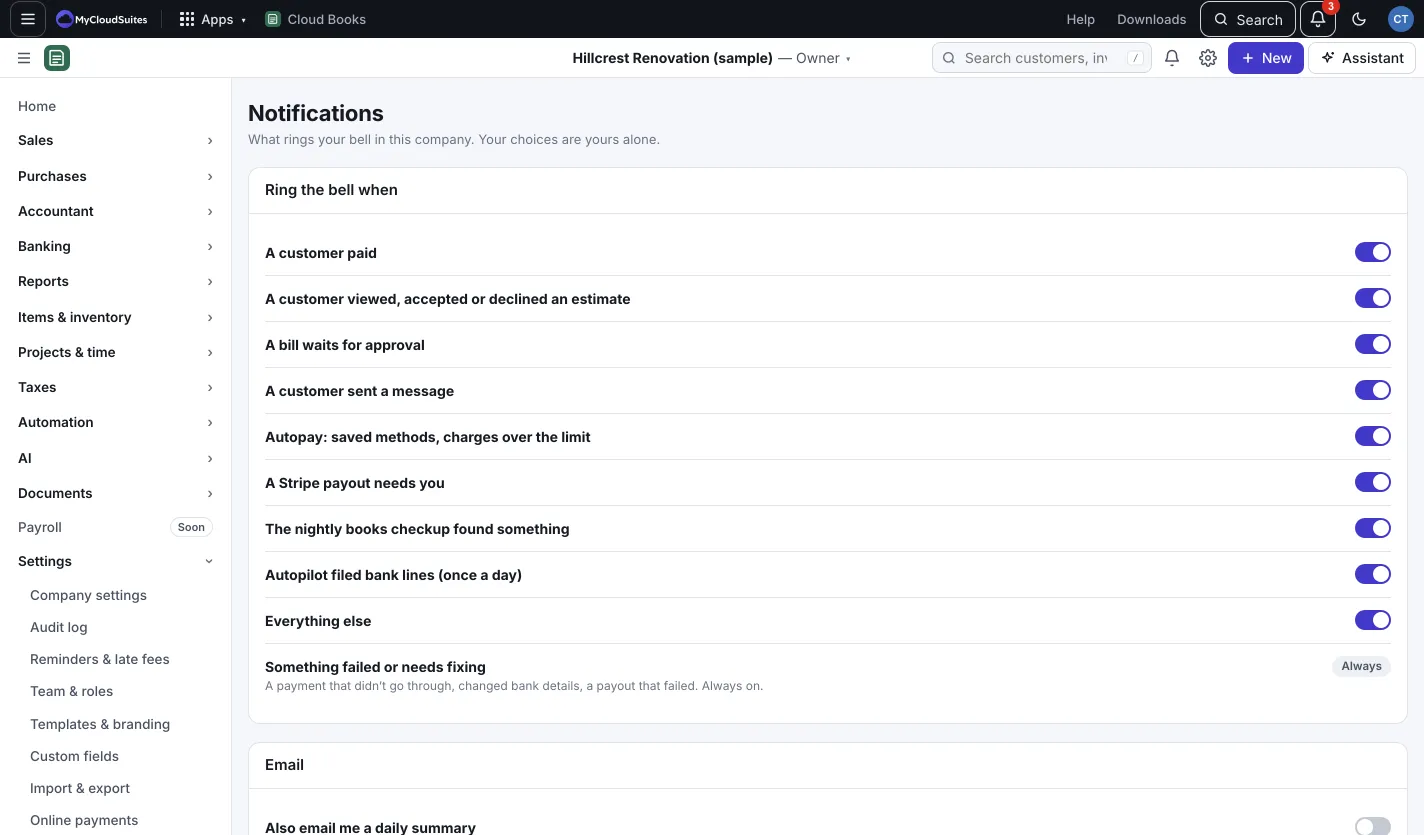
Your choices are yours alone and apply to this company. Something failed or needs fixing, like a payment that didn’t go through or changed bank details, is always on.
Notifications from workflow rules
A workflow rule can notify people in Cloud Books. Automation › Notifications lists what your rules told you about. Press Mark all as read to clear them. See Workflow rules.