

Workflow rules
Updated November 13, 2026
A workflow rule says “when this happens, do that”. For example: email me when an invoice over $5,000 is paid. Rules run within a minute, and once per event.
Make a rule
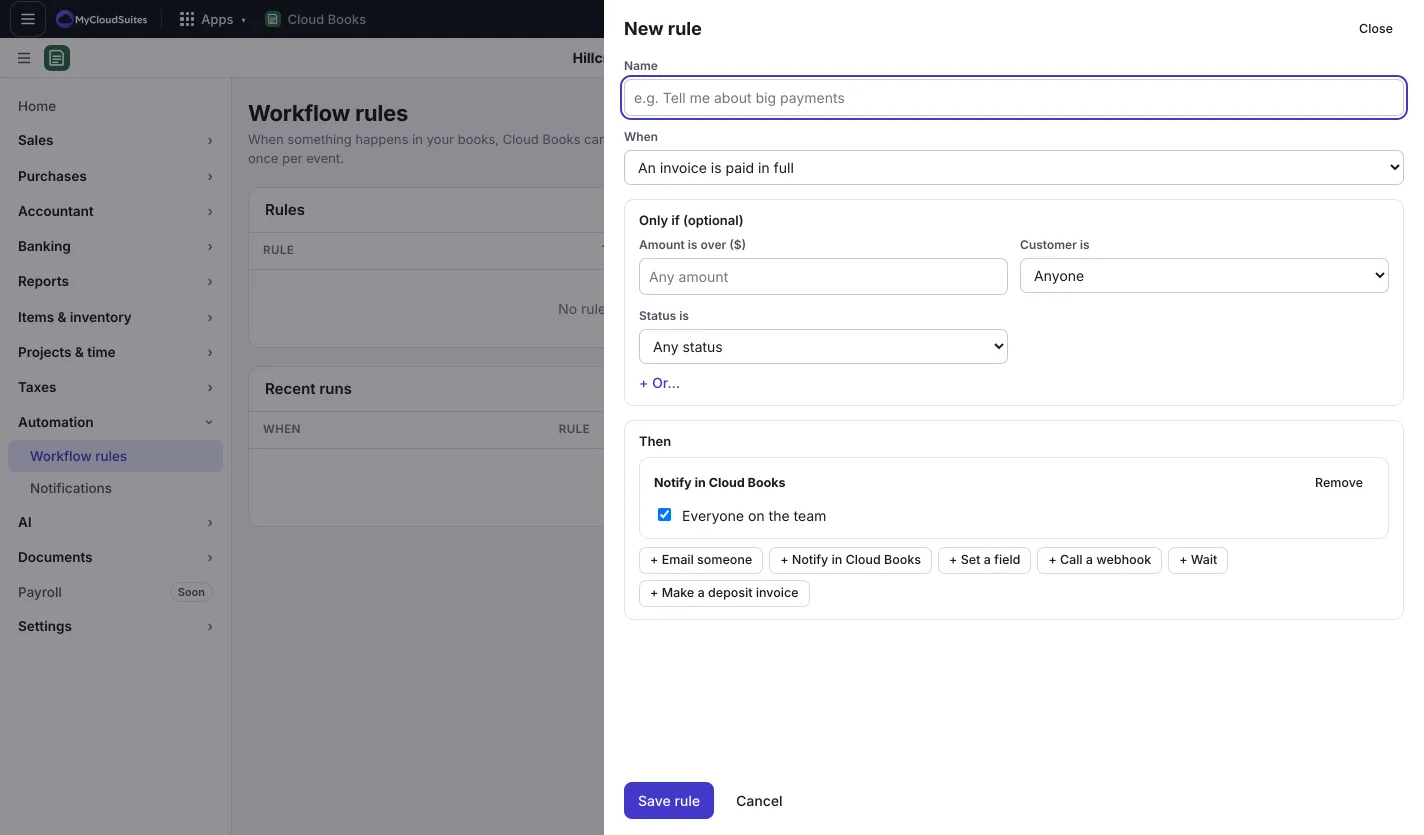
- Go to Automation › Workflow rules and press New rule. (Only the owner or an admin can add or change rules.)
- Give it a Name and pick When it runs, for example when an invoice is paid.
- Under Only if (optional), narrow it, for example Amount is over ($) or Status is.
- Under Then, add one or more actions:
- Email someone: type the Email addresses (comma between them) and Add a note (optional).
- Notify in Cloud Books: pick people, or Everyone on the team.
- Set a field: fill in the memo or a custom field.
- Wait: wait some Days before the next action. Tick Stop here if the invoice (or the deposit made above) is paid by then to follow up only when it’s still unpaid.
- Make a deposit invoice, with a Deposit (% of the estimate).
- Call a webhook, for other software you connect.
- Press Save rule.
Manage rules
On Workflow rules, press Pause or Turn on, Edit or Delete. Recent runs shows what each rule did. Notifications from rules are listed under Automation › Notifications.
Good to know
- Imported history from another app never runs your rules.
- Connecting other software (API keys, webhooks, or your own Claude or ChatGPT) is under Settings › API, webhooks & AI agents.