

Get started with Cloud PDF
Updated November 17, 2026
Cloud PDF by MyCloudSuites is a free PDF editor. You can read, edit, comment on, organize, fill in and sign PDFs. Its Word editor, Cloud Docs, opens Word documents in the same window.
Open Cloud PDF
You can use Cloud PDF in two places, with the same free MyCloudSuites account:
- In your browser. Go to mycloudsuites.com/app. It runs in current Chrome, Edge, Firefox and Safari, on a computer, an iPhone or iPad, or an Android phone. Sign in, or create an account, and the app opens. See Use Cloud PDF in your browser.
- The desktop app for Windows and Mac. Download it free from mycloudsuites.com/download. See Download the app.
A few tools work only in the desktop app. Phones, computers and the desktop app explains what works where.
Open a PDF
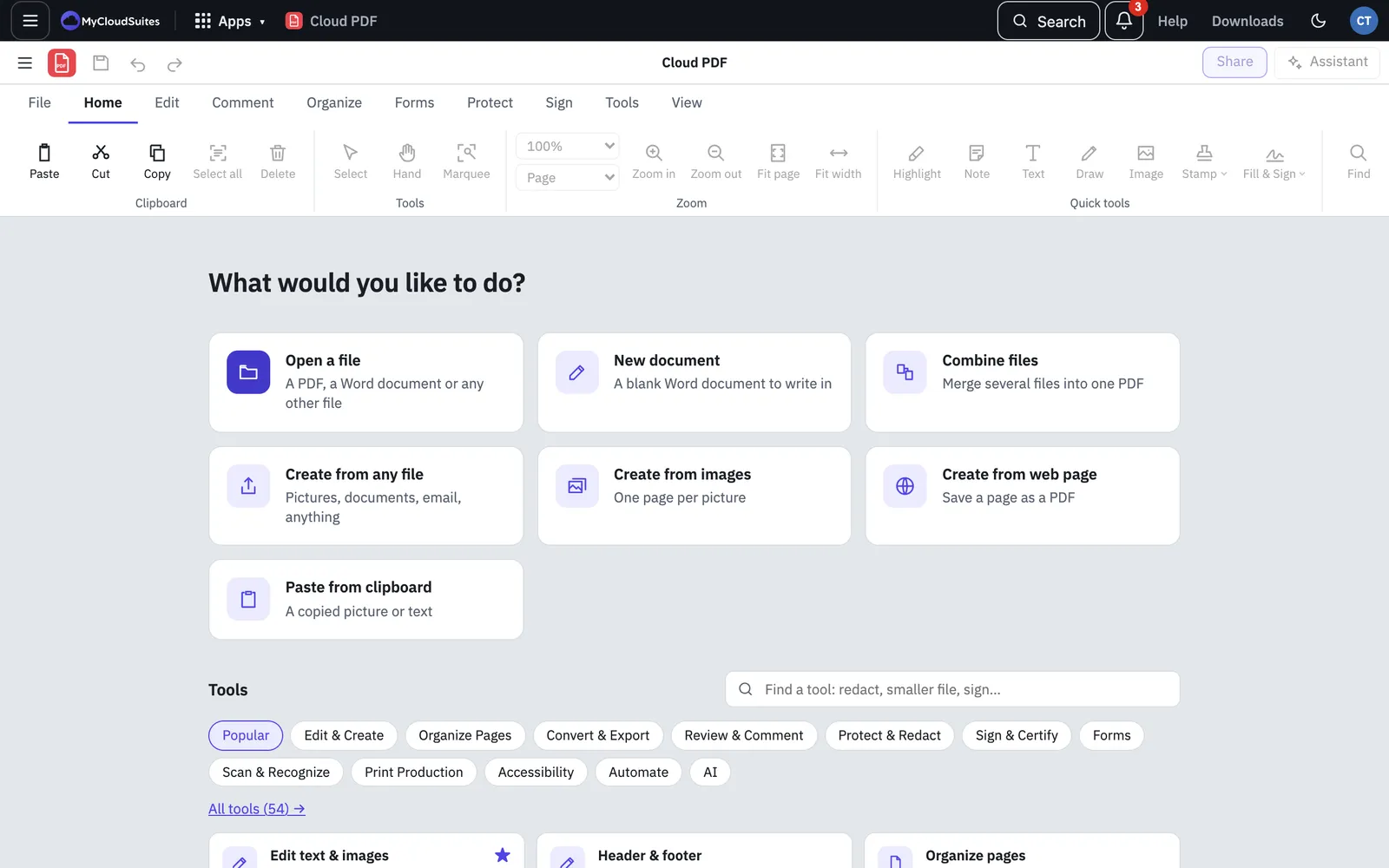
When nothing is open, the start screen asks What would you like to do?
- Choose Open a file, or choose File › Open… (Ctrl+O, or ⌘O on a Mac).
- Pick the PDF.
You can also drop a file anywhere in the window. A Word document opens in Cloud Docs. Most other files, such as pictures, text or email, become a PDF as they open. Files you opened lately are listed under Recent files.
Nothing to open yet? Choose Try a sample PDF to try editing, filling, signing and commenting on one. It shows on the start screen until you have recent files.
Find your way around the window
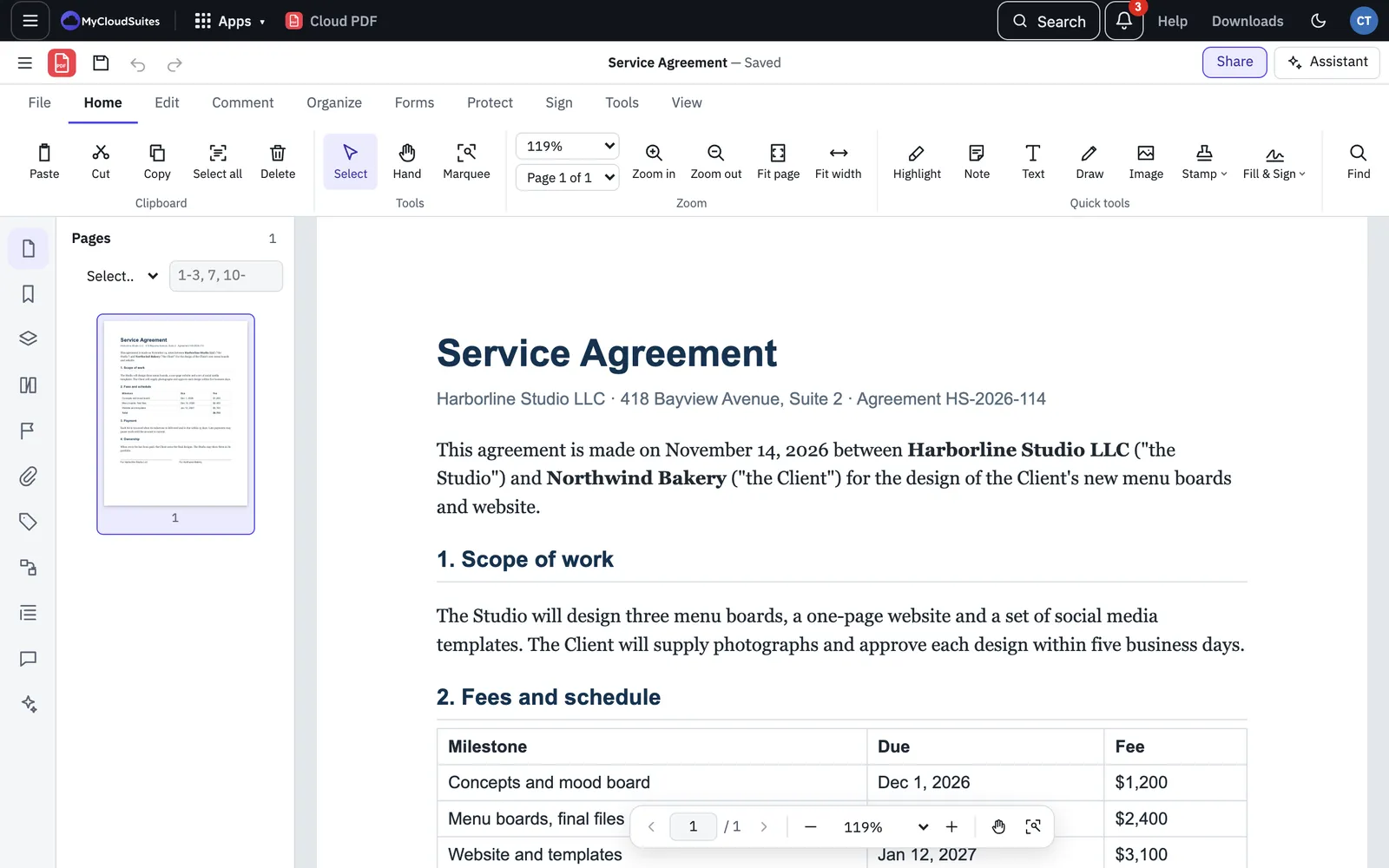
The title bar runs across the top. On the left, the Menu button (≡) holds every command, sorted into File, Edit, View, Pages, Tools and Help. Next to it are Save, Undo and Redo, then the document’s name. On the right are Find, Share and Assistant. In the browser, the MyCloudSuites bar sits above it, with your apps, Help and your account.
The ribbon sits under the title bar. Its tabs group the tools by job: File, Home, Edit, Comment, Organize, Forms, Protect, Sign, Tools and View. Click a tab to see its buttons. Double-click a tab, or press F8, to fold the ribbon down to just its tabs, and do it again to bring it back. When you turn on a tool such as Edit PDF, its own tab appears with that tool’s options.
The side rail on the left opens panels. Pages shows a small picture of every page; click one to go to it. View › Page Thumbnails (F4) opens it too. The rail also has Bookmarks, Attachments, Layers and more.
The page and zoom bar floats at the bottom of the page. Use it to go to the previous or next page, type a page number, zoom out or in, or pick a fit such as Fit page or Fit width. Its first button opens the Pages panel and the other panels.
Tip: To find any tool by name, press Ctrl+K (⌘K on a Mac), or choose Tools › Find a Tool….
Save your work
- File › Save (Ctrl+S, or ⌘S on a Mac) saves your changes to the file.
- File › Save As… (Ctrl+Shift+S, or ⌘⇧S on a Mac) saves a copy under a new name and keeps the original as it was.
In Chrome and Edge, the first time you save a file the browser may ask you to allow Cloud PDF to save changes to it. In Safari, Firefox and on phones, saving downloads a copy instead.
With MyCloudSuites Plus you can also choose File › Save to MyCloudSuites… to keep the file in your online storage, with version history and share links.