

Print a PDF
Updated November 13, 2026
File › Print sends your PDF to a printer, with the pages you choose, at the size you choose. You can also print several pages on one sheet, fold-and-staple booklets and posters made of tiles.
- Open the PDF.
- Choose File › Print…, or press Ctrl+P (⌘+P on a Mac). You can also choose Print on the File tab of the ribbon.
- Choose the pages and sizing (see below). The preview shows how each sheet will look.
- Choose Print.
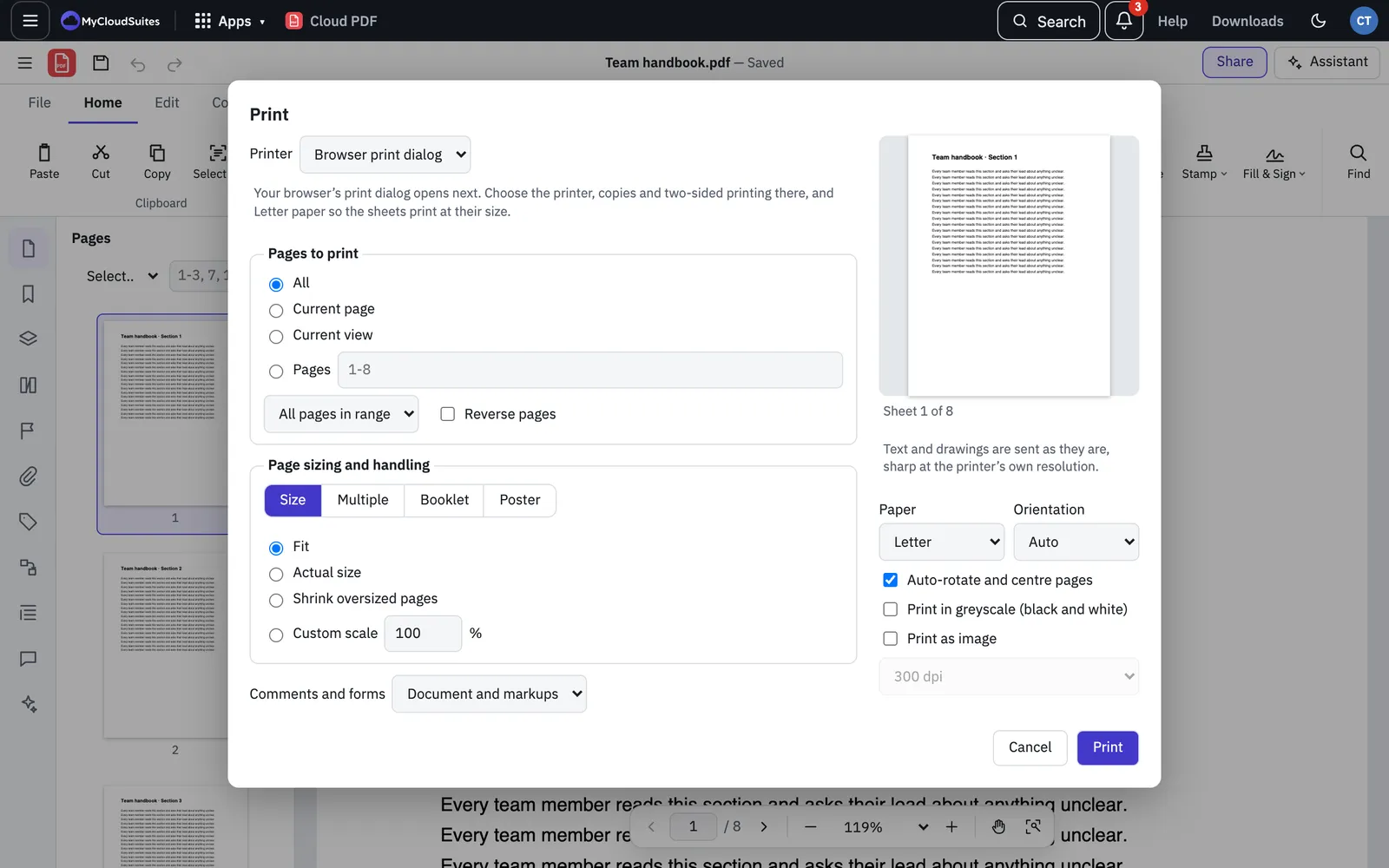
In the browser and in the desktop app
- In the desktop app, choose the Printer, the number of Copies and Sides (one side, or both sides flipped on the long or short edge) in Cloud PDF’s Print dialog. Choose Print and the pages go straight to the printer.
- In the browser, the printer is Browser print dialog. After you choose Print, your browser’s own print dialog opens. Choose the printer, copies and two-sided printing there, and the same paper size you chose in Cloud PDF so the sheets print at their size.
Choose the pages
Under Pages to print, choose All, Current page, Current view or Pages. For Pages, type a range such as 1-3, 7, 10-. If you selected pages in the thumbnails, you can choose Selected pages too.
Below that, choose All pages in range, Odd pages only or Even pages only, and tick Reverse pages to print from last to first.
Page sizing and handling
- Size: Fit, Actual size, Shrink oversized pages, or a Custom scale in percent.
- Multiple: several pages on one sheet. Choose Pages per sheet (2, 4, 6, 9 or 16) and the Page order.
- Booklet: pages arranged so the printed sheets fold into a booklet. Choose Both sides, Front side only or Back side only, which sheets to print, and Binding on the Left or Right.
- Poster: a large page printed in tiles across several sheets. Set the Tile scale and Overlap, and tick Cut marks or Labels if you want them.
More options
- Comments and forms: Document and markups, Document, Document and stamps, or Form fields only.
- Paper and Orientation (Auto, Portrait or Landscape).
- Auto-rotate and centre pages.
- Print in greyscale (black and white).
- Print as image at 150, 300 or 600 dpi sends each sheet as a picture. Otherwise text and drawings are sent as they are, sharp at the printer’s own resolution.
If something goes wrong
- The pages came out blank (browser). On a slow computer, the browser can print before the pages have loaded. After printing, Cloud PDF shows a message with Pages came out blank? Open them in a new tab to print. Choose it, then print from that tab. The link works for 5 minutes, or until the message goes away.
- Your browser has no PDF viewer. Cloud PDF downloads the sheets as a PDF, or opens them in a new tab, so you can print from there. A message tells you which.
- Print is greyed out. The PDF’s security doesn’t allow printing. To change that, you need its permissions password. See Protect a PDF with a password.
- Sizes look wrong. Check that the paper in Cloud PDF matches the paper in the printer, and try Fit.