

Phones, computers and the desktop app
Updated November 13, 2026
Cloud PDF works in three ways: in a browser on your phone, in a browser on your computer, and as a desktop app for Windows and Mac. You use the same free MyCloudSuites account in all of them. This article shows what works where.
On a phone or tablet
Open mycloudsuites.com/app in Chrome, Safari, Edge or Firefox on an iPhone, iPad or Android phone. An iPhone or iPad needs iOS 17.4 or later.
On a phone you have the same tools as in a browser on a computer, laid out for a small screen:
- Read and zoom PDFs, fill in forms, and add your signature, initials or the date.
- Add comments, highlights and notes.
- Organize pages: rotate, move and delete them.
- Sign a document someone sent you. You open the link in the email, with no account or app needed.
- Write in Cloud Docs, with a formatting bar above the keyboard (Bold, Italic, Underline, bullets, numbering and Undo).
When you save on a phone, Cloud PDF downloads a copy of the file to your phone.
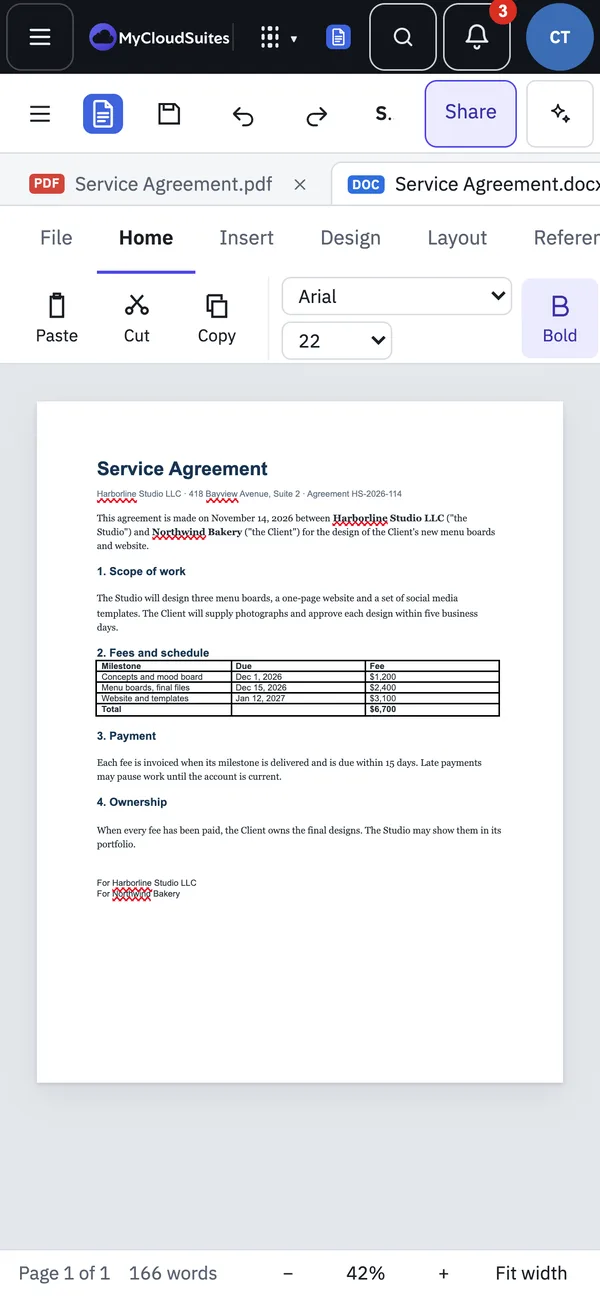
In a browser on a computer
In current Chrome, Edge, Firefox or Safari, almost everything in Cloud PDF works, including editing, forms, redaction, OCR, password protection, digital IDs from a .pfx file, PDF to Word, and Send for signature. In Chrome and Edge, Save writes your changes back to the file. In Safari and Firefox, Save downloads a copy. For the full list, see Use Cloud PDF in your browser.
In the desktop app
The desktop app for Windows and Mac has every tool. Version 1.0.21 is the current release. These work only there:
- scanning paper documents
- Create PDF from Office File… with Office’s own layout
- File › Email… through Outlook or your mail app
- digital IDs in the Windows certificate store or the macOS keychain, including smart cards
- connecting AI apps such as Claude Desktop
- separate windows for a document
- automatic updates, and making Cloud PDF your default PDF app
PDF to Word is a little different in each. In the browser, Cloud PDF converts with its own converter, so there’s nothing to install. The desktop app 1.0.21 still uses Microsoft Word or LibreOffice for it. The next desktop update converts on its own.
Send for signature works in the desktop app 1.0.21 too, while you’re signed in to MyCloudSuites.
A few fixes reached the browser first and come to the desktop app in its next update: clicking a paragraph in Edit PDF puts the cursor where you click, and a signature placed on a rotated page lands where you click.
Tips for phones
- Zoom with two fingers. Pinch to zoom the document, and drag with one finger to move around the page.
- Open panels from the page bar. The bar across the bottom has the Pages button and the page and zoom controls. Panels slide over the document. Tap beside a panel to close it, or tap a page in Pages to go there and close it.
- Turn the phone sideways for wider pages.
- The keyboard won’t cover your typing. The page moves up so the field you’re typing in stays in view.
- Find tools fast. Choose the ≡ Menu button for every command, or Tools › Find a Tool… and type what you want to do.
- Light or dark. Choose View › Appearance.
- Keep your files. A saved file goes to your phone’s downloads. On an iPhone, look in the Files app. With MyCloudSuites Plus, choose File › Save to MyCloudSuites… to keep it online and open it from any device.