

Approve timesheets
Updated November 13, 2026
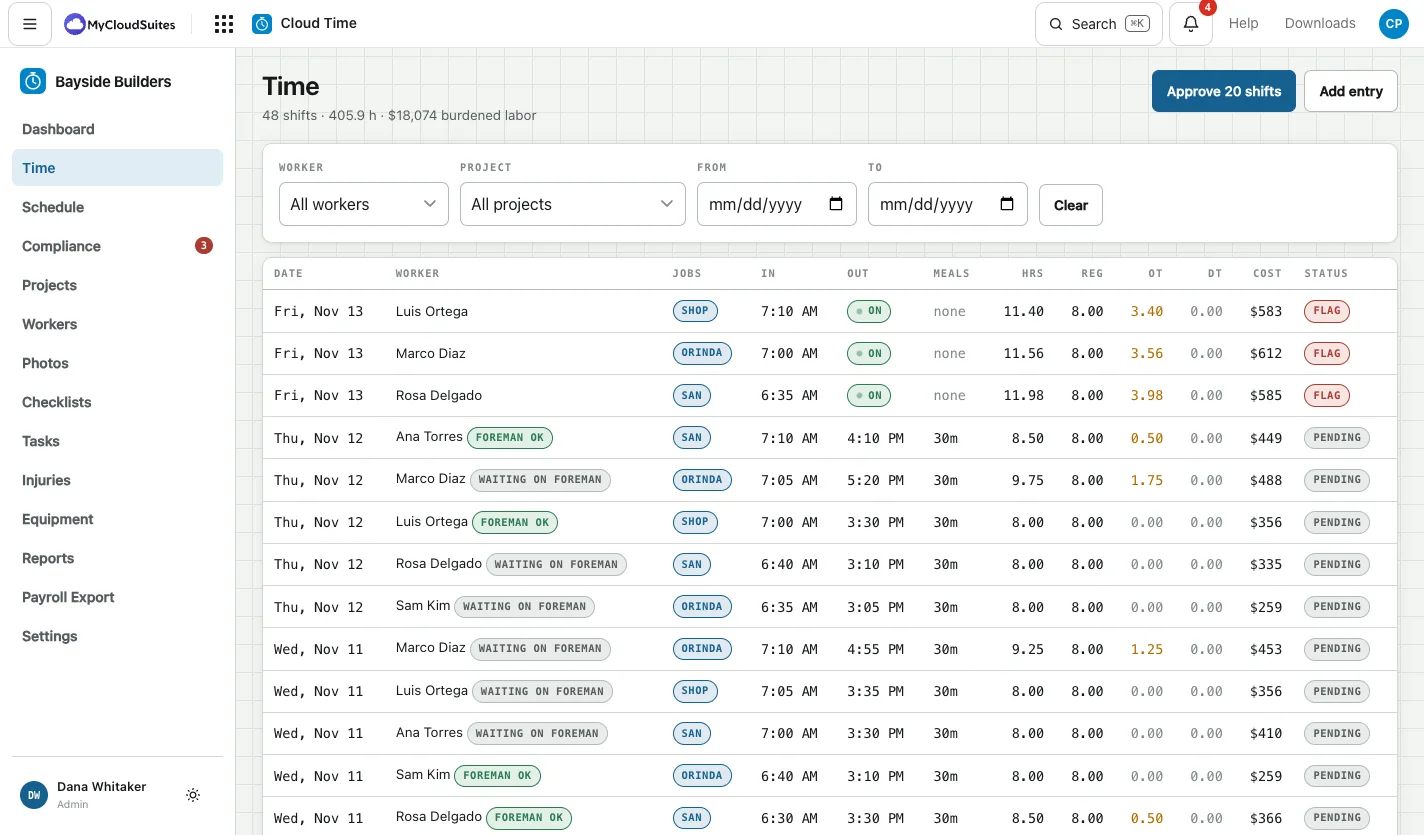
Approved shifts are what payroll uses. Clean shifts can be approved together. A shift with a flag is left out of that, so someone has to look at it.
Approve the clean shifts
- Choose Time.
- Use Worker, Project, From and To to narrow the list if you want, for example to the pay period.
- Click Approve with the number of clean shifts, for example Approve 20 shifts.
Next to it you’ll see how many are flagged. Open each one to approve it.
Approve a flagged shift
- Click the shift.
- Read the flags and fix anything wrong (see Correct a day’s times).
- Under Review, tick Approved for payroll, and Flags reviewed if you’ve dealt with them.
- Click Save shift.
On a phone
On a phone the Time screen shows a card per shift. Tick the clean ones, or tap Select all clean, then tap Approve. Flagged cards don’t take a tick: open them.
In the phone app, office staff can approve too: Crew, then To approve. Flagged days stay unticked there; check them on the website first.
Good to know
- If Foreman OK is on, each day shows Foreman OK or waiting on foreman. You can approve either way. See Foreman OK.
- Approving doesn’t pay anyone. It marks the hours ready for the payroll export.