

OK your crew's days (Foreman OK)
Updated November 13, 2026
Some companies want the foreman to check the crew’s times before the office approves them. That is Foreman OK. It’s off unless the office switches it on.
For the office: switch it on
- Choose Settings.
- Under Foreman OK, tick Foremen tick their crew’s days before the office approves.
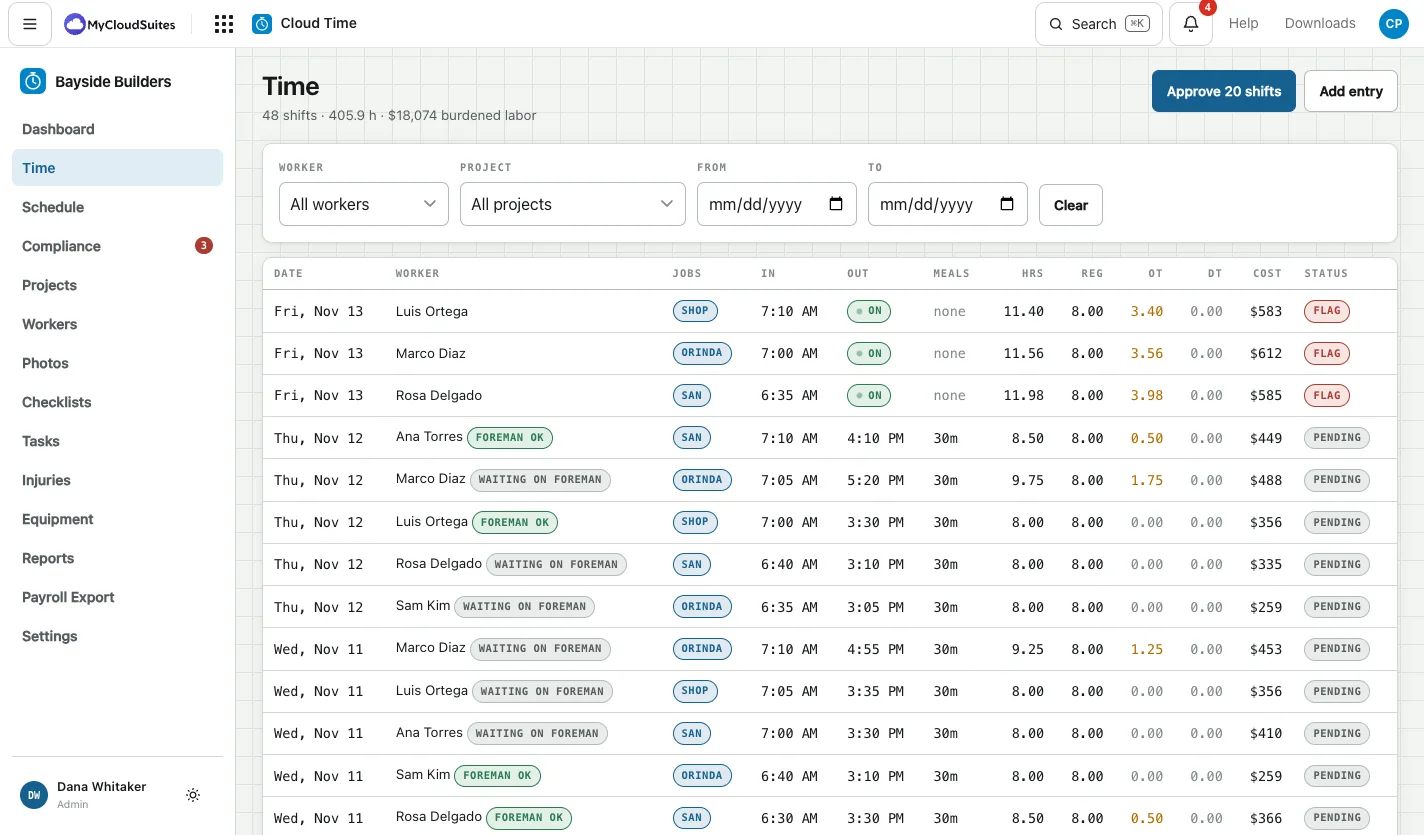
On the Time screen, every finished day that isn’t approved yet then shows Foreman OK or waiting on foreman. You can still approve a day without the foreman’s OK: it’s information, not a lock.
For foremen: OK the days
On the phone app:
- Tap Crew, then Days to OK.
- Tick the days whose times look right.
- Tap OK with the number, for example OK 2.
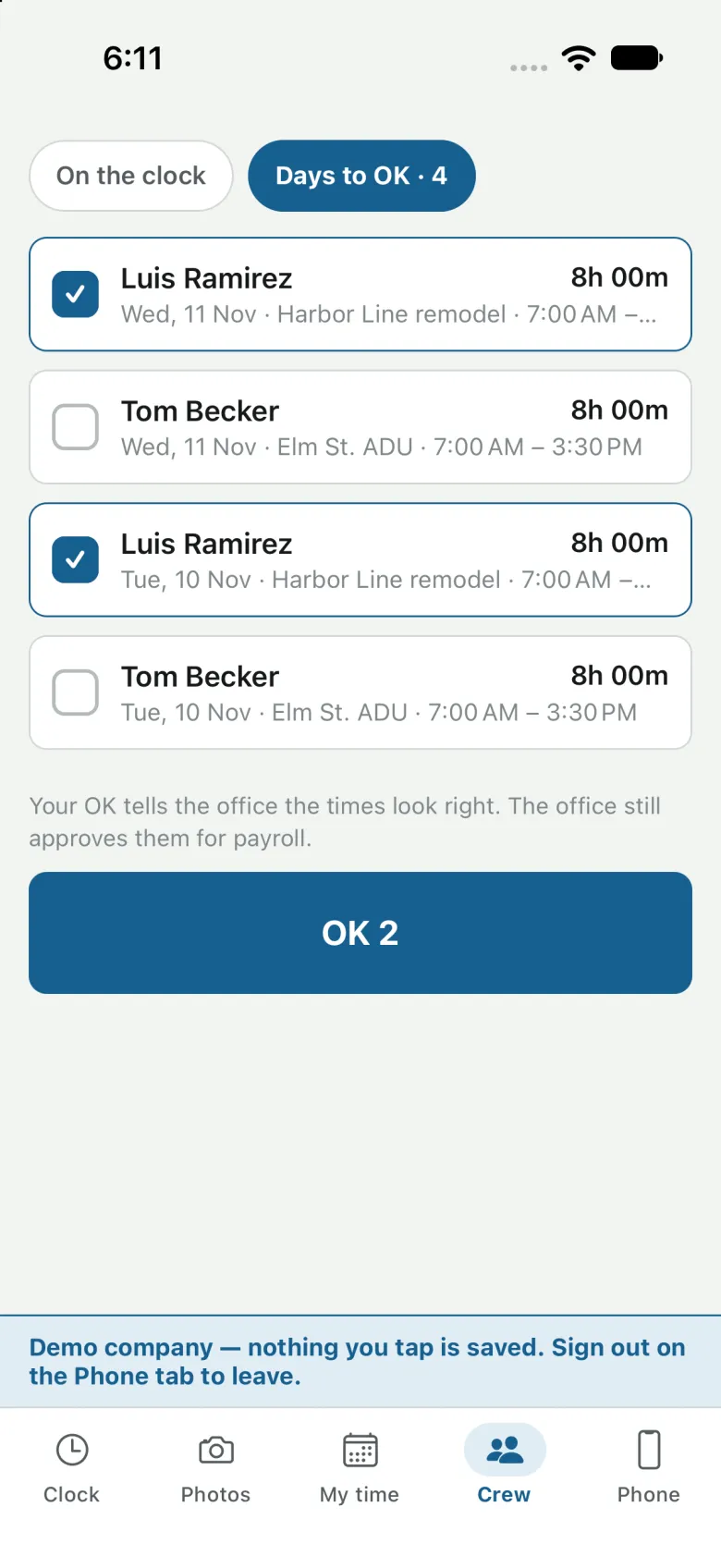
On the website: choose Crew, find the Days to OK for the office card, tick the days and tap OK with the number of days.
You see your crew’s finished days from the last two weeks, never your own. Approving them for payroll stays with the office.
If a day looks wrong
Don’t OK it. Correct it first (see Correct a day’s times) or tell the office.