

Post open shifts and approve swaps
Updated November 13, 2026
When you need extra hands, post an open shift. When someone can’t make a planned day, they can ask a colleague to swap. You have the last word on both.
Post an open shift
- Choose Schedule, then Post an open shift.
- Pick the Job and Day, set Start and Finish, and How many people. Add a Note if you like.
- Click Post it.
Everybody active sees it on their phone and can ask for it. Asking books nothing.
Choose who gets it
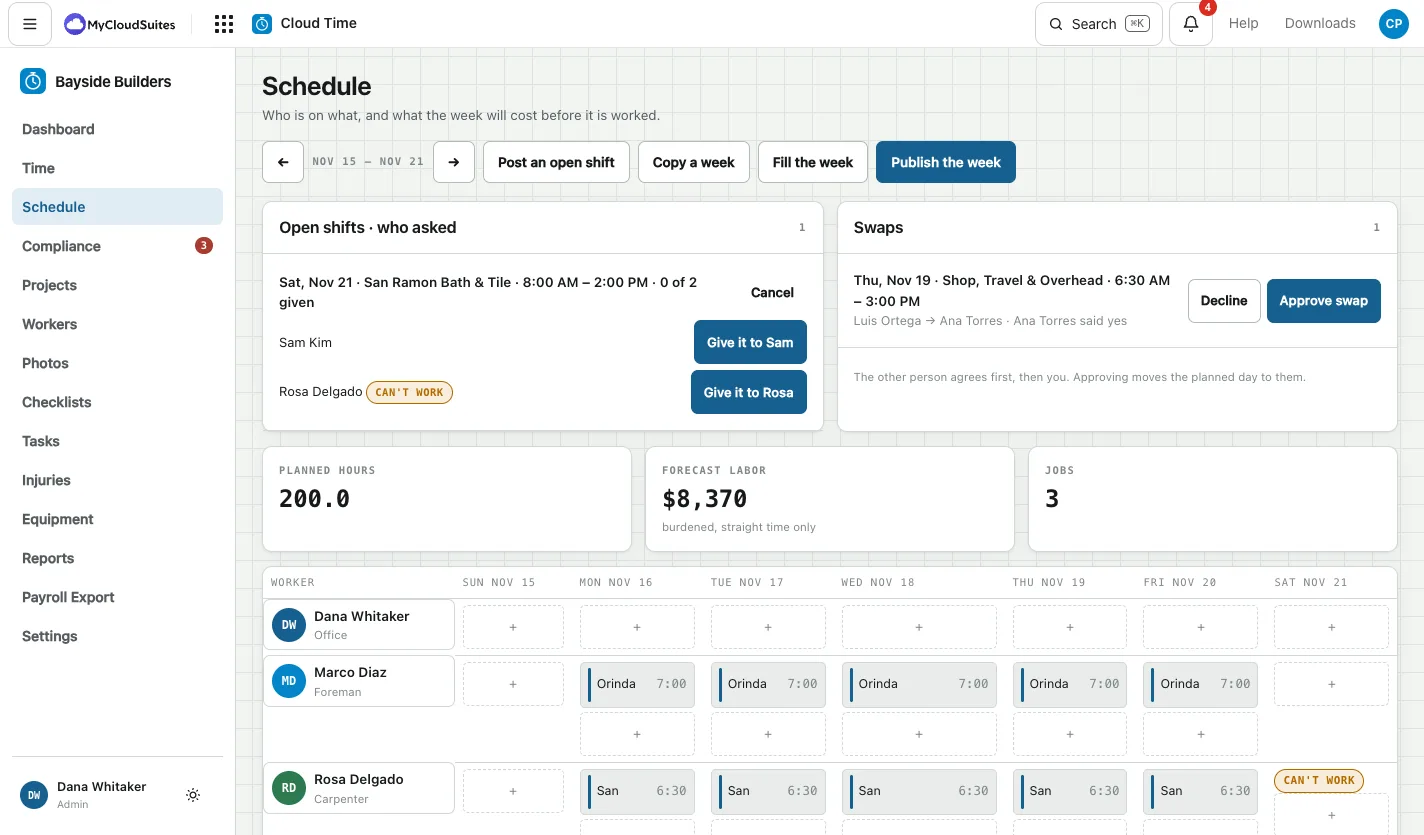
On the Schedule, the Open shifts · who asked card lists each open shift, how many are given, and who has asked. If someone said they can’t work that day, it shows next to their name.
Click Give it to with the person’s name. The day lands on their schedule. Click Cancel to take the open shift down.
Approve a swap
A swap goes in two steps: the person asked agrees first, then you.
- On the Schedule, find the Swaps card.
- A swap the other person has said yes to shows Approve swap and Decline.
- Click Approve swap to move the planned day to them, or Decline to leave it where it was.
Until you approve it, the day stays with the person it was planned for.