

Run payroll: the payroll export
Updated November 13, 2026
Payroll Export turns approved hours into what your payroll provider needs. Cloud Time doesn’t pay anyone: your payroll provider is the paycheck of record.
Export a pay period
- Approve the period’s shifts first. See Approve timesheets.
- Choose Payroll Export.
- Pick the pay period at the top. The current one is marked current.
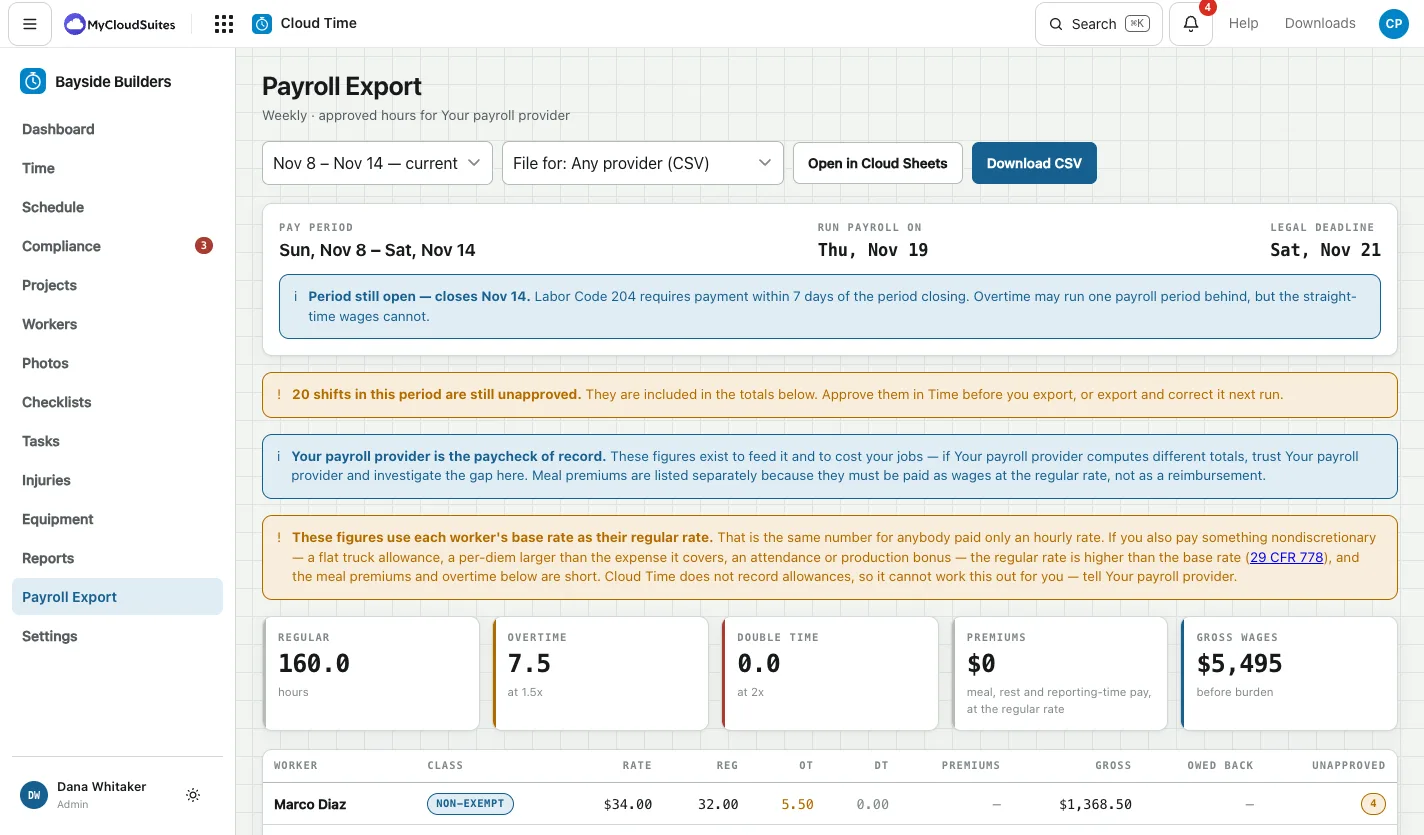
- Check the top of the page: the Pay period, the day to Run payroll on and the Legal deadline.
- Check the totals: Regular, Overtime, Double time, Premiums and Gross wages, then each worker’s row.
- Keep File for: Any provider (CSV), and click Download CSV, or Open in Cloud Sheets.
What the page tells you
- Unapproved shifts are counted in the totals and called out, never hidden. Approve them first, or export and correct it next run.
- Premiums are meal and rest break premiums, paid as wages at the regular rate.
- Reimbursements (receipts and miles owed back) are listed separately, not as wages.
- These figures use each worker’s base rate as their regular rate. If you also pay a nondiscretionary bonus or allowance, the true regular rate is higher, and you need to tell your payroll provider.
Close the period
When payroll has run, click Close this period. Closed days can’t be changed by mistake. Reopen… opens it again if you need to.
Good to know
- Custom range… is for spot checks, not for running payroll: it ignores your pay schedule.
- Set your pay schedule in Settings, under Pay schedule.
- Files made for Gusto, ADP and Paychex are coming soon. See Payroll provider files.