

Copy a week and saved weeks
Updated November 13, 2026
Most weeks look like the last one. Copy a week puts the same person on the same job, with the same start and finish, on the same weekday.
Copy a week
- Choose Schedule and go to the week you’re planning.
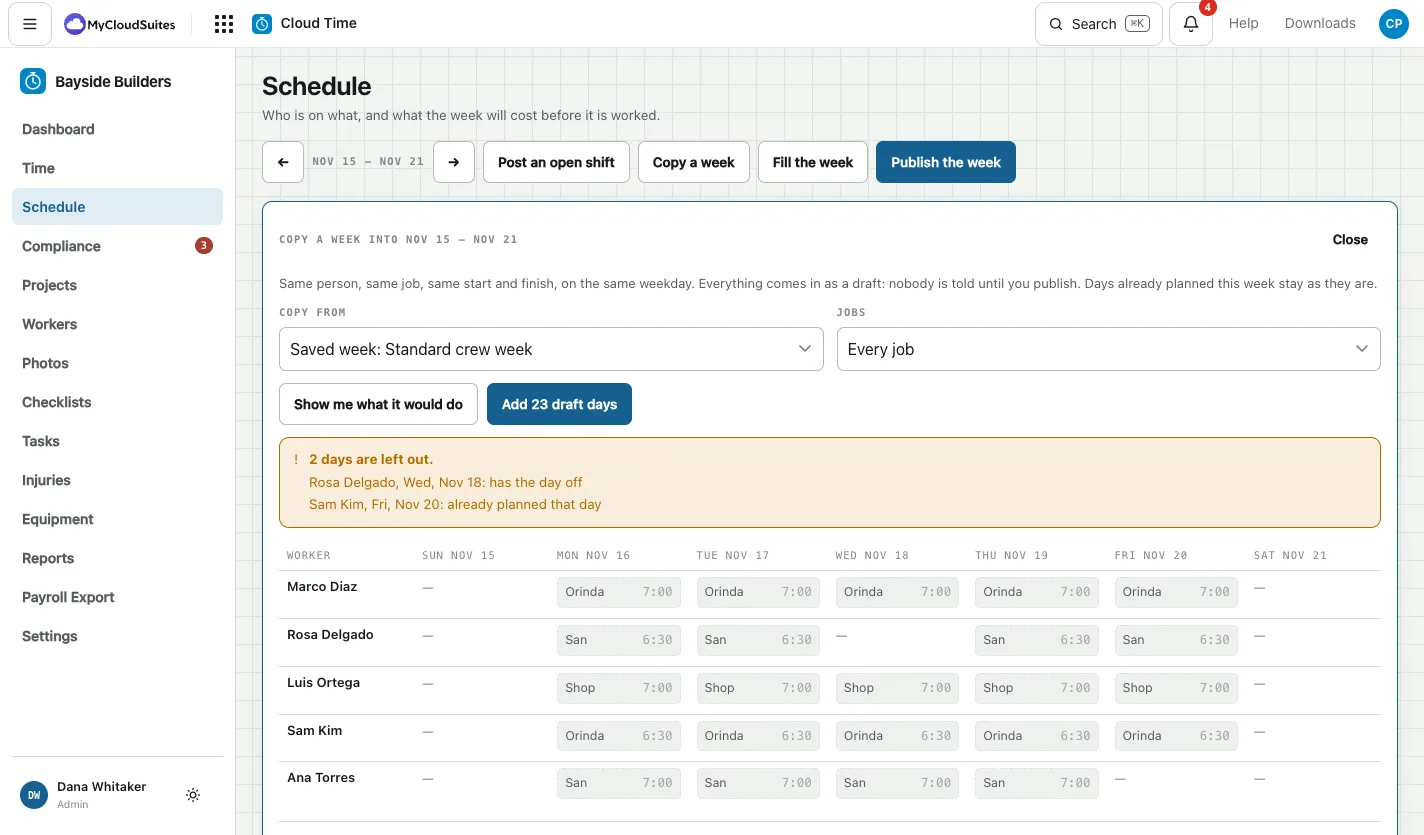
- Click Copy a week.
- Under Copy from, pick Last week, Two weeks ago, or a Saved week. Under Jobs, keep Every job or pick one.
- Click Show me what it would do. You see every day it would add, and any it leaves out with the reason, for example someone has the day off or is already planned.
- Click Add with the number of draft days.
Everything comes in as a draft, and nobody is told until you click Publish the week. Days already planned in that week stay as they are.
Save a week to use again
- Open Copy a week on a week that looks the way you want.
- Click Save this week as a saved week… and give it a name, like “Standard crew week”.
Saved weeks show under the panel with how many days they hold. Click × on one to delete it.