

Plan the week (Schedule)
Updated November 13, 2026
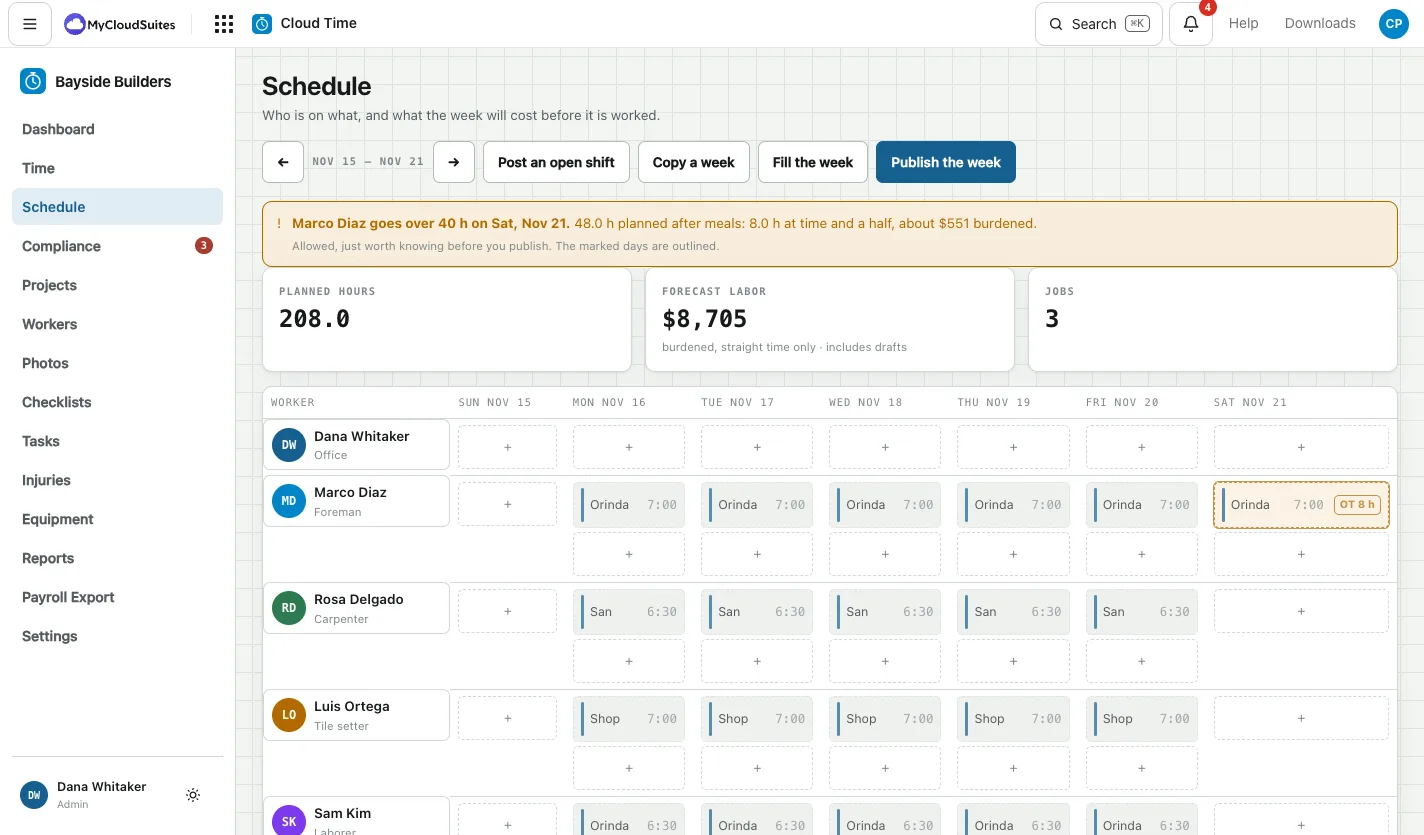
The Schedule shows who is on what, and what the week will cost before it is worked. Everything you add starts as a draft, and the crew see nothing until you publish.
Plan a day
- Choose Schedule. Use the arrows to move between weeks.
- Press + in a person’s row on a day.
- Pick the job by its number, then type the start and finish in 24-hour time, like 07:00 and 15:30.
To change a planned day, click it. To remove it, click it and type 0 for the job.
Fill a week faster
- Copy a week copies last week, two weeks ago or a saved week. See Copy a week and saved weeks.
- Fill the week fills one job from the crew already assigned to it: pick the Job, People each day, Start, Finish and Days, then Show me what it would do.
Check the cost, then publish
Above the grid you see Planned hours, Forecast labor at each worker’s full cost, and the number of Jobs. Forecast against budget warns when a week alone spends more than is left on a job.
If someone is booked twice, or someone goes into weekly overtime, the schedule says so before you publish. See Weekly overtime warnings.
When it looks right, click Publish the week and confirm. The crew see their days on their phones.
Good to know
- Time off waiting shows on the Schedule too. Answer it before you plan those days. See Approve time off.
- When a person has said when they can’t work, it shows on their row. See When you can’t work.