

Add a deal
Updated November 15, 2026
Add a sale you’re working on. It starts in Lead and you move it along as it progresses.
Steps
- Click New deal at the top (the + on a phone). The deal card opens full screen.
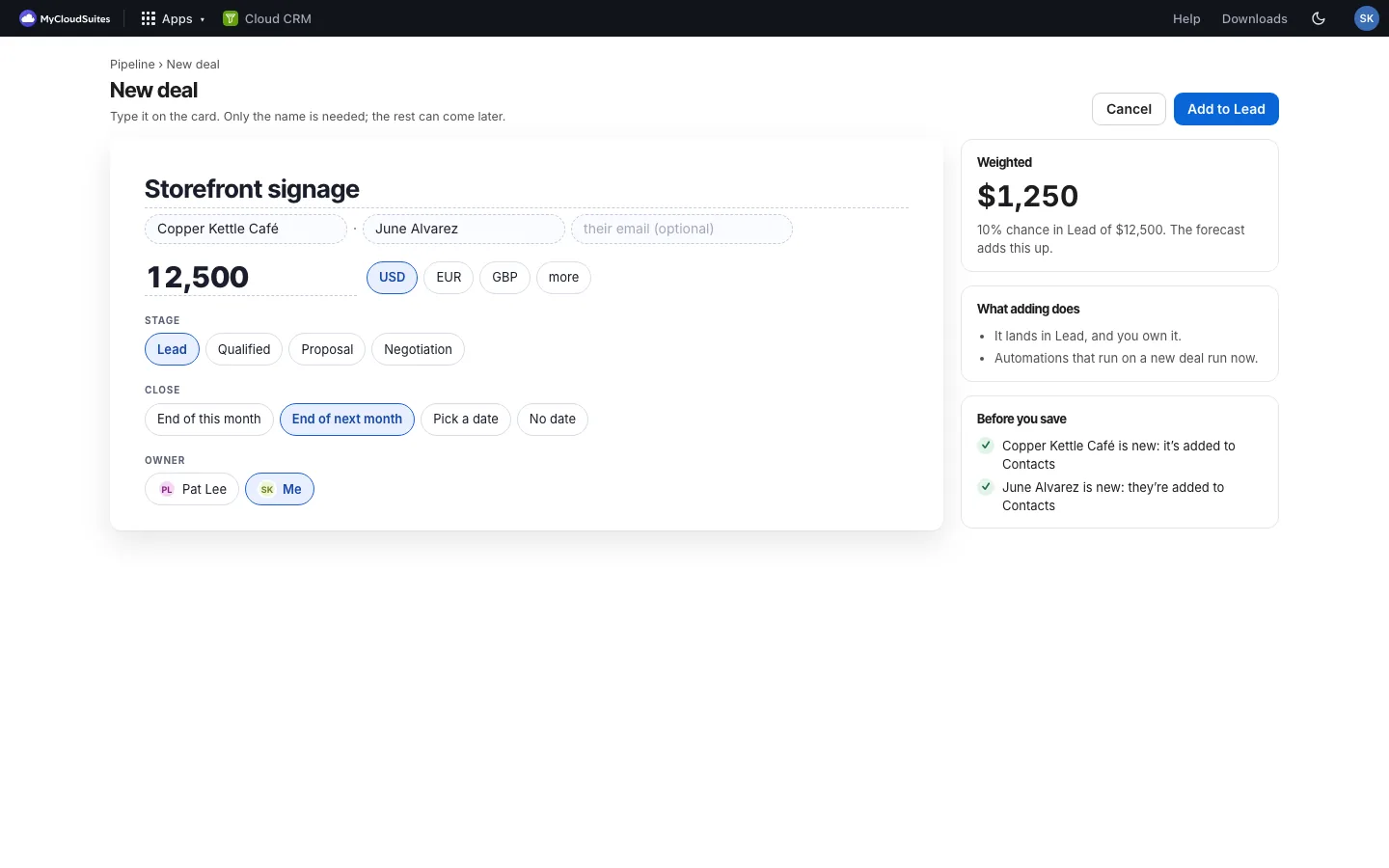
- Type the deal’s name on the card, for example “Website redesign”. It’s the only thing you need.
- Fill in what you know, right on the card:
- Company and Contact: type a name, or pick one already in your CRM. A new name adds a new company or person. For a new contact you can add their email too.
- The value, like 8,400, with its currency chip (your main currency is picked; more lists them all).
- Stage: Lead is picked; choose another chip to start further along.
- Close: End of this month, End of next month, or Pick a date.
- Owner: you, unless you pick someone else.
- Check Before you save on the right (for example “No close date yet”), then click Add to Lead (or the stage you picked).
The right side shows the weighted value: the value times the stage’s chance of closing. On a phone those cards sit under the deal and the button stays at the bottom.
Good to know
- Adding a deal from a column on the board (+ Add deal under Lead) starts it in that stage.
- The deal’s currency is your CRM’s main currency (the one most of your deals use). See Currencies.
- Change anything later in the deal’s Details. See The deal panel.
- Lots of deals to add? Import them from a CSV file.