

Find your way around
Updated November 15, 2026
A quick tour of the screen, on a computer and on a phone.
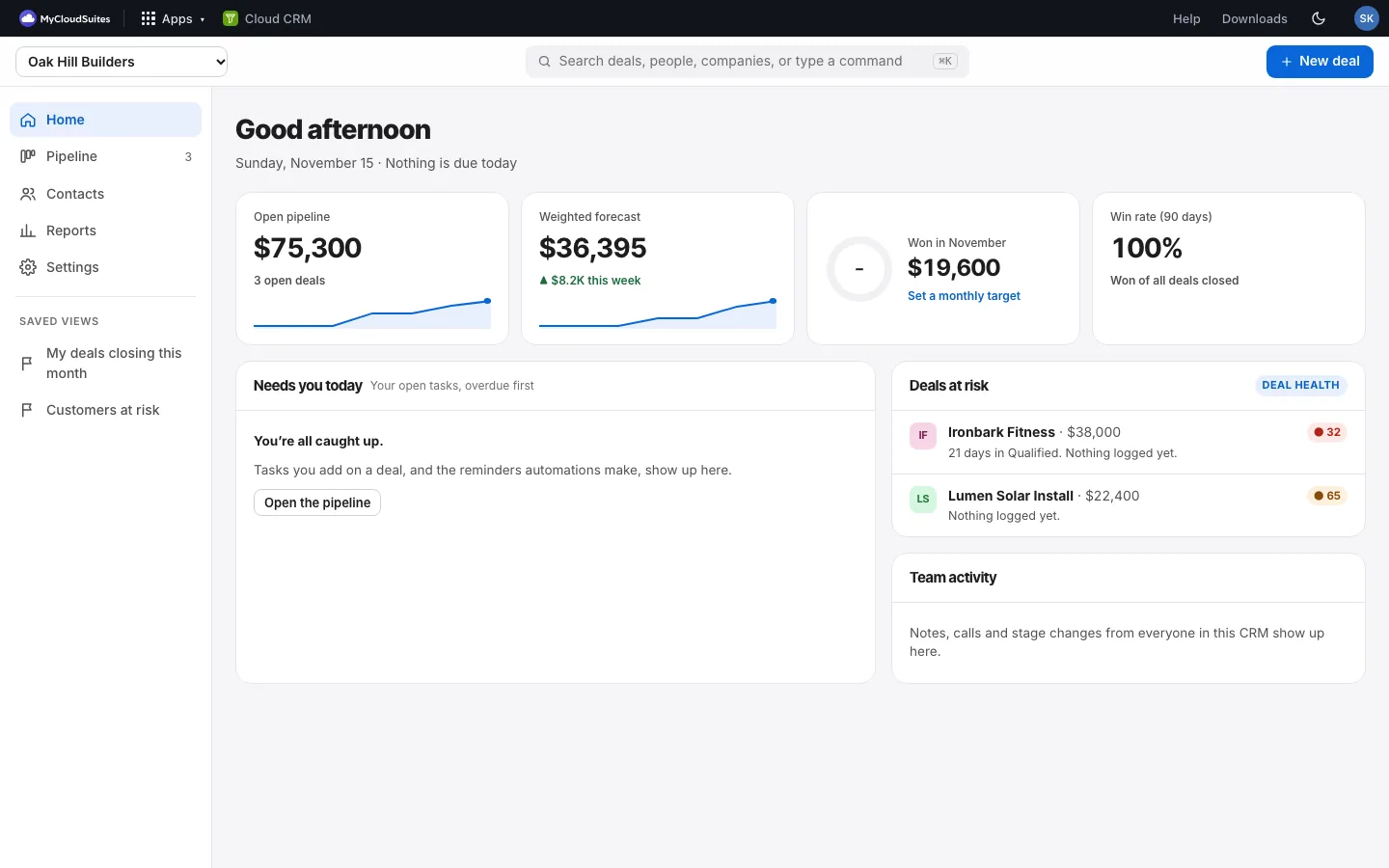
On a computer
- Top row: the CRM you’re in (Personal or your organization), Search (see Search and commands), and New deal.
- Left side: Home, Pipeline, Contacts, Reports and Settings. Pipeline shows how many open deals you have. Settings has your automations, targets and goals, import and export, and (for owners and admins) pipelines, fields and lost reasons.
- Saved views, under them: My deals closing this month, Customers at risk, and any views you or your team saved. One click opens the pipeline or your contacts already filtered. See Saved views.
- An AI credits note appears at the bottom only when there’s something to know, like credits running low. See AI credits.
On a phone
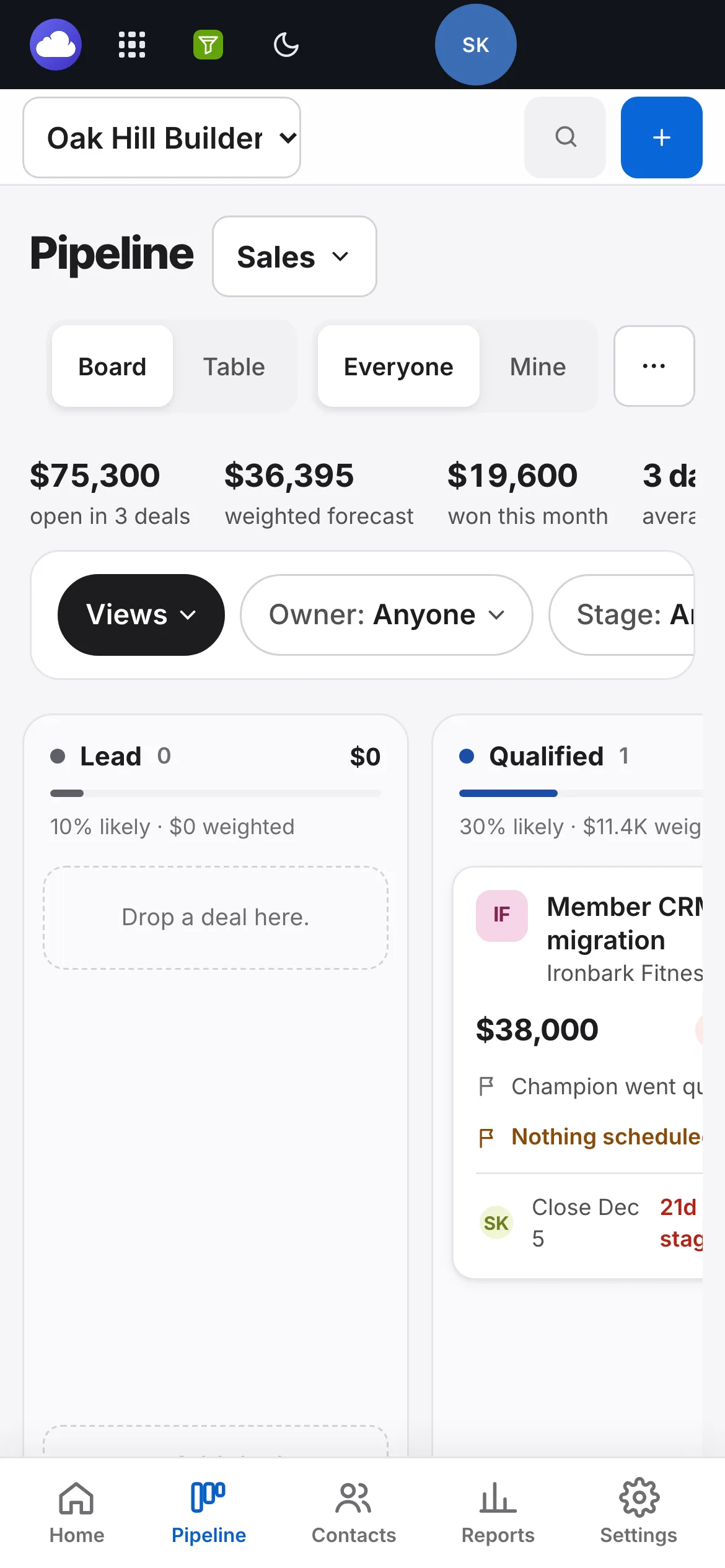
- The pages are in tabs along the bottom: Home, Pipeline, Contacts, Reports, Settings.
- The + button at the top adds a deal, and the magnifying glass opens search.
- Saved views are under Views, at the start of the filter row on the pipeline and Contacts.
Records open on the right
Clicking a deal, person or company opens it in a panel on the right (full screen on a phone). Press Escape or the × to close it.
Good to know
- Can’t change anything? The line “You can view this CRM but not change it.” means you have view-only access. See Who can do what.