

Open and save drawings
Updated November 13, 2026
Drawings open and save on your own computer. Cloud CAD reads its own .ccad files, DXF and DWG.
Open a drawing
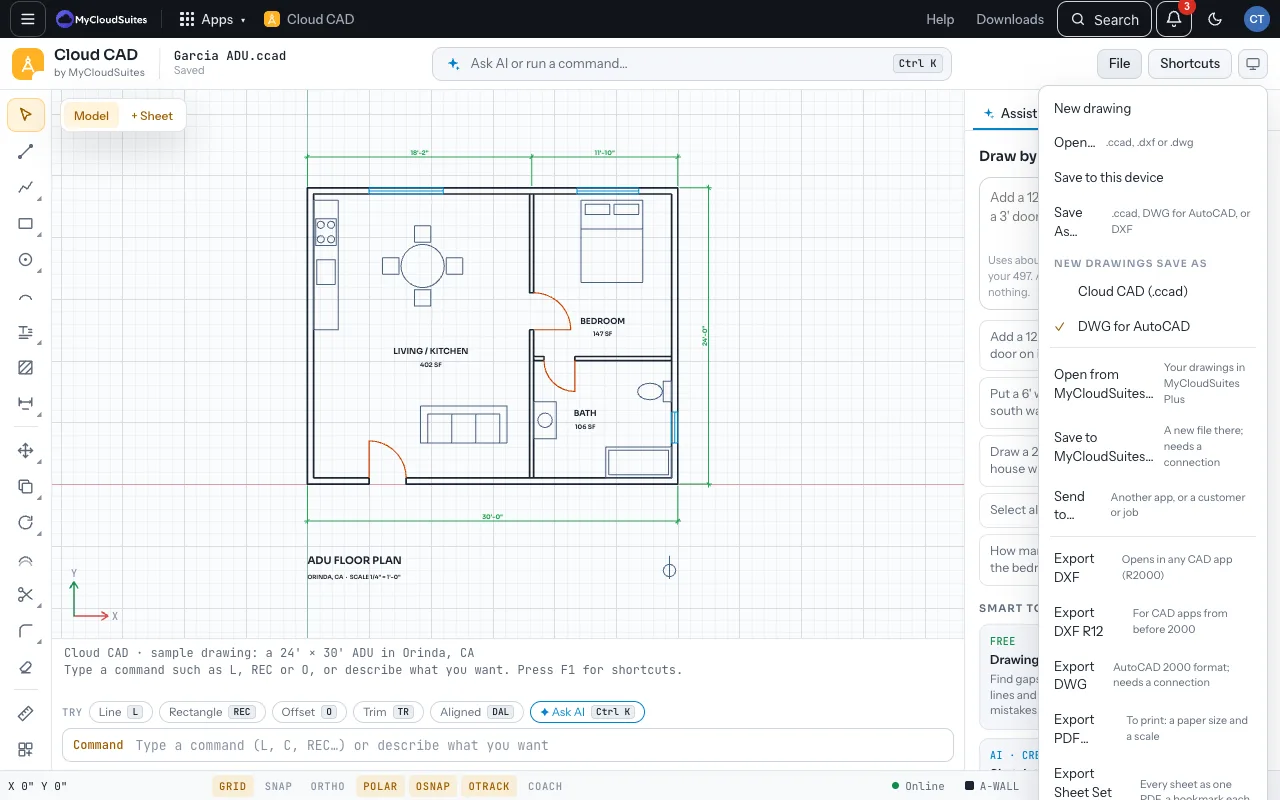
- Choose File › Open… (or Ctrl O), or drop a file onto the window.
- Pick a .ccad, .dxf or .dwg file. A DWG is converted on our server, so it needs the internet.
- If the drawing open now has changes not saved, Cloud CAD asks first.
Save it
- Choose File › Save to this device (Ctrl S). In the browser the file downloads; the desktop app saves it where it came from.
- To change its name or format, choose File › Save As… and pick .ccad, DWG for AutoCAD or DXF.
Which format?
- .ccad keeps everything: sheets, markup notes, layer states, your blocks and their attributes.
- DWG and DXF open in other CAD programs. Layers, dimensions, blocks with attributes and frozen or locked layers go with them. Sheets go as layouts.
- New drawings save as in the File menu sets what a new drawing saves as. DWG needs a connection; offline, it saves as .ccad and says so.
If something goes wrong
- “Couldn’t reach MyCloudSuites” on a DWG. DWG files need the internet. Save as DXF or .ccad until you’re back online.
Need more? DWG and DXF files, or contact us.