

Find your way around the screen
Updated November 13, 2026
Everything in Cloud CAD sits in five places. Here’s what each one does.
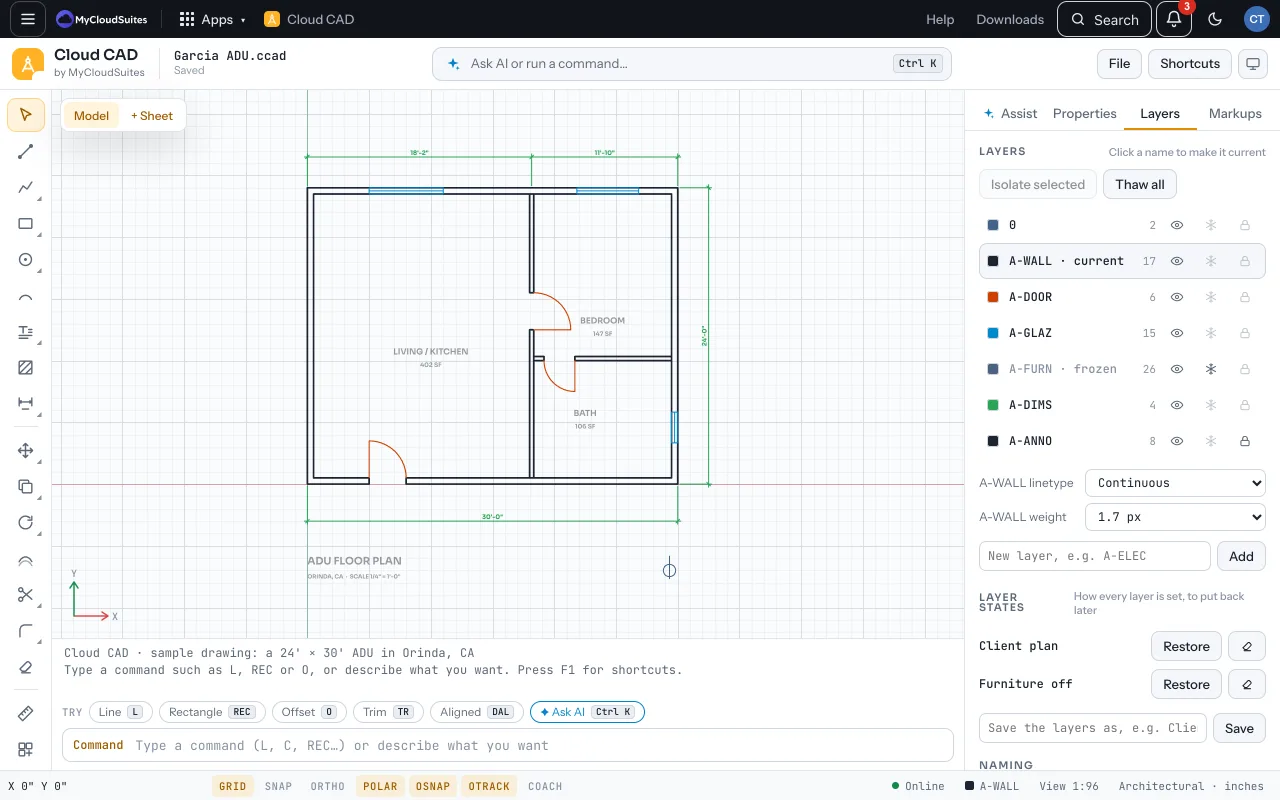
The parts
- The top bar. The drawing’s name and whether it’s saved, Ask AI or run a command (Ctrl K), File, Shortcuts, and light or dark.
- The tools on the left. Draw, change and dimension. A small corner mark means more tools of the same kind: press and hold, or right-click, to choose one.
- The drawing. Scroll to zoom where the cursor is, drag with the middle button (or hold Space and drag) to pan. Model shows the drawing itself; + Sheet makes a printable sheet.
- The command line at the bottom. Type a command, a length or a point, and read what the tool asks next. Chips under it suggest what to do next.
- The panel on the right. Assist (AI drafting and the free tools), Properties (what’s selected), Layers and Markups.
- The status bar. Where the cursor is, switches for GRID, SNAP, ORTHO, POLAR, OSNAP, OTRACK and COACH, whether you’re online, the current layer, and the units.
Tips
- COACH shows a short tip for each tool. Turn it off in the status bar once you know your way.
- On a narrow window, the panel is behind the Panel button.
Need more? Use the command line, or contact us.