

Import lists, spreadsheets and payrolls
Updated November 18, 2026
Bring your lists into Cloud Books from a CSV file, record payrolls you ran elsewhere, or take everything out in one ZIP. All of it is in Settings › Import & export.
Import a list
- Go to Settings › Import & export › Import a list.
- Pick what: Customers, Vendors, Products and services, Chart of accounts, Sales tax rates, Opening balances (trial balance), Unpaid invoices or Unpaid bills. Pick From (the app it came from) to see how to export it there. Press Next: upload.
- Upload: drop a CSV file (up to 5 MB). From Excel or Cloud Sheets, save it as CSV first. Pick how Dates in the file look like, and what to do If it’s already in Cloud Books. Press Next: match columns.
- Match columns: check each Cloud Books field against a column in your file. Fields marked * are required. Press Next: check.
- Check and finish: see what will be added, updated and skipped, and any problems. Press Import (number) rows.
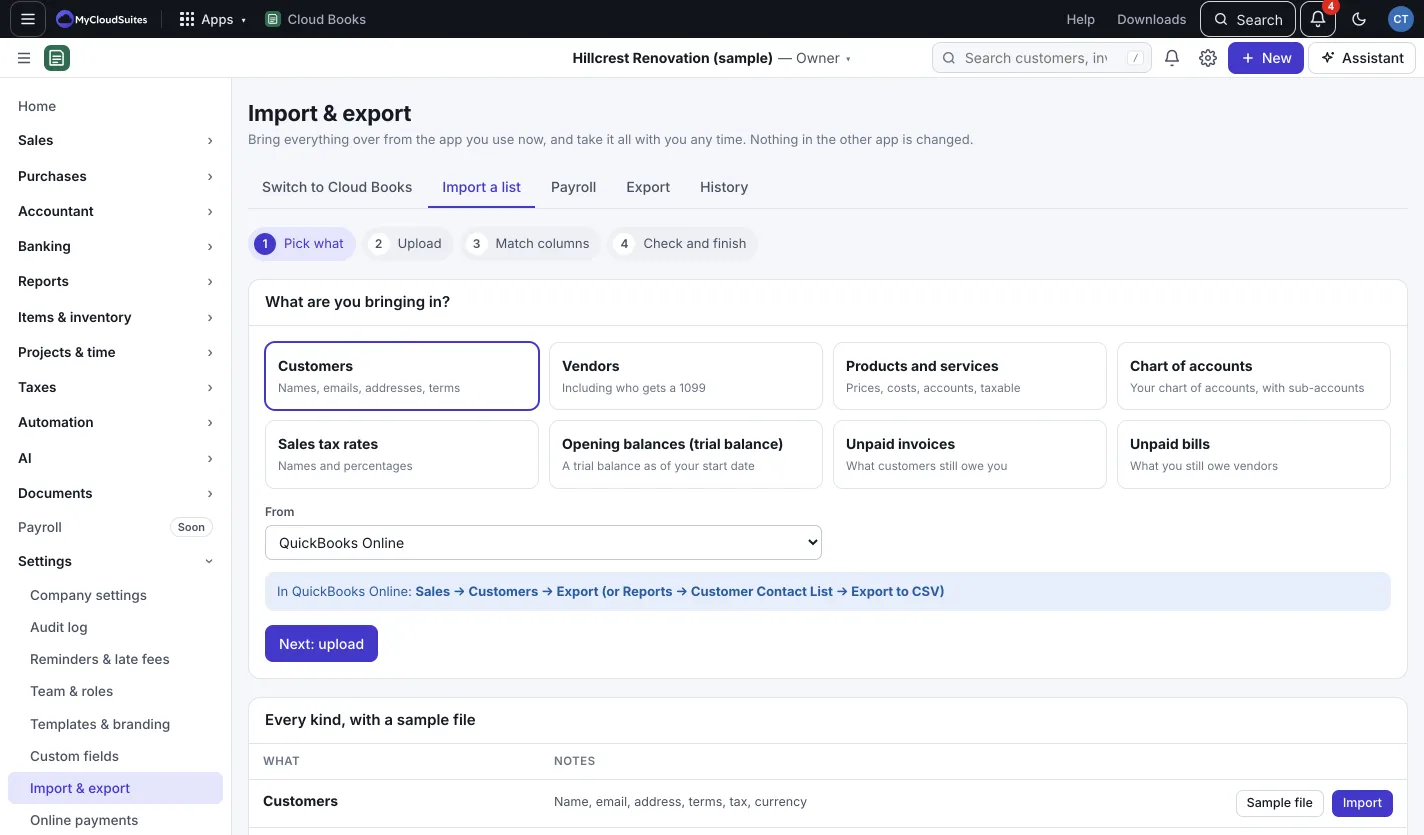
Not sure how to lay out a file? Under Every kind, with a sample file, press Sample file for any kind.
Opening balances
Import your chart of accounts first. Pick Balances as of, usually the day before you start using Cloud Books. The balances post as one opening entry, against Opening balance equity. Receivables and payables come from your unpaid invoices and bills, so import those as Unpaid invoices and Unpaid bills. Each becomes an invoice or bill for what’s still owed, posted against Opening balance equity, so your income and costs aren’t counted twice.
Invoices, bills and payments from a spreadsheet
Transactions come in through Switch to Cloud Books with Spreadsheet or another app, so payments stay linked to what they paid. Drop one file per kind (invoices one row per line, payments, and so on); Books works out which is which, and you match the columns once per file.
Import a payroll run
Pay people through another payroll service? Bring each payroll into your books from its report:
- Go to Import & export › Payroll (or New › Import a payroll).
- Under Upload a payroll file, pick From and choose the Payroll file (the payroll’s journal report, as CSV or .xlsx).
- Match columns, then Choose accounts: where each payroll line goes in your books. Books remembers these for next time.
- Check and post. It posts one journal entry per payroll date. An unbalanced payroll is refused.
This doesn’t run payroll: nothing is worked out, filed or paid. It only records a payroll you already ran.
Undo an import
In Import & export › History, press Undo on an import and confirm with Undo import. Everything it added is removed and anything it changed is put back. This only works if nothing from it was edited since.
Export everything
Import & export › Export › Download (company) (ZIP) gives you one ZIP with a CSV for each list, every document and its lines, payments, the journal and a trial balance as of today, plus company.json with every record.